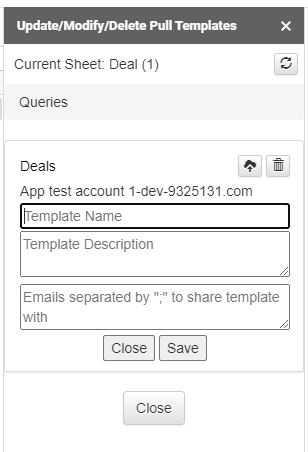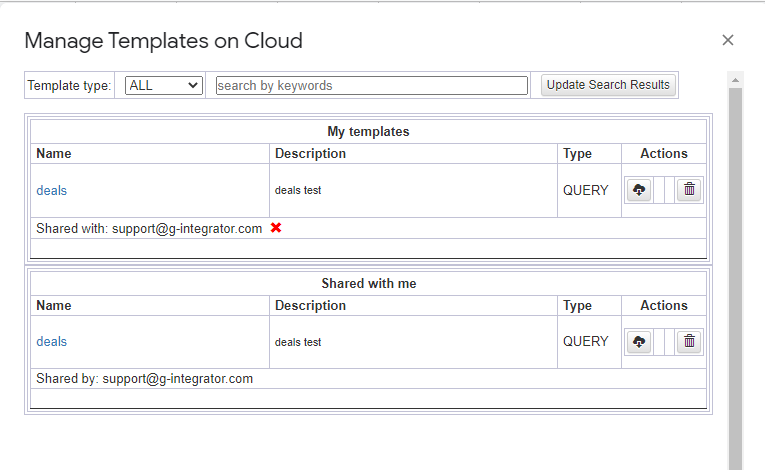
Dear clients! We want to share with you our most recent improvement: dynamic filters.
The dynamic filters will allow you to filter your data based on the values in the spreadsheet. Let me illustrate this functionality with a few examples:
Example 1: Filtering deals by name
Let’s create a template to select deals:
I’ve created a template to get Deals. Currently, it selects slightly over 1000 records:
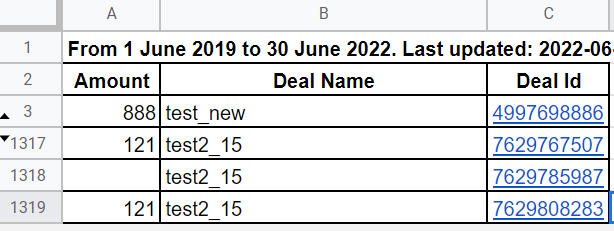
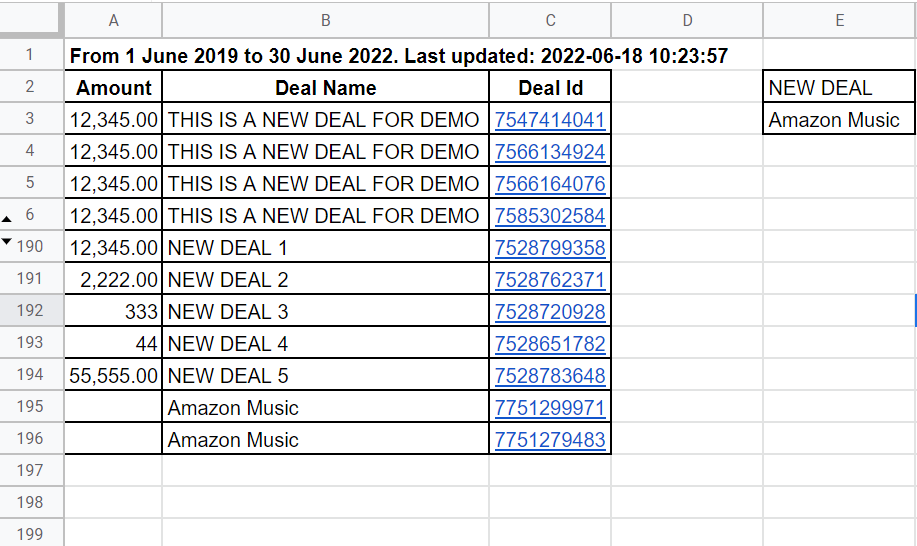
Now, let me filter it by the deal name. For this, I will enter the desired deal’s names into the column E of the spreadsheet:
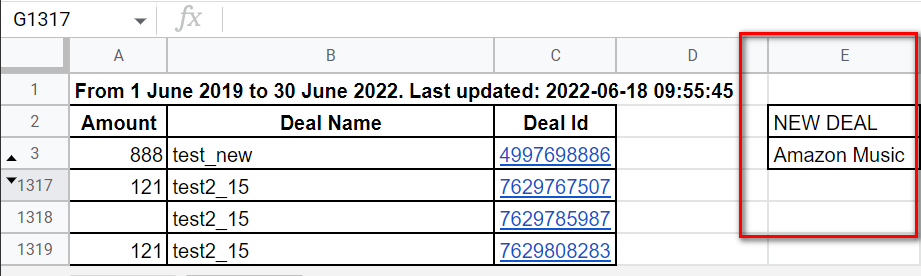
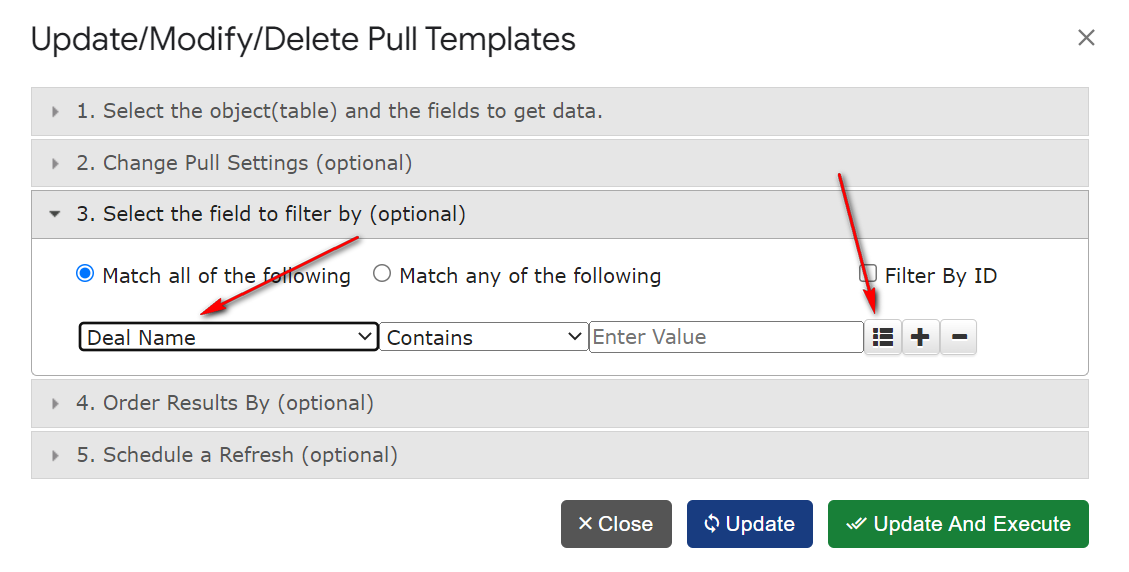
And I will modify the template to filter against these values. For this, I will open the template, select the field “Deal name” in the filter, and then will click the dynamic filter button:
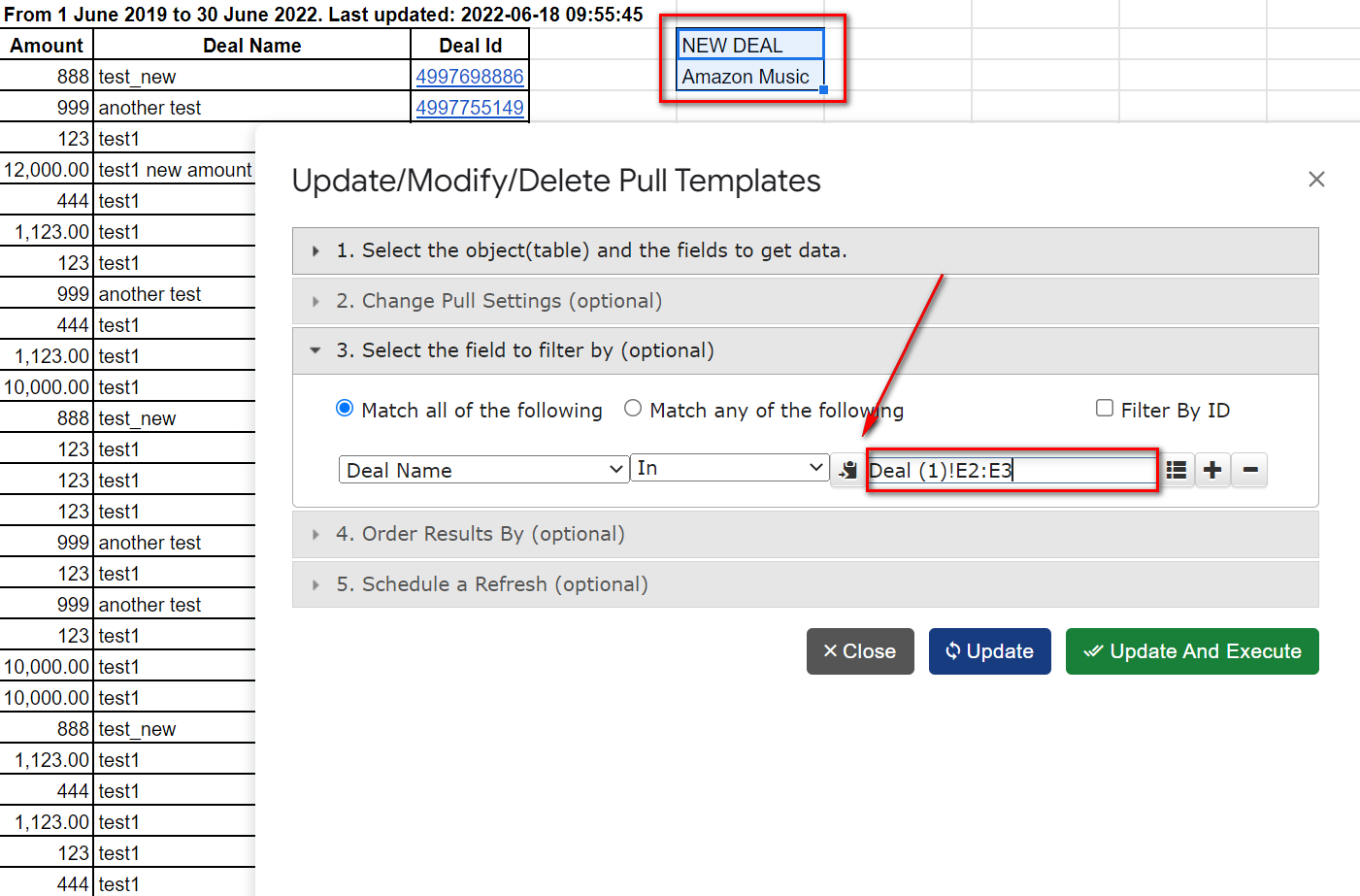
I will select the “In” operator. It means, that the Deal name should exactly match one of the values from the spreadsheet’s column.
For the source of the values, I can manually enter the range: “E2:E3” into the data source field, or I can select the values I want to use in the spreadsheet and then click the “copy range” button:
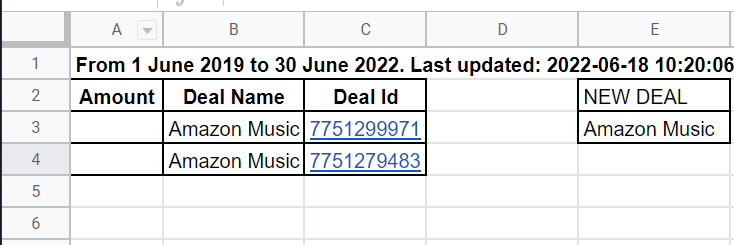
And let’s look at the result:
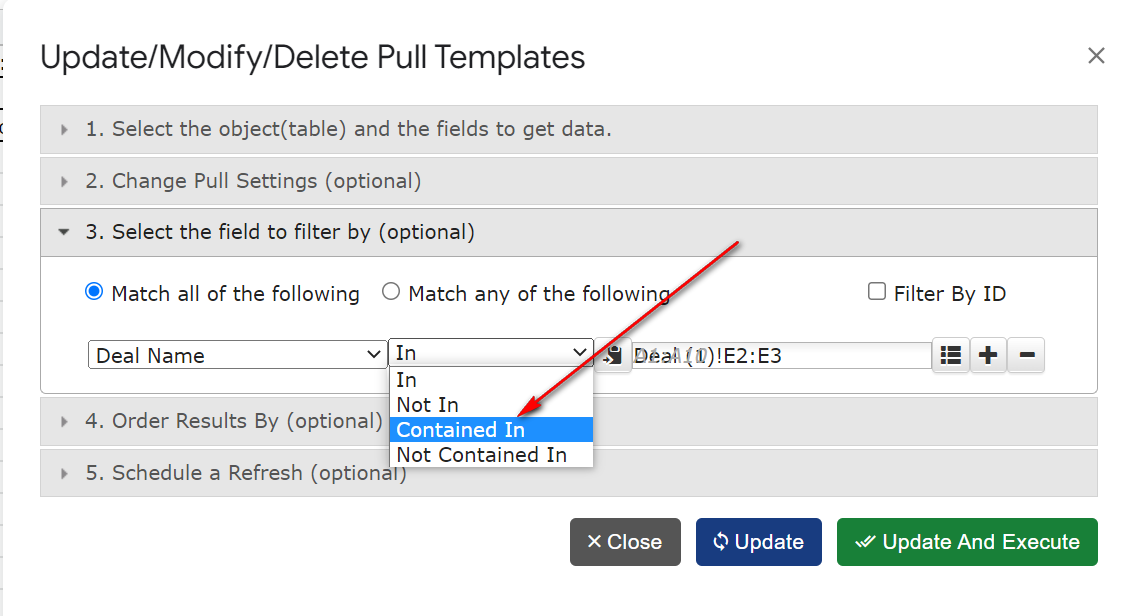
I can modify the filter to use the “partial match” instead of the “exact match”:
And the result will be the following:
Example 2: Filtering out Deals by ID
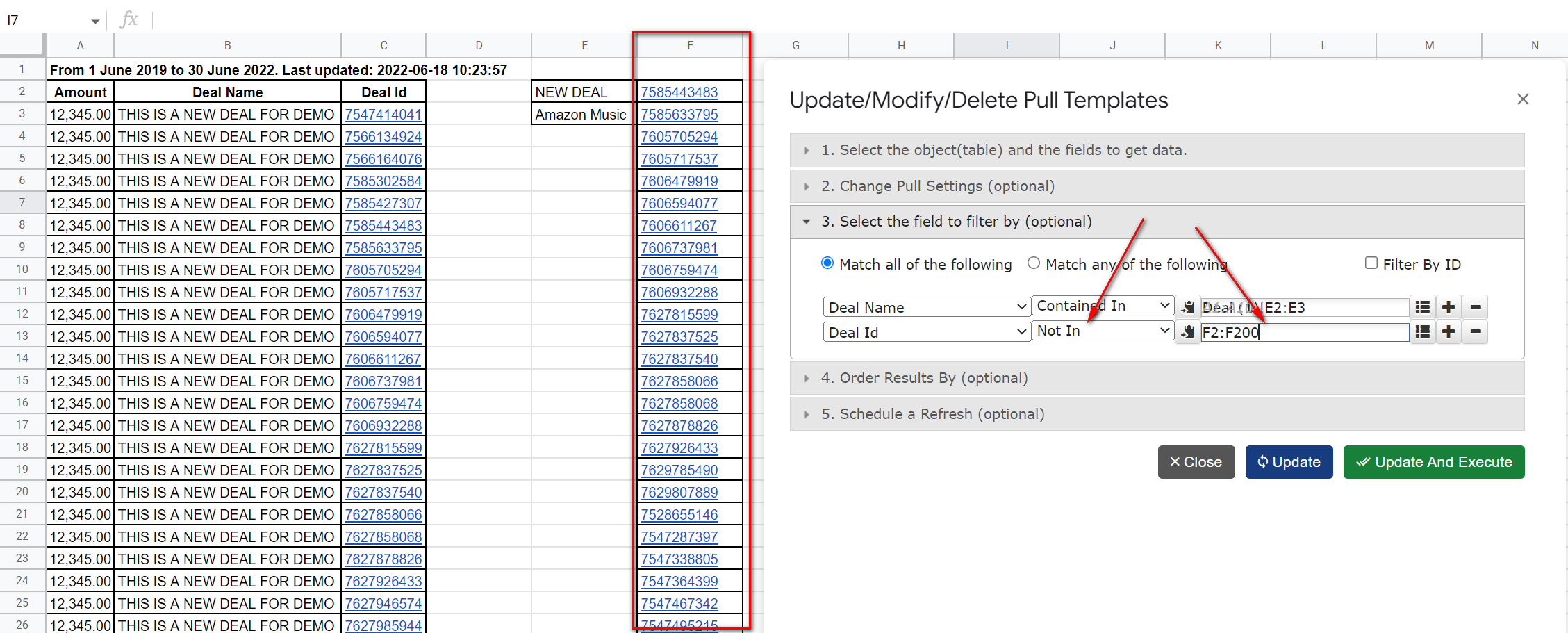
Let’s consider the same Deals template from the previous example, but, this time, in addition to the filtering by the Deal name, I want to exclude some deals based on the IDs. For this, I will copy the IDs I want to exclude into the column F, and I will use the “Not In” operator :
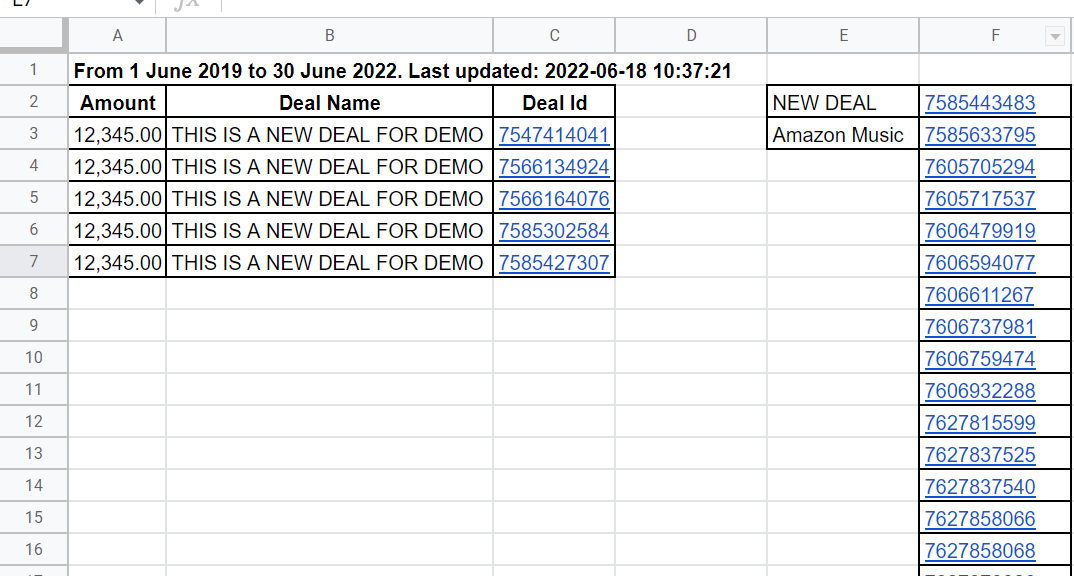
And the result will be much smaller:
Example 3: Dynamically provide data for the dynamic filter using the workflow
First, I will create the Deal template to get Deals with the Company ID:
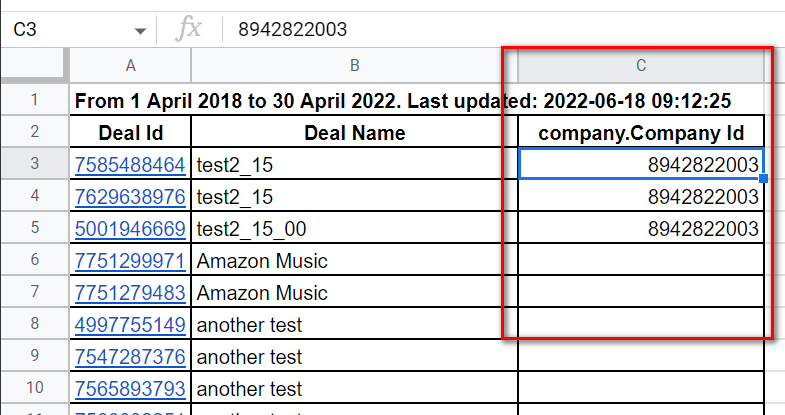
Now, I will create the Company template and I will add the dynamic filter with the data source kin column C, which was populated by the Deals template. For the presentation purposes, I will place this template’s data in the same Deals tab, despite it’s not required:
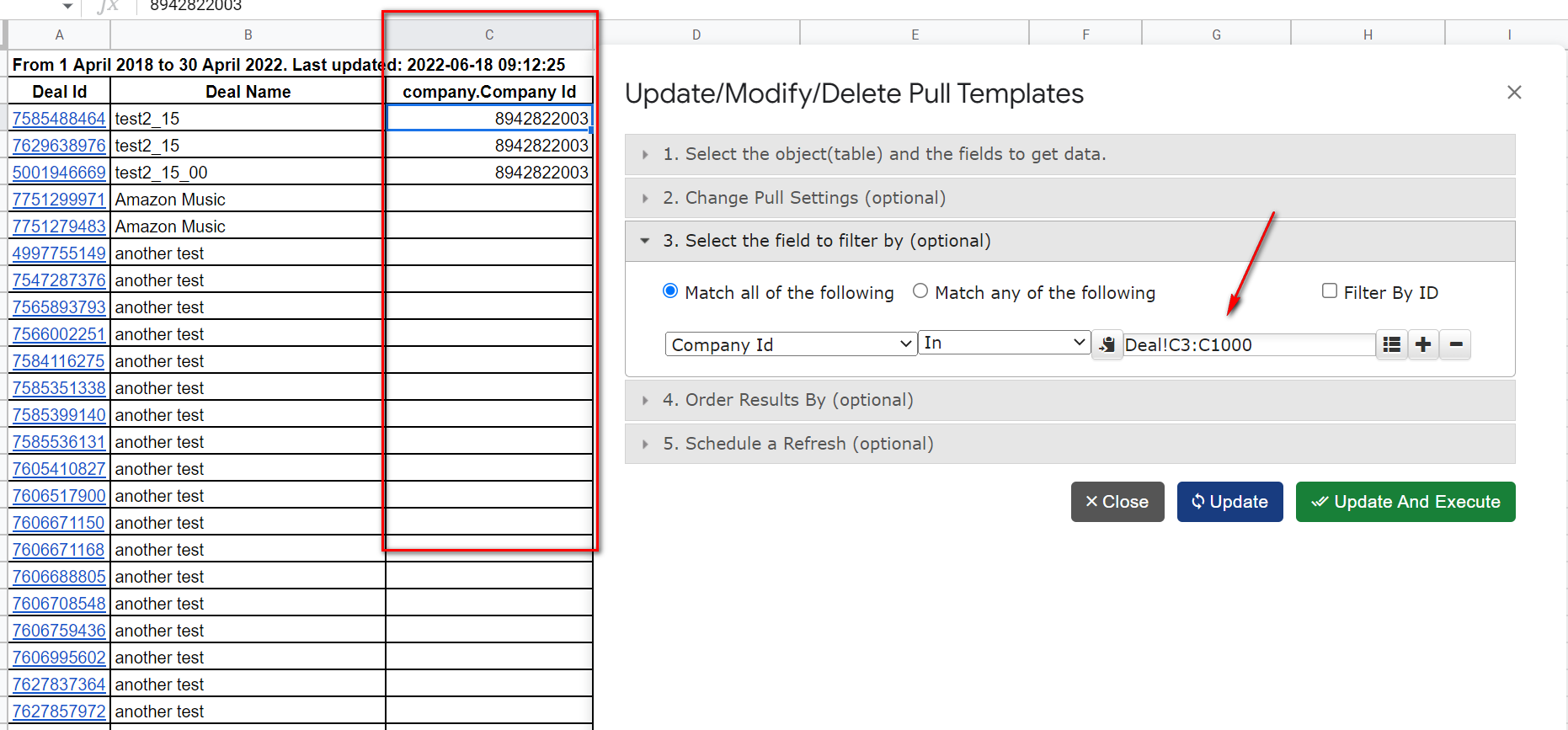
And now, let’s see the result:
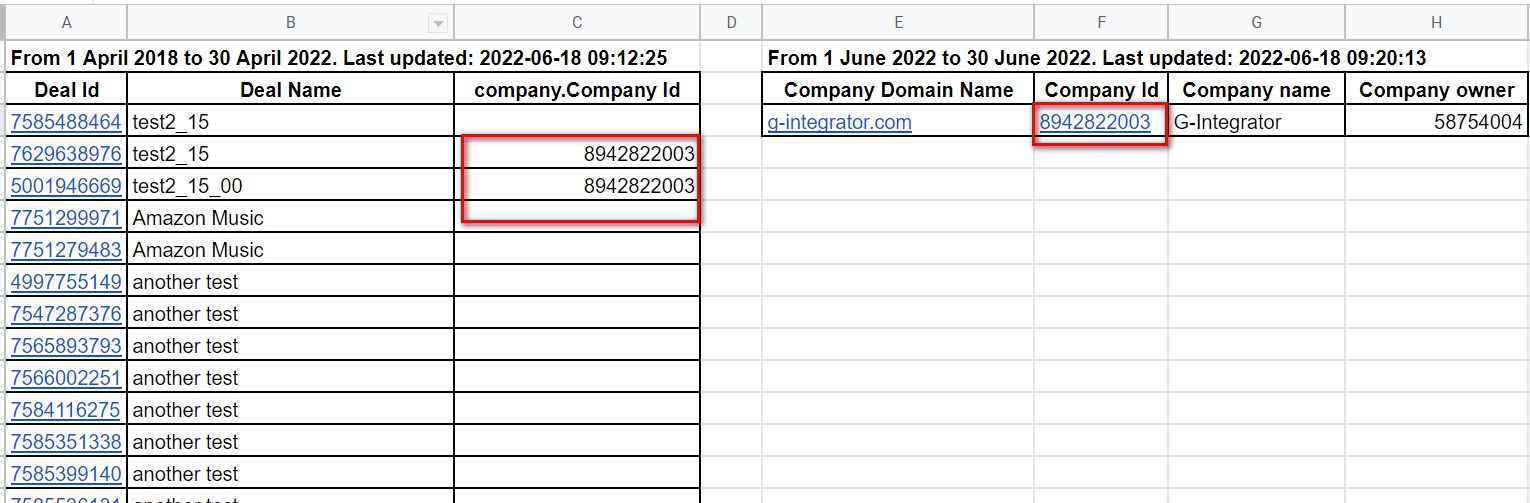
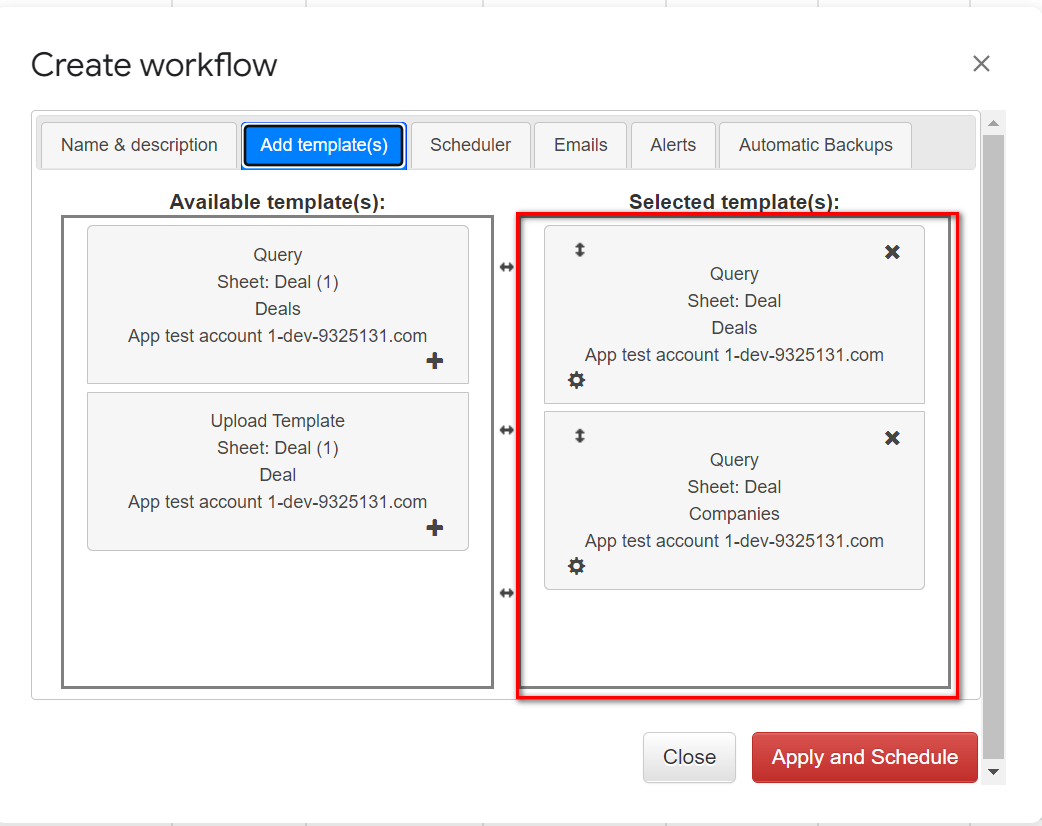
I can combine these two templates into the Workflow, and I will be able to see the detailed Company information for each deal updated automatically:
We hope that you will find this new feature useful and exciting!