Webhooks: Refresh Your Zoho Data in Google Sheets the Moment Something Changes

Scheduled refreshes are great — until a deal closes two minutes after the last run. Our newest feature removes the wait: both G-Integrator for Zoho CRM and G-Integrator for Zoho Books now support webhooks. A webhook is a secret, token-protected URL for your spreadsheet. Any system that can make an HTTP request can call it, and G-Integrator re-runs your saved query templates and writes fresh Zoho data back into your sheet — within seconds.

Why webhooks?

Until now, you had two ways to update a sheet: click the add-on menu or wait for a scheduled workflow. Webhooks add a third, event-driven option. The moment something happens in your CRM or your books, the system that saw it first can tell your spreadsheet to refresh itself.

  • No schedule needed. Data updates when the event happens, not at the top of the hour.
  • Nothing to deploy. Refreshes run on the G-Integrator servers — they work even while the spreadsheet is closed.
  • Formatting preserved. Your saved templates are re-run exactly as you built them.
  • Works with everything. Zoho Workflow Rules, Zoho Flow, Zapier, Make, a cron job, a CI pipeline — even a browser bookmark.

Webhooks refresh everything the add-ons can pull. For Zoho CRM that means module records, related lists, COQL queries, Zoho Analytics reports and the built-in CRM reports. For Zoho Books, all your saved query templates.

Setup takes a minute

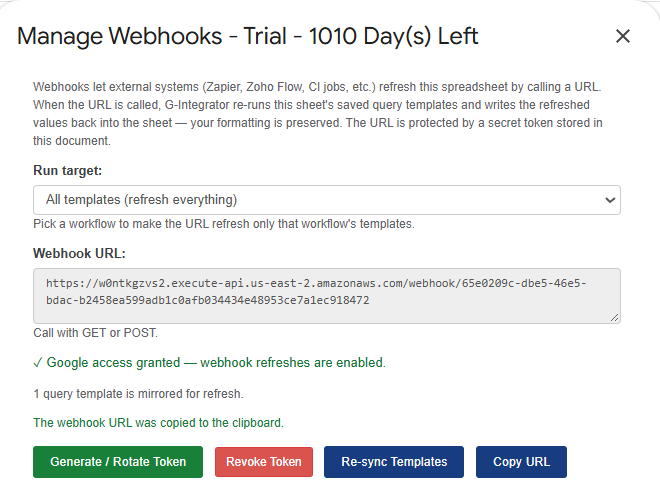
  1. Open Automation… → Manage Webhooks in the add-on menu.
  2. Click Generate / Rotate Token — the dialog shows your webhook URL.
  3. Click Authorize Google (once per spreadsheet) so our server may write the refreshed values into your sheet.
  4. Pick a Run target: refresh all templates, or just one workflow’s templates.
  5. Click Copy URL and paste it into the system that should trigger the refresh.
Manage Webhooks dialog with token, run target and webhook URL
The Manage Webhooks dialog: generate a token, pick a run target, copy the URL.

The URL supports both GET and POST, so it drops straight into a Zoho CRM Workflow Rule webhook action, a Zoho Flow step, or a one-line curl call. Add ?workflow=<workflow-uuid> to refresh only one workflow’s templates — the dialog builds that URL for you.

Real-life examples

  • Deal won → dashboard updated. A Zoho CRM Workflow Rule on Stage = Closed Won calls the webhook, and your pipeline sheet reflects the win within seconds.
  • Invoice paid → cash flow current. A Zoho Books automation fires on Invoice Status = Paid, and the accounts-receivable sheet updates itself.
  • Meeting prep in one click. Keep the URL as a browser bookmark and click it before the Monday pipeline review or the month-end close.
  • Dashboards that are never stale. Call the URL from your BI tool’s pre-run hook so Looker Studio always reads current data.
  • Targeted refresh. After a campaign import or bank-feed categorization, refresh just that one workflow instead of the whole workbook.

Every run is logged in your sheet

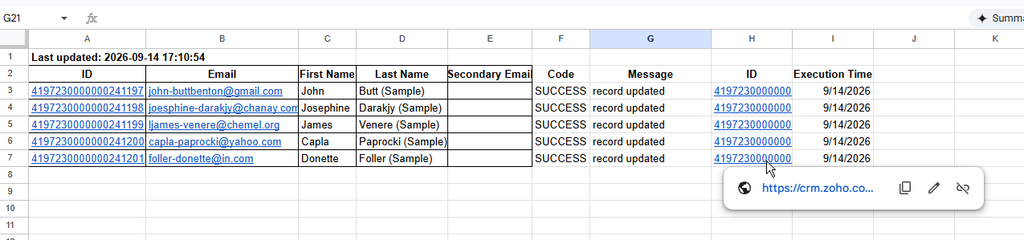
Each webhook run is recorded in the Automatic Operations Events Log tab — the same log used by scheduled workflows. You can verify that an external trigger fired, see exactly which sheets were updated, and diagnose failures without leaving the spreadsheet.

Automatic Operations Events Log sheet filled by a webhook run
Webhook runs in the Automatic Operations Events Log.

Secure by design

The token is the key. If the URL ever leaks, open Manage Webhooks and click Generate / Rotate Token — old URLs stop working immediately. You can also Revoke Token to disable the webhook entirely. Each webhook runs once per hour by default; calls over the limit are rejected without changing any data, and the JSON response tells you when to retry. Need it fresher? Tell us about your use case — we are considering a lower rate limit as a paid option.

Try it today

Webhooks are included in your Premium subscription at no extra charge. For the LITE subscription, you have two trial weeks. Open Automation… → Manage Webhooks in G-Integrator for Zoho CRM or G-Integrator for Zoho Books and connect your first trigger. Full details are in the help center: Zoho CRM webhooks and Zoho Books webhooks.
Bulk Update Salesforce Records from Google Sheets (Insert, Update, Delete)

Data Loader is powerful, but firing up a desktop tool (and wrangling CSVs) is overkill for everyday cleanups. If the records you need to fix are already in a spreadsheet, you can push the changes straight back: Data Integrator for Salesforce turns Google Sheets into a lightweight, two-way data loader.

The workflow

  1. Pull the records you want to change into a sheet — via an object pull or a SOQL query — including the Id column.
  2. Edit in the spreadsheet: fix phone formats with a formula, fill missing industries, normalize country names — all the things Sheets is actually good at.
  3. Upload with an upload template that maps sheet columns to Salesforce fields, then run the insert, update, or delete.

Insert, update, or delete

  • Insert — rows without an Id become new records (think: a list of leads from an event)
  • Update — rows with an Id update the matching records in bulk
  • Delete — remove records listed in the sheet, e.g. after a dedupe pass

Tips for safe bulk updates

  • Test against a sandbox connection first — the add-on supports both production and sandbox orgs
  • Keep a pre-change snapshot: pull the records to a second tab (or use a Drive snapshot) before uploading
  • Watch validation rules — rejected rows are reported so you can fix and retry only the failures

Bonus: IDs and files

Pasting IDs from reports and getting mismatches? The built-in admin tools convert 15-character Salesforce IDs to the 18-character form in bulk, and can move Salesforce Files and Attachments to and from Google Drive.

Full column-mapping details are in the upload help article.

Automatically Sync Salesforce with Google Sheets on a Schedule

A spreadsheet that is only as fresh as the last time someone remembered to refresh it is not a dashboard — it is a liability. Here is how to keep Google Sheets automatically in sync with Salesforce using workflows in Data Integrator for Salesforce.

Step 1: Save your pulls as templates

Every import — an object pull, a report export, or a SOQL query — can be saved as a template. Templates are the unit of automation: whatever is saved can be refreshed without a human.

Step 2: Create a workflow

A workflow runs your templates on a schedule — hourly, daily, or weekly at a time you choose. On each run it can:

  • Refresh all templates in the spreadsheet (or just the current sheet’s)
  • Snapshot the spreadsheet to Google Drive, giving you point-in-time history of your Salesforce data
  • Notify your team by email, Slack, or Salesforce Chatter when the data has been updated

Step 3 (optional): Trigger refreshes from outside

Schedules are not the only trigger. Inbound webhooks let an external system — a Salesforce Flow, Zapier, or your CI pipeline — kick off a refresh the moment something changes, instead of waiting for the next scheduled run.

Practical patterns

  • Morning pipeline report: daily 6 a.m. refresh + Slack alert to #sales
  • Data backup: nightly refresh + Drive snapshot for an auditable history
  • Event-driven ops board: webhook from a Salesforce Flow refreshes the sheet when an Opportunity closes

Setup details, including transferring scheduled jobs between users when an admin leaves, are in the automation help article.

Run SOQL Queries Directly in Google Sheets: A Practical Guide

Visual query builders are fine until you need a parent field, an aggregate, or a date-relative filter. If you know SOQL, the fastest path from Salesforce to a spreadsheet is typing the query yourself. Data Integrator for Salesforce lets you run raw SOQL SELECT statements directly in Google Sheets.

Your first query

Open Data Integrator for Salesforce → Get Data using SOQL and type:

SELECT Id, Name, Account.Name, Owner.Name
FROM Contact
WHERE CreatedDate = LAST_N_DAYS:30
ORDER BY CreatedDate DESC

Execute, and the result is written to a new sheet or to the current sheet starting at the active cell, with an optional header row.

What SOQL gives you that the builder cannot

  • Relationship fields — pull Account.Owner.Name on a Contact without a second query or VLOOKUP
  • Date literals — THIS_QUARTER, LAST_N_DAYS:90, NEXT_WEEK keep queries evergreen
  • Aggregates and GROUP BY — SELECT StageName, SUM(Amount) FROM Opportunity GROUP BY StageName builds a pipeline summary in one shot

Save queries as templates

Check “Save as a template” in the SOQL dialog and the query appears in your template sidebars, where you can re-execute it, edit the SOQL text, or delete it. The previous output is cleared and rewritten in place, so your downstream formulas keep working.

Refresh on a schedule

Saved SOQL queries participate in workflows and webhooks just like regular pull templates — schedule the refresh and your SOQL-powered dashboard updates itself.

More examples, including gotchas around relationship depth and query limits, are in the SOQL help article. Prefer clicking to typing? Start with the visual data import instead.

Export Salesforce Reports to Google Sheets — and Keep Them Fresh

Salesforce reports are great inside Salesforce. The problem starts when stakeholders want them in a spreadsheet: exporting CSVs, re-applying formulas and fixing broken charts every Monday morning gets old fast. Here is how to export Salesforce reports to Google Sheets once — and never do it manually again.

Pull a report into a sheet

With Data Integrator for Salesforce installed and connected to your org, open the Reports menu, pick any tabular report, and execute it. The report rows land directly in your Google Sheet with a proper header row — no CSV download, no copy-paste.

Convert a report to an editable SOQL query

Reports are a convenient starting point, but they are rigid: you cannot add a column the report does not have. Data Integrator can convert any tabular report into an editable SOQL query. From there you can add fields (including relationship fields like Account.Owner.Name), change filters, or add date literals such as LAST_N_DAYS:30. See the reports guide for the details.

Keep it fresh automatically

Save the pull as a template and attach it to a workflow: the sheet refreshes on your schedule — hourly, daily or weekly — and can notify you by email, Slack or Chatter when new data arrives. Your pivot tables and charts keep pointing at the same ranges, so dashboards stay alive without any babysitting.

Why not just use the native Salesforce connector?

  • Works with any Google account — no Enterprise Workspace edition required
  • Converts reports to editable SOQL instead of locking you into the report definition
  • Scheduled refreshes with alerts and webhook triggers
  • Two-way: you can also update Salesforce from the sheet

Try it on your most-requested report — the Monday-morning CSV ritual ends today.

How to Connect Salesforce to Google Sheets (No Code, 3 Minutes)

If you live in spreadsheets but your data lives in Salesforce, you don’t need a data warehouse or an ETL pipeline to bring the two together. With Data Integrator for Salesforce, you can connect Salesforce to Google Sheets in about three minutes — no code, no CSV exports.

What you’ll need

  • A Google account with access to Google Sheets
  • A Salesforce user with API access (production or sandbox)

Step 1: Install the add-on

Open the Google Workspace Marketplace and install Data Integrator for Salesforce. The add-on runs entirely inside Google Sheets — there is nothing to deploy in your Salesforce org and no managed package to install.

Step 2: Sign in to Salesforce

In any spreadsheet, open Extensions → Data Integrator for Salesforce → Salesforce Sign In. Choose between your production org or a sandbox, then complete the standard Salesforce login. The connection uses the industry-standard OAuth2 protocol: the add-on never sees your password, and you can revoke access at any time from Salesforce’s Connected Apps settings.

Step 3: Pull your first records

Open Get Modules Records, pick an object (Accounts, Contacts, Opportunities — any standard or custom object), select the fields you need, and click Execute. Your Salesforce data lands in the sheet, ready for formulas, pivot tables and charts.

Working with multiple orgs

Need to compare a sandbox against production, or juggle several customers’ orgs? You can connect multiple Salesforce accounts and switch between them per spreadsheet.

What’s next

Once connected, you can export Salesforce reports, run SOQL queries, schedule automatic refreshes, and even push updates back to Salesforce — all from the same sheet.

Full setup details are in the Connect Salesforce to Google Sheets help article.

Coupler.io Alternatives for Google Sheets: Which Connector Fits You?

Coupler.io is a popular way to pull business data into Google Sheets. However, it is not the right fit for everyone. Its pricing grows with the number of connections and rows, and many teams only need one or two data sources. If that sounds like you, several Coupler.io alternatives deserve a look.

In this post, we compare the main options for getting CRM, accounting, and e-commerce data into Google Sheets. Additionally, we explain when a focused single-source add-on beats a broad multi-source platform.

What to look for in a Sheets connector

Before you compare tools, decide what actually matters for your workflow:

  • Sources. Do you need twenty integrations, or just your CRM and your payment platform?
  • Scheduling. Can refreshes run automatically, even with the spreadsheet closed?
  • Two-way sync. Can you push edited data back to the source, or only pull it?
  • Filtering. Can you request a precise subset, or must you pull everything and filter in Sheets?
  • Pricing model. Per-connection and per-row pricing punishes growth. Flat pricing does not.

Keep these five points in mind. Meanwhile, let’s look at the options.

Option 1: G-Integrator — focused add-ons with two-way sync

G-Integrator takes a different approach from multi-source platforms. Instead of one tool with dozens of shallow connectors, it offers dedicated Google Sheets add-ons, each built deeply around one source:

Because each add-on targets one platform, it goes deeper than a generic connector. For example, the Zoho CRM add-on supports COQL queries with WHERE clauses and lookup joins, and the HubSpot add-on ships a full report catalog. Furthermore, the CRM add-ons push data back: you can update, insert, or upsert records straight from a sheet — something pull-only connectors cannot do.

Scheduled workflows refresh your data from hourly to monthly, with optional email alerts and timestamped backups. The refresh runs even when the spreadsheet is closed.

Pricing: each add-on has a free two-week trial with full functionality, then a flat Premium plan. There is no per-row or per-connection metering, so costs stay predictable as your data grows.

Best for: teams that live in one or two platforms (HubSpot, Zoho, Shopify, or Stripe) and want depth, two-way sync, and flat pricing.

Option 2: Multi-source platforms (Coupler.io and similar)

Tools like Coupler.io shine when you genuinely need many sources in one place — for instance, an agency that blends ad platforms, analytics, and CRM data into one dashboard. They typically offer a wide catalog of connectors and destination options beyond Sheets.

The trade-offs are real, though. First, breadth usually comes at the cost of depth: generic connectors rarely support source-specific features like COQL queries or write-back. Second, usage-based pricing means the bill climbs as connections and rows grow. Therefore, check the current pricing page carefully against your expected volume before committing.

Best for: agencies and analysts combining many different sources into blended reports.

Option 3: Native exports and CSV imports

Every platform exports CSV files, and Google Sheets imports them. This costs nothing, so it is worth mentioning. Nevertheless, manual exports have a hidden price: someone must remember to run them, the formatting breaks constantly, and the data is stale the moment it lands. As a rule, CSV workflows survive about two weeks before someone asks for automation.

Best for: one-off pulls that you will never repeat.

Option 4: Apps Script and custom API code

If you have developer time, Google Apps Script can call any API directly. You get total control, and there is no subscription. On the other hand, you also own the maintenance: authentication, pagination, rate limits, retries, and every API version change. What starts as a weekend script often becomes an unowned liability after the author moves on.

Best for: engineering teams with unusual requirements and time to maintain code.

Side-by-side comparison

G-IntegratorCoupler.io-style platformsCSV exportCustom code
SourcesHubSpot, Zoho CRM, Zoho Books, Shopify, StripeManyAnyAny
Depth per sourceDeep (COQL, reports, related lists)GenericBasicUnlimited
Two-way syncYes (update/insert/upsert)RarelyNoIf you build it
Scheduled refreshHourly to monthlyYesNoIf you build it
Pricing modelFlat per add-onScales with usageFreeDeveloper time
Setup timeMinutesMinutes to hoursMinutes, repeatedlyDays

How to choose

The decision usually comes down to two questions. How many sources do you need? And do you need to write data back?

  • One or two of: HubSpot, Zoho CRM, Zoho Books, Shopify, Stripe → a focused G-Integrator add-on gives you more depth for a flat price.
  • Five or more unrelated sources → a multi-source platform earns its fee.
  • A single pull you will never repeat → just export a CSV.
  • Exotic requirements plus available developers → custom Apps Script.

Frequently asked questions

Is there a free Coupler.io alternative?

Fully free options are CSV exports and hand-written Apps Script. Both work, but both trade money for your time. G-Integrator offers a free two-week trial with full functionality, so you can confirm the fit before paying.

Can G-Integrator replace Coupler.io completely?

That depends on your sources. If your data lives in HubSpot, Zoho CRM, Zoho Books, Shopify, or Stripe, then yes — with more depth and two-way sync on top. If you also need ad platforms or databases, you may want a platform tool alongside.

Do the G-Integrator add-ons refresh data automatically?

Yes. Scheduled workflows run from hourly to monthly and work even when the spreadsheet is closed. You can also add email alerts and automatic timestamped backups.

Can I push data back to my CRM from Google Sheets?

Yes. The HubSpot and Zoho CRM add-ons support update, insert, and upsert from selected rows — a key difference from pull-only connectors.

Wrap-up

Coupler.io is a solid product for many-source reporting. Still, most teams pull from one or two systems, and for them a focused add-on is simpler, deeper, and cheaper. Pick the tool that matches your source list, not the longest feature table.

Ready to compare in practice? Browse the G-Integrator add-ons and start a free two-week trial for your platform. Setup takes minutes, and our Help Center walks you through every step.

How to Bulk Update Zoho CRM Records from Google Sheets

Editing records one by one in Zoho CRM is slow. Meanwhile, mass changes come up all the time: reassigning lead owners, fixing phone formats, updating deal stages after a pipeline change, or cleaning imported junk. The good news? You can bulk update Zoho CRM records straight from Google Sheets, where bulk editing is what spreadsheets do best.

In this guide, you will pull records into a sheet, edit them with familiar spreadsheet tools, and then push the changes back to Zoho CRM. No CSV exports, no import wizard, and no code.

Why edit Zoho CRM data in a spreadsheet?

Zoho CRM has a mass update tool, but it changes one field to one value at a time. In contrast, a spreadsheet gives you much more power:

  • Formulas. Fix phone formats, split names, or build values from other columns.
  • Find and replace. Correct a misspelled company name across 500 records at once.
  • Filters and sorting. Isolate exactly the rows that need a change before you touch anything.
  • A visible audit trail. You see every value before and after, side by side.

Moreover, the whole edit happens outside the CRM. As a result, nothing changes in Zoho until you explicitly push the rows back.

What you need

The add-on includes a free two-week trial, so you can run a full update cycle before paying anything.

Step 1: Pull the records you want to change

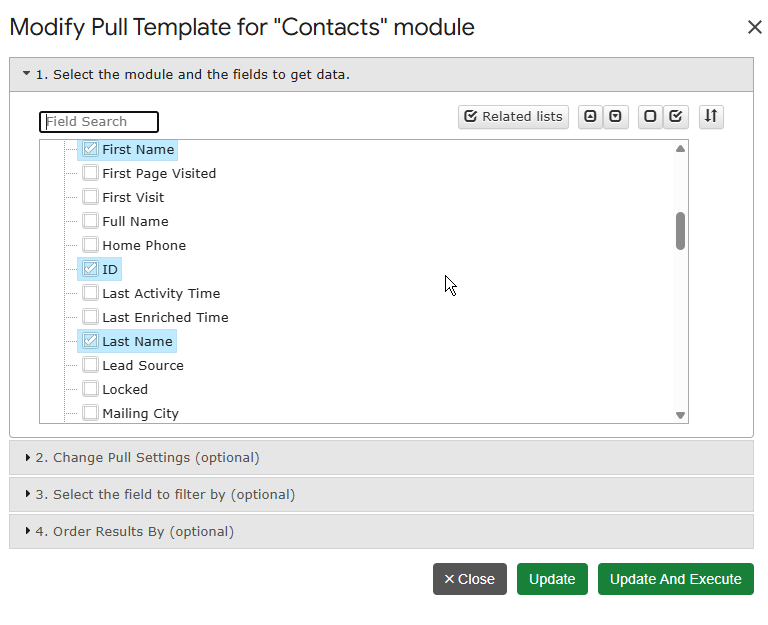
First, open your spreadsheet and connect the add-on to your Zoho account. Then click Get Module Records, pick the module (Contacts, Leads, Accounts, Deals, Tasks, or any custom module), and select the fields you plan to edit in the field tree. Finally, choose a start cell and click Execute.

Two tips make the next steps easier:

  • Always include the ID field. The record ID tells Zoho exactly which record to update, so matching is precise.
  • Pull only the columns you need. A narrow sheet is faster to edit and faster to upload.

The pull is auto-saved as a refreshable template. Therefore, you can rerun the same selection next week with one click.

Advanced: if you need a precise subset — for example, only leads created last quarter with no owner — use Get Data using COQL instead and write a query with a WHERE clause.

Step 2: Edit the data in bulk

Now the fun part. Because the data sits in Google Sheets, every spreadsheet trick applies:

  • Use find and replace to fix a recurring typo.
  • Add a helper column with a formula, then paste the results as values into the real column.
  • Sort by owner, filter by stage, and change hundreds of cells with one drag-fill.

However, keep two rules in mind. First, never edit the ID column — it is the key that links each row to its Zoho record. Second, keep picklist values exact: Zoho rejects values that do not match the field’s allowed options.

Step 3: Push the changes back to Zoho CRM

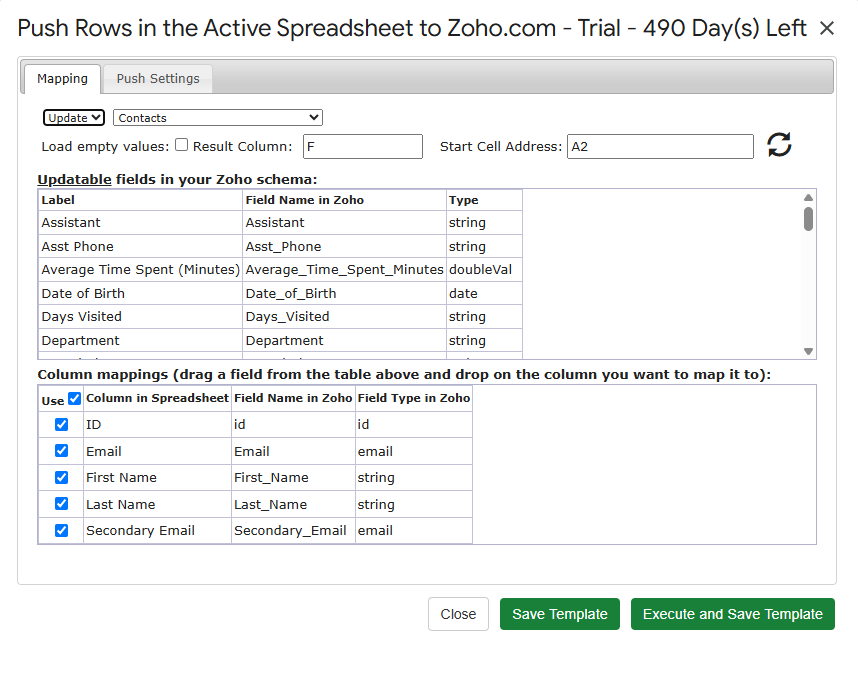
Once the rows look right, select them and click Update / Insert / Upsert Selected Row(s) in the add-on menu. A mapping dialog opens. There, you:

  1. Map each spreadsheet column to its Zoho field.
  2. Choose a result column, where the add-on writes a status for every row.
  3. Click Execute and Save Template.

The mapping is saved as a reusable template. Consequently, the next bulk update takes seconds: pull, edit, select, execute.

Update, insert, or upsert — which one?

  • Update changes existing records. Rows must carry a record ID.
  • Insert creates new records from the selected rows.
  • Upsert does both: it updates a row when a match exists and inserts it otherwise. This is ideal for mixed lists.

Step 4: Check the results

After the push, look at the result column. Each row shows its own status, so a partial failure never hides. If a few rows fail — usually due to a picklist mismatch or a required field — fix just those cells and push only the failed rows again. In other words, you never redo the whole batch.

Common bulk update scenarios

ScenarioHow to do it
Reassign lead ownerPull leads with Owner + ID, replace owner values, update
Fix phone formatsAdd a formula column, paste as values, update
Change deal stages in bulkFilter deals by stage, edit the Stage column, update
Merge cleanup after importFix values in Sheets, upsert the corrected list
Add new contacts + update old onesOne sheet, one upsert run

Frequently asked questions

Can I update custom modules and custom fields?

Yes. Get Module Records lists custom modules alongside standard ones, and the mapping dialog shows every field your Zoho edition exposes, including custom fields.

How many records can I update at once?

The add-on processes the rows you select and paginates the work automatically. Large batches simply take a little longer — you do not need to split them by hand.

Will this overwrite fields I did not map?

No. Only mapped columns change. Unmapped Zoho fields keep their current values.

Does this work on the free Zoho CRM edition?

Yes. The add-on works with any Zoho CRM edition. On the G-Integrator side, you get a free two-week trial; after that, pick a plan on the pricing page.

Can I undo a bulk update?

There is no automatic undo. However, an easy safeguard exists: before you push, duplicate the sheet tab. That copy holds the original values, so you can push them back if needed.

Wrap-up

Bulk edits do not have to mean CSV exports and import wizards. Instead, pull records with Get Module Records, clean them with spreadsheet tools, and push them back with Update / Insert / Upsert Selected Row(s). With saved templates on both sides, the second run takes under a minute.

Ready to try it on your own data? Install G-Integrator for Zoho CRM and start your free two-week trial. For the full mapping reference, see the Upload data to Zoho CRM guide in our Help Center.

Automatic HubSpot Data Backup to Google Sheets (Set It Once, Forget It)

Your HubSpot portal holds years of contact history, deal records, and company data. Yet most teams have no copy of it anywhere else. If someone deletes a list by mistake, or a bad import overwrites a thousand records, that data is simply gone. Fortunately, there is an easy fix: an automatic HubSpot backup to Google Sheets.

In this guide, you will set up a scheduled backup that runs on its own — hourly, daily, weekly, or monthly. Moreover, it keeps working even when the spreadsheet is closed. The whole setup takes about ten minutes, and you never write a single line of code.

Why back up HubSpot data at all?

HubSpot is reliable, but reliability is not the same as protection. Consider these common cases:

  • Human error. A teammate merges the wrong contacts or deletes a property. Afterwards, the old values are hard or impossible to restore.
  • Bad imports. One faulty CSV import can overwrite thousands of records in seconds.
  • Offboarding. When an employee leaves, you may want a snapshot of their pipeline before access changes.
  • Audits and reporting. Sometimes you need to prove what a deal looked like last quarter, not what it looks like today.

HubSpot’s own recycle bin helps with some deletions. However, it does not protect you from overwrites, and it does not give you point-in-time history. A scheduled export to Google Sheets does both — and it costs far less than enterprise backup tools.

What you need

  • A HubSpot account (any tier works, including the free CRM)
  • A Google account with Google Sheets
  • The G-Integrator for HubSpot add-on from the Google Workspace Marketplace

The add-on comes with a free two-week trial, so you can test the full backup workflow before you pay anything.

Step 1: Connect HubSpot to Google Sheets

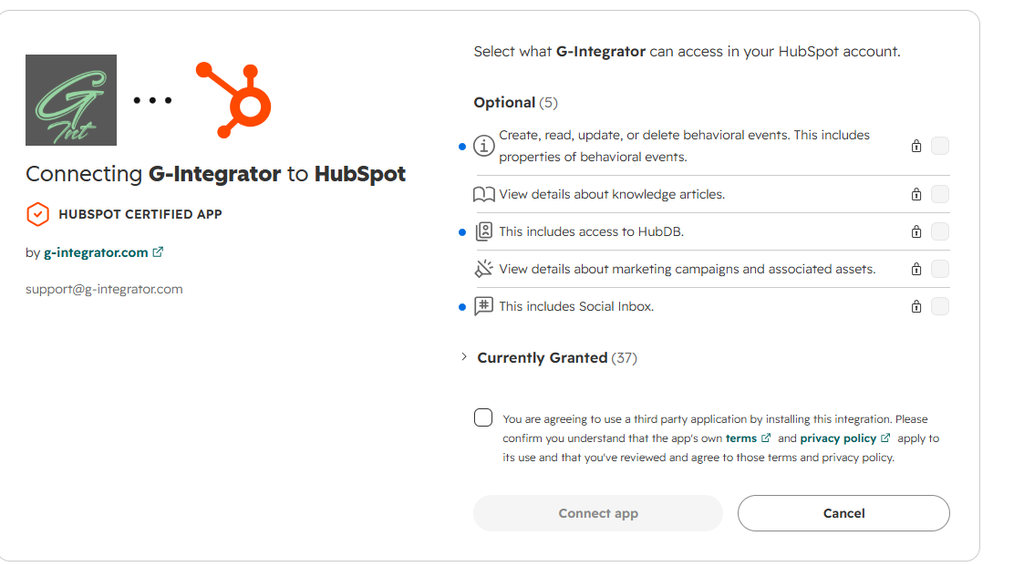
First, install the add-on from the Google Workspace Marketplace. Then open a new spreadsheet and go to Extensions → G-Integrator for HubSpot → Connect. Sign in to HubSpot and approve access. That’s it — the connection is now stored securely, so you only do this once.

Step 2: Build the templates you want to back up

Next, decide which data matters most. For most teams, that means contacts, deals, and companies. For each one:

  1. Open Get HubSpot Data from the add-on menu.
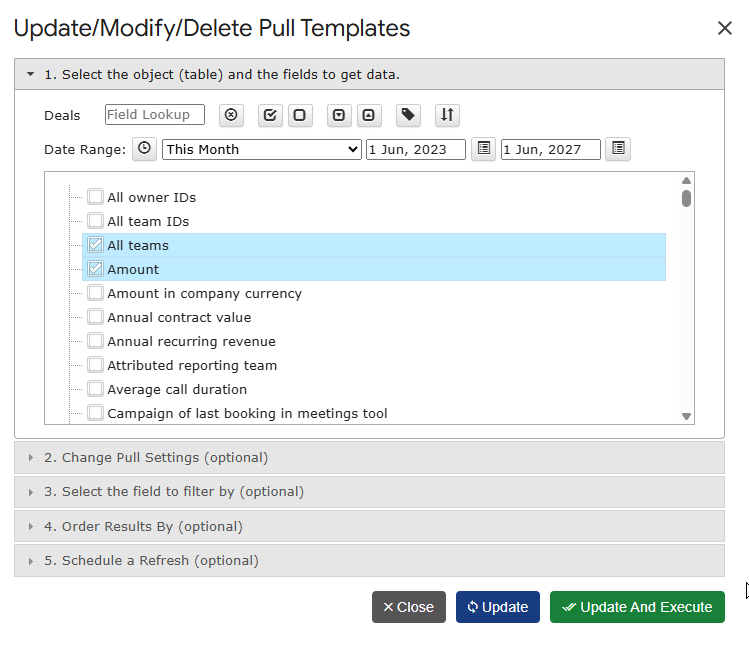
  2. Select the object (for example, Contacts) and pick the properties you want to keep.
  3. Run it once to pull the data into a sheet.

Each pull is saved as a reusable template. As a result, you can rerun any of them with one click via Refresh HubSpot Data — and, more importantly, a schedule can rerun them for you.

Tip: Put each object on its own sheet tab. In other words, one tab for contacts, one for deals, one for companies. This keeps every backup clean and easy to search later.

Step 3: Schedule the automatic backup

Now for the part that makes this a true backup instead of a manual chore. Open Automation… → Create Workflow in the add-on menu. Then:

  1. Add the templates you built in Step 2 to the workflow.
  2. Pick a frequency — anywhere from hourly to monthly.
  3. Set the execution time that suits your team.
  4. Optionally, turn on email notifications so you know each run has finished.

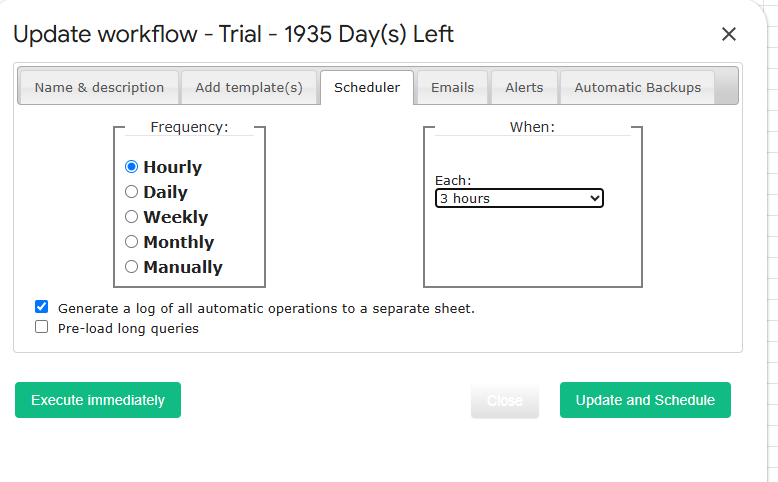
From this point on, the add-on refreshes your data on schedule. Crucially, the refresh runs even when the spreadsheet is closed. You do not need to keep a browser tab open or remember to click anything.

Step 4: Turn on timestamped snapshot copies

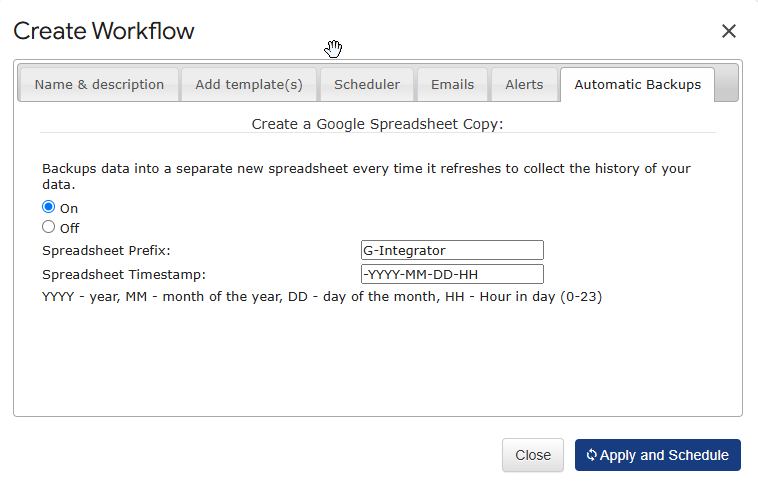
A refresh alone overwrites the sheet with current data. That is useful, but a real backup also needs history. Therefore, enable automatic backups in the same Automation… menu: the add-on can create a timestamped copy of the spreadsheet on every refresh.

With this option on, you get a growing archive of dated snapshots in Google Drive. Consequently, you can answer questions like “what did this deal look like on March 1st?” just by opening the right copy.

Step 5: Verify and maintain the workflow

Finally, a quick health check keeps everything running smoothly:

  • Review your schedules. The Automation… menu lists every spreadsheet with active workflows, so you always know what runs where.
  • Repair if needed. If a workflow ever stops (for instance, after a password change), the repair option under Automation… reinitializes the trigger in one click.
  • Watch the notifications. If you enabled email alerts, a missing email is your early warning sign.

How often should you back up?

It depends on how fast your data changes. As a rule of thumb:

Team size / activitySuggested frequency
Small team, slow pipelineWeekly
Active sales teamDaily
High-volume portal, frequent importsHourly

Remember that timestamped copies take Drive storage. Because of that, hourly snapshots of a huge portal can add up — daily is the sweet spot for most teams.

Bonus: get alerted when data changes unexpectedly

Backups protect you after something goes wrong. Alerts warn you while it happens. Under the same Automation… menu, you can set cell-value alerts that email you when a number crosses a threshold — for example, when your total contact count suddenly drops. Combined with scheduled backups, this gives you both a warning system and a recovery path.

Frequently asked questions

Does the backup run when my spreadsheet is closed?

Yes. Scheduled workflows run in the background on Google’s servers. You can close the tab, shut your laptop, and the refresh still happens on time.

Can I back up custom properties and custom objects?

Yes. The template builder lets you pick any properties available in your portal, including custom ones. Build a template per object and add them all to one workflow.

Does this work on the free HubSpot plan?

Yes. The add-on works with any HubSpot tier, including the free CRM. No Operations Hub or paid HubSpot add-ons are required.

How much does it cost?

G-Integrator for HubSpot offers a free two-week trial with full functionality. After the trial, you pick a Premium plan — see the pricing page for current rates.

Can I restore data back into HubSpot from a backup?

Yes. The add-on includes Upload Data to HubSpot, so you can push corrected values from a snapshot sheet back into your portal.

Wrap-up

Losing CRM data hurts, and it usually happens without warning. However, a ten-minute setup removes that risk: connect the add-on, build templates for contacts, deals, and companies, schedule a workflow, and switch on timestamped copies. After that, your HubSpot backup to Google Sheets runs itself.

Ready to protect your portal? Install G-Integrator for HubSpot and start your free two-week trial today. For details on schedules, alerts, and repair options, see the Automation & workflows guide in our Help Center.

Zoho CRM COQL Queries from Google Sheets: Joins and One-to-Many Pulls


Zoho CRM’s standard export gives you one module at a time. That works fine for a flat contact list. However, the moment you need deals joined with their accounts, or contacts filtered by a field on a parent record, flat exports fall short.

This is the job of Zoho CRM COQL queries. COQL — CRM Object Query Language — is Zoho’s SQL-like query language. In this guide, you will run COQL from Google Sheets with the G-Integrator for Zoho CRM add-on. First, we will cover the syntax. Then we will walk through real examples, including joins and one-to-many pulls.

What is COQL?

COQL lets you query Zoho CRM records with SELECT statements, much like SQL:

SELECT Last_Name, Email, Lead_Source
FROM Contacts
WHERE Lead_Source = 'Web'

If you know basic SQL, you already know most of COQL. Still, there are a few Zoho-specific rules to keep in mind:

  • A WHERE clause is required. Zoho rejects queries without one. If you want all records, use a condition that always holds, such as WHERE id is not null.
  • Field names use API names. Write “Account_Name", not “Account Name”. You can check API names under Setup → Developer Space → APIs in Zoho, or simply pick fields from the add-on’s field list.
  • Joins work through lookup fields. Dot notation reaches fields on a related record, up to two relations deep.

What you’ll need

  • A Zoho CRM account (any edition)
  • A Google account
  • The G-Integrator for Zoho CRM add-on from the Google Workspace Marketplace — it comes with a free two-week trial

No API keys and no code outside the query itself. Moreover, the add-on handles paging for you, so large results arrive in full.

Step 1: Connect Google Sheets to Zoho CRM

First, install the add-on in a Google Sheets spreadsheet. Then open:

Extensions → G-Integrator for Zoho CRM → Zoho Sign In

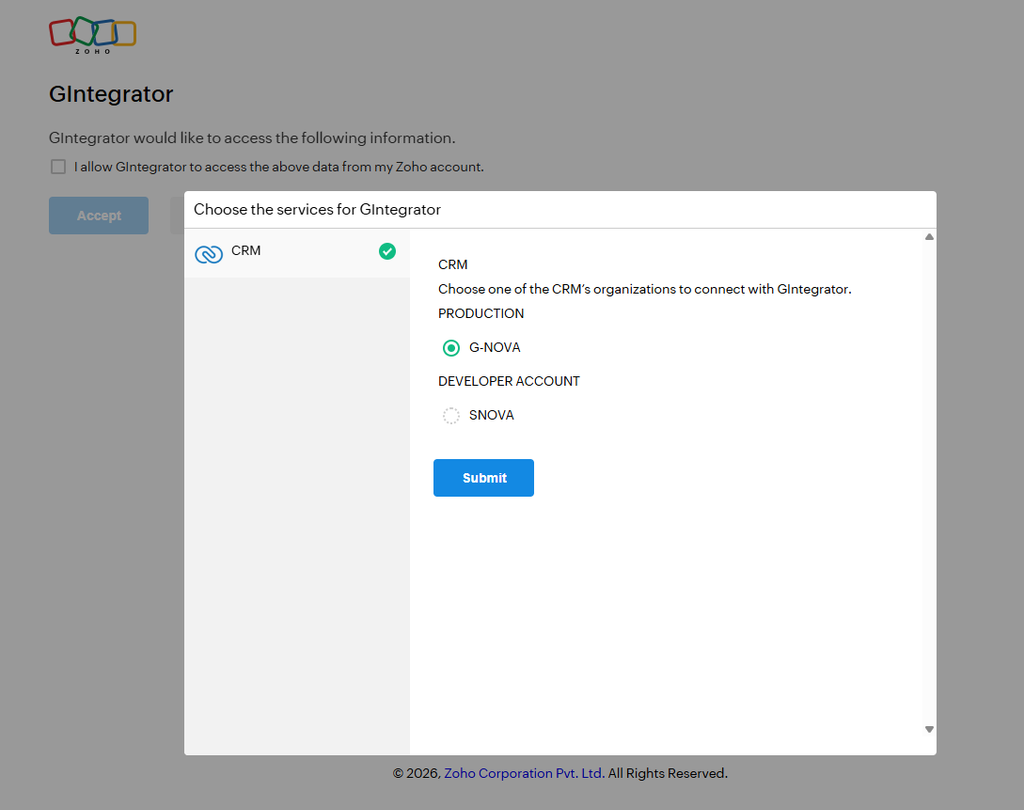
Sign in through Zoho’s own consent screen. The add-on never sees your password, and you can revoke access from your Zoho account at any time.

Step 2: Run your first COQL query

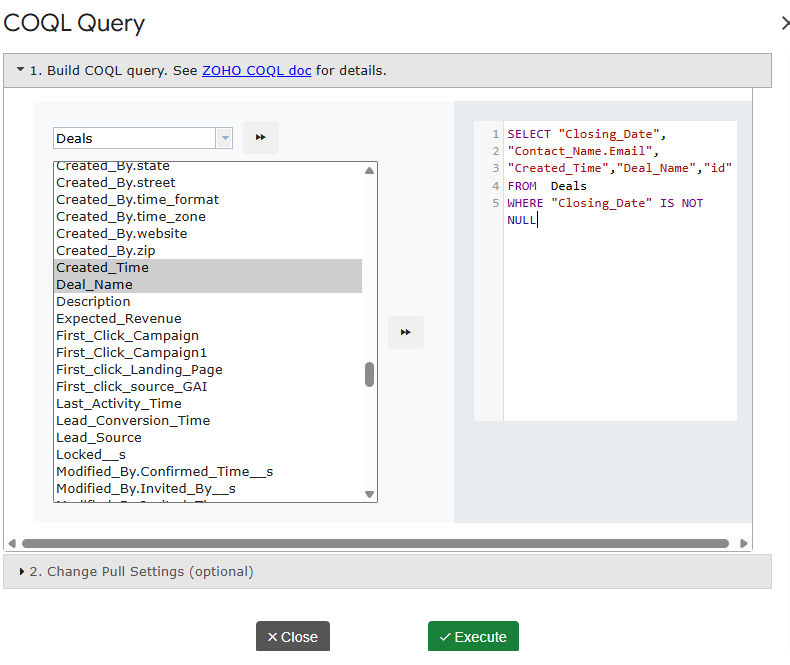
Next, click Get Data using COQL in the add-on menu. Type your query into the editor and run it:

SELECT Last_Name, First_Name, Email, Created_Time
FROM Contacts
WHERE Created_Time > '2026-01-01T00:00:00-05:00'

The matching rows land in your sheet, one record per row, with a header row on top.

Additionally, the add-on saves the query as a template. As a result, you can re-run it later with one click — or on a schedule, as we will see below.

Example queries you can copy

Filter by a picklist and sort

SELECT Deal_Name, Amount, Stage, Closing_Date
FROM Deals
WHERE Stage = 'Negotiation/Review'
ORDER BY Closing_Date asc

Join: pull account fields onto each deal

Lookup fields act as your join keys. For instance, each deal has an Account_Name lookup, so you can reach fields on the account through dot notation:

SELECT Deal_Name, Amount, Account_Name.Account_Name, Account_Name.Industry
FROM Deals
WHERE Amount > 10000

Every row now shows the deal next to its account’s name and industry. In SQL terms, this is an inner join — yet you wrote no JOIN clause at all.

Two levels deep

COQL follows lookups across two relations. For example, from a contact you can reach the owner of its parent account:

SELECT Last_Name, Account_Name.Account_Name, Account_Name.Owner.last_name
FROM Contacts
WHERE Account_Name is not null

One-to-many: repeat the parent for each child

A one-to-many pull lists child records with their parent’s fields on every row. To do that, query the child module and join up to the parent:

SELECT Account_Name.Account_Name, Deal_Name, Amount, Stage
FROM Deals
WHERE Account_Name.Industry = 'Technology'
ORDER BY Account_Name.Account_Name asc

The result reads like a report: each account appears once per deal, ready for a pivot table. Afterwards, you can group by account in the sheet to get totals per parent.

Multiple conditions

SELECT Last_Name, Email, Lead_Source, City
FROM Leads
WHERE (Lead_Source = 'Web' or Lead_Source = 'Referral') and City is not null

Wrap OR groups in parentheses, just as you would in SQL.

Step 3: Refresh your queries on a schedule

Finally, put the whole thing on autopilot. Open Workflows in the add-on menu and attach your saved COQL template to a schedule — hourly, daily, or weekly.

From then on, the sheet re-runs the query and rewrites the rows on its own. Consequently, any chart or pivot table built on that tab stays current without any clicks. See the automation guide for the details.

COQL tips and common errors

  • “WHERE clause is mandatory.” Add WHERE id is not null when you want everything.
  • Unknown field. Use the API name, not the display label. Find API names under Setup → Developer Space → APIs in Zoho CRM.
  • Dates and times. Use ISO format with a timezone offset, e.g. '2026-01-01T00:00:00-05:00'.
  • Large results. Zoho returns records in pages. The add-on pages through them for you, so you get the full result set in one run.
  • Start small. Test with a tight WHERE clause first. Then widen it once the columns look right.

What does it cost?

G-Integrator for Zoho CRM comes with a free two-week trial, so you can test COQL pulls, templates, and workflows with your own data before you pay. After that, Premium plans bill monthly or yearly. Check the pricing page for current plans.

Frequently asked questions

Do I need to know SQL to use COQL?

Basic SELECT/WHERE knowledge is enough. In fact, the examples above cover most day-to-day needs — copy one and swap in your fields.

Can COQL join Zoho CRM modules?

Yes, through lookup fields. Dot notation such as Account_Name.Industry reaches fields on the related record, up to two relations deep.

How do I pull one-to-many data, like all deals per account?

Query the child module (Deals) and select parent fields through the lookup. Each child row then carries its parent’s fields, which makes grouping in Google Sheets easy.

Can the query refresh automatically?

Yes. Save the query as a template, then attach it to a workflow. The add-on re-runs it hourly, daily, or weekly and rewrites the rows in your sheet.

Which Zoho CRM editions support COQL?

COQL is part of Zoho’s API v2 and later, and it is available on standard editions. The add-on talks to that API, so if your edition has API access, COQL works.

Wrap-up

Flat exports answer flat questions. For joined and one-to-many data, COQL is the sharper tool — and with G-Integrator, it runs right inside Google Sheets, on a schedule if you like. Install G-Integrator for Zoho CRM, paste one of the examples above, and you will have joined CRM data in your sheet within five minutes. The two-week trial gives you full access to try it with your own modules.