Coupler.io Alternatives for Google Sheets: Which Connector Fits You?

Coupler.io is a popular way to pull business data into Google Sheets. However, it is not the right fit for everyone. Its pricing grows with the number of connections and rows, and many teams only need one or two data sources. If that sounds like you, several Coupler.io alternatives deserve a look.

In this post, we compare the main options for getting CRM, accounting, and e-commerce data into Google Sheets. Additionally, we explain when a focused single-source add-on beats a broad multi-source platform.

What to look for in a Sheets connector

Before you compare tools, decide what actually matters for your workflow:

  • Sources. Do you need twenty integrations, or just your CRM and your payment platform?
  • Scheduling. Can refreshes run automatically, even with the spreadsheet closed?
  • Two-way sync. Can you push edited data back to the source, or only pull it?
  • Filtering. Can you request a precise subset, or must you pull everything and filter in Sheets?
  • Pricing model. Per-connection and per-row pricing punishes growth. Flat pricing does not.

Keep these five points in mind. Meanwhile, let’s look at the options.

Option 1: G-Integrator — focused add-ons with two-way sync

G-Integrator takes a different approach from multi-source platforms. Instead of one tool with dozens of shallow connectors, it offers dedicated Google Sheets add-ons, each built deeply around one source:

Because each add-on targets one platform, it goes deeper than a generic connector. For example, the Zoho CRM add-on supports COQL queries with WHERE clauses and lookup joins, and the HubSpot add-on ships a full report catalog. Furthermore, the CRM add-ons push data back: you can update, insert, or upsert records straight from a sheet — something pull-only connectors cannot do.

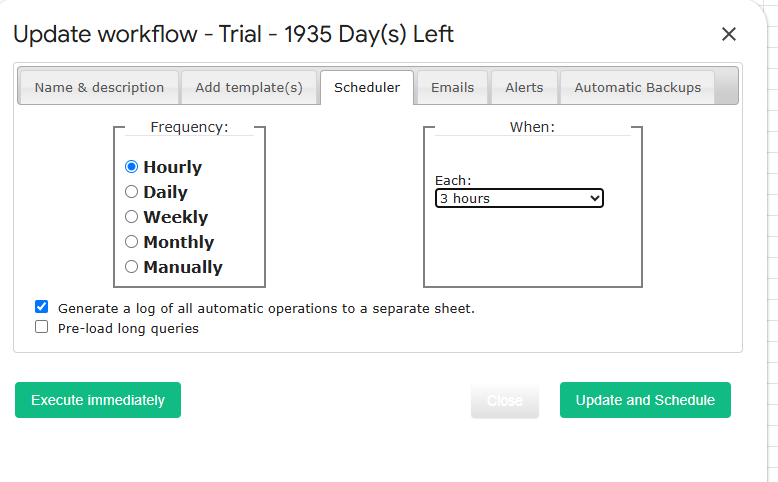
Scheduled workflows refresh your data from hourly to monthly, with optional email alerts and timestamped backups. The refresh runs even when the spreadsheet is closed.

Pricing: each add-on has a free two-week trial with full functionality, then a flat Premium plan. There is no per-row or per-connection metering, so costs stay predictable as your data grows.

Best for: teams that live in one or two platforms (HubSpot, Zoho, Shopify, or Stripe) and want depth, two-way sync, and flat pricing.

Option 2: Multi-source platforms (Coupler.io and similar)

Tools like Coupler.io shine when you genuinely need many sources in one place — for instance, an agency that blends ad platforms, analytics, and CRM data into one dashboard. They typically offer a wide catalog of connectors and destination options beyond Sheets.

The trade-offs are real, though. First, breadth usually comes at the cost of depth: generic connectors rarely support source-specific features like COQL queries or write-back. Second, usage-based pricing means the bill climbs as connections and rows grow. Therefore, check the current pricing page carefully against your expected volume before committing.

Best for: agencies and analysts combining many different sources into blended reports.

Option 3: Native exports and CSV imports

Every platform exports CSV files, and Google Sheets imports them. This costs nothing, so it is worth mentioning. Nevertheless, manual exports have a hidden price: someone must remember to run them, the formatting breaks constantly, and the data is stale the moment it lands. As a rule, CSV workflows survive about two weeks before someone asks for automation.

Best for: one-off pulls that you will never repeat.

Option 4: Apps Script and custom API code

If you have developer time, Google Apps Script can call any API directly. You get total control, and there is no subscription. On the other hand, you also own the maintenance: authentication, pagination, rate limits, retries, and every API version change. What starts as a weekend script often becomes an unowned liability after the author moves on.

Best for: engineering teams with unusual requirements and time to maintain code.

Side-by-side comparison

G-IntegratorCoupler.io-style platformsCSV exportCustom code
SourcesHubSpot, Zoho CRM, Zoho Books, Shopify, StripeManyAnyAny
Depth per sourceDeep (COQL, reports, related lists)GenericBasicUnlimited
Two-way syncYes (update/insert/upsert)RarelyNoIf you build it
Scheduled refreshHourly to monthlyYesNoIf you build it
Pricing modelFlat per add-onScales with usageFreeDeveloper time
Setup timeMinutesMinutes to hoursMinutes, repeatedlyDays

How to choose

The decision usually comes down to two questions. How many sources do you need? And do you need to write data back?

  • One or two of: HubSpot, Zoho CRM, Zoho Books, Shopify, Stripe → a focused G-Integrator add-on gives you more depth for a flat price.
  • Five or more unrelated sources → a multi-source platform earns its fee.
  • A single pull you will never repeat → just export a CSV.
  • Exotic requirements plus available developers → custom Apps Script.

Frequently asked questions

Is there a free Coupler.io alternative?

Fully free options are CSV exports and hand-written Apps Script. Both work, but both trade money for your time. G-Integrator offers a free two-week trial with full functionality, so you can confirm the fit before paying.

Can G-Integrator replace Coupler.io completely?

That depends on your sources. If your data lives in HubSpot, Zoho CRM, Zoho Books, Shopify, or Stripe, then yes — with more depth and two-way sync on top. If you also need ad platforms or databases, you may want a platform tool alongside.

Do the G-Integrator add-ons refresh data automatically?

Yes. Scheduled workflows run from hourly to monthly and work even when the spreadsheet is closed. You can also add email alerts and automatic timestamped backups.

Can I push data back to my CRM from Google Sheets?

Yes. The HubSpot and Zoho CRM add-ons support update, insert, and upsert from selected rows — a key difference from pull-only connectors.

Wrap-up

Coupler.io is a solid product for many-source reporting. Still, most teams pull from one or two systems, and for them a focused add-on is simpler, deeper, and cheaper. Pick the tool that matches your source list, not the longest feature table.

Ready to compare in practice? Browse the G-Integrator add-ons and start a free two-week trial for your platform. Setup takes minutes, and our Help Center walks you through every step.
Automatic HubSpot Data Backup to Google Sheets (Set It Once, Forget It)

Your HubSpot portal holds years of contact history, deal records, and company data. Yet most teams have no copy of it anywhere else. If someone deletes a list by mistake, or a bad import overwrites a thousand records, that data is simply gone. Fortunately, there is an easy fix: an automatic HubSpot backup to Google Sheets.

In this guide, you will set up a scheduled backup that runs on its own — hourly, daily, weekly, or monthly. Moreover, it keeps working even when the spreadsheet is closed. The whole setup takes about ten minutes, and you never write a single line of code.

Why back up HubSpot data at all?

HubSpot is reliable, but reliability is not the same as protection. Consider these common cases:

  • Human error. A teammate merges the wrong contacts or deletes a property. Afterwards, the old values are hard or impossible to restore.
  • Bad imports. One faulty CSV import can overwrite thousands of records in seconds.
  • Offboarding. When an employee leaves, you may want a snapshot of their pipeline before access changes.
  • Audits and reporting. Sometimes you need to prove what a deal looked like last quarter, not what it looks like today.

HubSpot’s own recycle bin helps with some deletions. However, it does not protect you from overwrites, and it does not give you point-in-time history. A scheduled export to Google Sheets does both — and it costs far less than enterprise backup tools.

What you need

  • A HubSpot account (any tier works, including the free CRM)
  • A Google account with Google Sheets
  • The G-Integrator for HubSpot add-on from the Google Workspace Marketplace

The add-on comes with a free two-week trial, so you can test the full backup workflow before you pay anything.

Step 1: Connect HubSpot to Google Sheets

First, install the add-on from the Google Workspace Marketplace. Then open a new spreadsheet and go to Extensions → G-Integrator for HubSpot → Connect. Sign in to HubSpot and approve access. That’s it — the connection is now stored securely, so you only do this once.

Step 2: Build the templates you want to back up

Next, decide which data matters most. For most teams, that means contacts, deals, and companies. For each one:

  1. Open Get HubSpot Data from the add-on menu.
  2. Select the object (for example, Contacts) and pick the properties you want to keep.
  3. Run it once to pull the data into a sheet.

Each pull is saved as a reusable template. As a result, you can rerun any of them with one click via Refresh HubSpot Data — and, more importantly, a schedule can rerun them for you.

Tip: Put each object on its own sheet tab. In other words, one tab for contacts, one for deals, one for companies. This keeps every backup clean and easy to search later.

Step 3: Schedule the automatic backup

Now for the part that makes this a true backup instead of a manual chore. Open Automation… → Create Workflow in the add-on menu. Then:

  1. Add the templates you built in Step 2 to the workflow.
  2. Pick a frequency — anywhere from hourly to monthly.
  3. Set the execution time that suits your team.
  4. Optionally, turn on email notifications so you know each run has finished.

From this point on, the add-on refreshes your data on schedule. Crucially, the refresh runs even when the spreadsheet is closed. You do not need to keep a browser tab open or remember to click anything.

Step 4: Turn on timestamped snapshot copies

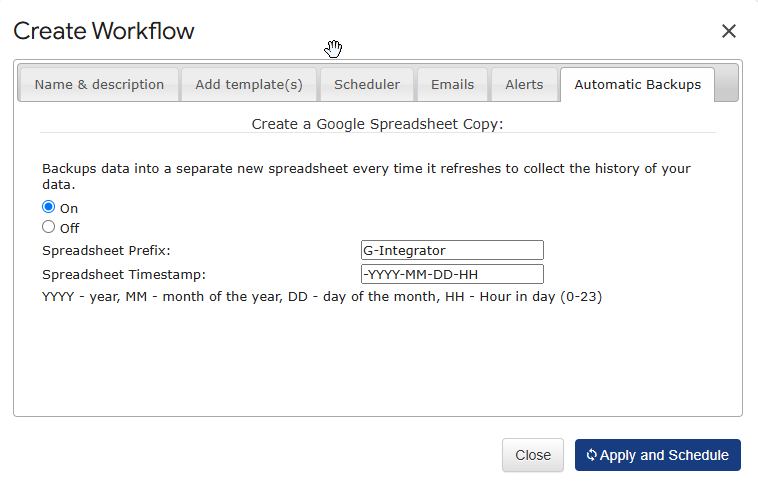
A refresh alone overwrites the sheet with current data. That is useful, but a real backup also needs history. Therefore, enable automatic backups in the same Automation… menu: the add-on can create a timestamped copy of the spreadsheet on every refresh.

With this option on, you get a growing archive of dated snapshots in Google Drive. Consequently, you can answer questions like “what did this deal look like on March 1st?” just by opening the right copy.

Step 5: Verify and maintain the workflow

Finally, a quick health check keeps everything running smoothly:

  • Review your schedules. The Automation… menu lists every spreadsheet with active workflows, so you always know what runs where.
  • Repair if needed. If a workflow ever stops (for instance, after a password change), the repair option under Automation… reinitializes the trigger in one click.
  • Watch the notifications. If you enabled email alerts, a missing email is your early warning sign.

How often should you back up?

It depends on how fast your data changes. As a rule of thumb:

Team size / activitySuggested frequency
Small team, slow pipelineWeekly
Active sales teamDaily
High-volume portal, frequent importsHourly

Remember that timestamped copies take Drive storage. Because of that, hourly snapshots of a huge portal can add up — daily is the sweet spot for most teams.

Bonus: get alerted when data changes unexpectedly

Backups protect you after something goes wrong. Alerts warn you while it happens. Under the same Automation… menu, you can set cell-value alerts that email you when a number crosses a threshold — for example, when your total contact count suddenly drops. Combined with scheduled backups, this gives you both a warning system and a recovery path.

Frequently asked questions

Does the backup run when my spreadsheet is closed?

Yes. Scheduled workflows run in the background on Google’s servers. You can close the tab, shut your laptop, and the refresh still happens on time.

Can I back up custom properties and custom objects?

Yes. The template builder lets you pick any properties available in your portal, including custom ones. Build a template per object and add them all to one workflow.

Does this work on the free HubSpot plan?

Yes. The add-on works with any HubSpot tier, including the free CRM. No Operations Hub or paid HubSpot add-ons are required.

How much does it cost?

G-Integrator for HubSpot offers a free two-week trial with full functionality. After the trial, you pick a Premium plan — see the pricing page for current rates.

Can I restore data back into HubSpot from a backup?

Yes. The add-on includes Upload Data to HubSpot, so you can push corrected values from a snapshot sheet back into your portal.

Wrap-up

Losing CRM data hurts, and it usually happens without warning. However, a ten-minute setup removes that risk: connect the add-on, build templates for contacts, deals, and companies, schedule a workflow, and switch on timestamped copies. After that, your HubSpot backup to Google Sheets runs itself.

Ready to protect your portal? Install G-Integrator for HubSpot and start your free two-week trial today. For details on schedules, alerts, and repair options, see the Automation & workflows guide in our Help Center.

HubSpot Reports in Google Sheets Without Operations Hub

HubSpot ships its own Google Sheets sync, but there is a catch: the two-way sync lives in Operations Hub, and the useful parts sit behind the paid tiers. If you only want your HubSpot reports in Google Sheets, that price is hard to justify.

The good news? You don’t need Operations Hub at all. In this guide, you will pull contacts, companies, and deals into a sheet with the G-Integrator for HubSpot add-on. After that, you will run ready-made reports and set them to refresh on a schedule.

Why not just use Operations Hub?

Operations Hub is a strong product for data sync across many apps. However, it is a poor fit when your goal is simple reporting:

  • Price. The features most teams want start on the paid tiers, and the cost grows with your contact count. In contrast, a focused Sheets add-on costs a fraction of that.
  • Scope. Operations Hub syncs objects between apps. It does not build report tables such as aging buckets, sales by product, or traffic breakdowns for you.
  • Setup. Sync mappings take time to plan and test. A report pull, on the other hand, takes a few clicks.

So if your goal is “get my HubSpot data into a spreadsheet and keep it fresh,” a lighter tool does the job better.

What you’ll need

  • A HubSpot account — any tier works, including the free CRM
  • A Google account
  • The G-Integrator for HubSpot add-on from the Google Workspace Marketplace — it comes with a free two-week trial

No API keys and no code. The add-on talks to HubSpot through the official API, so your data stays between HubSpot and your sheet.

Step 1: Connect Google Sheets to HubSpot

First, install the add-on in a Google Sheets spreadsheet. Then open:

Extensions → G-Integrator for HubSpot → HubSpot Sign In

Click through HubSpot’s consent screen and grant access. The add-on never sees your password. Also, you can remove the app from your HubSpot account at any time under Settings → Connected Apps.

If you manage more than one portal, pick the one you need. You can switch later.

Step 2: Pull contacts, companies, and deals

Next, open Get Data from HubSpot in the add-on menu. In the dialog:

  1. Pick an object — Contacts, Companies, Deals, or Tickets.
  2. Select the properties you want as columns.
  3. Add filters so you only pull the rows you need — for example, deals created this quarter.
  4. Run the pull.

Your records land in the sheet in seconds, one row per record. Moreover, the add-on saves your choices as a template. As a result, every later pull — manual or scheduled — uses the same object, properties, and filters.

Step 3: Run ready-made HubSpot reports in Google Sheets

This is where the add-on goes far past a plain export. Open:

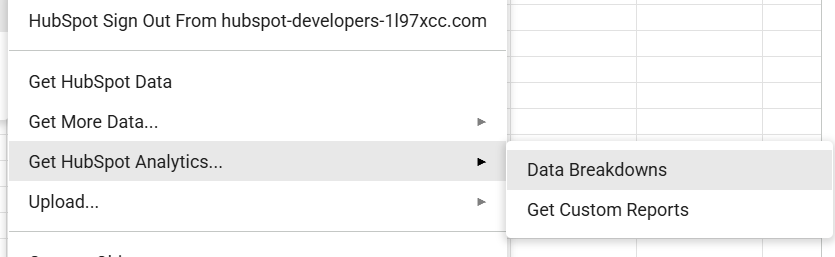
Get HubSpot Analytics… → Get Custom Reports

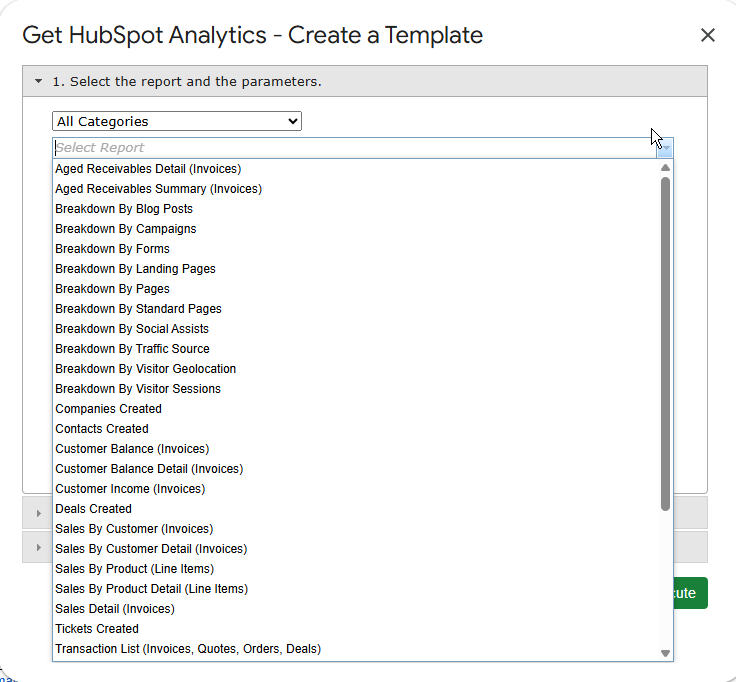
Here you will find 35+ built-in reports that HubSpot itself does not offer as flat tables. For example:

  • Sales reports — Sales by Customer, Sales by Product, and Sales Detail, built from your invoices and line items.
  • Aging and balances — Aged Receivables Detail and Summary, with overdue buckets (Current / 1–30 / 31–60 / 61–90 / 91+), plus Customer Balance reports.
  • Transaction lists — invoices, quotes, orders, and deals merged into one clean, date-ordered list.
  • CRM activity — contacts, companies, deals, and tickets created over time.
  • Marketing breakdowns — sessions, contacts, and customers by traffic source, campaign, form, landing page, or blog post.

Pick a report, choose a date range, and run it. The result lands in your sheet as a tidy table, ready for pivot tables and charts.

Additionally, you can set a dynamic date range such as “last 30 days.” The report then moves its window forward on every refresh. For the full list, see the report catalog.

Step 4: Schedule automatic refreshes

Finally, stop refreshing by hand. Open Workflows in the add-on menu and create a workflow that re-runs your pulls and reports on a schedule — hourly, daily, or weekly.

From then on, your sheet updates itself. Consequently, every chart, pivot table, and dashboard built on top of it stays current too. You can also add email alerts, so your team gets a message when fresh numbers arrive.

Bonus: push updates back to HubSpot

Although this guide focuses on reports, the add-on also works in the other direction. With Upload Data to HubSpot, you can insert, update, or upsert records straight from your sheet, with column-to-property mapping. In other words, you get the two-way part of Operations Hub for the objects that matter, without the price tag. See the upload guide for details.

What does it cost?

G-Integrator for HubSpot comes with a free two-week trial, so you can test every feature — pulls, reports, workflows, and uploads — before you pay. After the trial, Premium plans bill monthly or yearly, and they cost far less than an Operations Hub seat. Check the pricing page for current plans.

Frequently asked questions

Do I need Operations Hub or a paid HubSpot tier for this?

No. The add-on works with every HubSpot tier, including the free CRM. It reads your data through the official HubSpot API.

Can I refresh HubSpot reports in Google Sheets automatically?

Yes. Workflows re-run your pulls and reports on an hourly, daily, or weekly schedule. Dynamic date ranges move forward on their own.

Which HubSpot objects can I pull into a sheet?

Contacts, companies, deals, and tickets, plus invoices, quotes, orders, line items, custom objects, and HubDB tables. The 35+ built-in reports cover sales, aging, balances, CRM activity, and marketing analytics.

Is my HubSpot data safe?

Yes. You sign in through HubSpot’s own consent screen, and the add-on never sees your password. Furthermore, you can revoke access from your HubSpot settings at any time.

Can I write data back to HubSpot from Google Sheets?

Yes. The upload feature inserts, updates, or upserts records from your sheet with column mapping, so you can fix data in bulk without Operations Hub.

Wrap-up

Operations Hub earns its keep when you sync many apps in both directions. For reporting, though, it is too much tool at too high a price. Instead, install G-Integrator for HubSpot, connect your portal, and pull your first report in the next five minutes — the two-week trial gives you full access to see it work with your own data.

Introducing Subscription Manager: Self-Service Billing for Your G-Integrator Account

We’re excited to introduce the G-Integrator Subscription Manager — a new self-service portal that puts you in full control of your G-Integrator subscription, whether you’re using our HubSpot, Zoho CRM, or Zoho Books integration. No more emailing support to check your plan, add a teammate, or grab an invoice: it’s all just a sign-in away.

How to access it

You can reach the Subscription Manager in two ways:

Sign in with your Google account

Access is as simple as signing in with the Google account you use with G-Integrator. There’s nothing to install and no separate password to remember — your identity is verified securely, and the portal automatically finds your subscription based on your account email.

One portal, all your G-Integrator products

If you use more than one G-Integrator product, switching between them is a single click. The portal supports:

  • G-Integrator for HubSpot
  • G-Integrator for Zoho CRM
  • G-Integrator for Zoho Books

Just pick a project from the dropdown and every section below — subscription status, plans, invoices, and license groups — updates for that product.

Instant subscription lookup

The Subscription lookup card gives you an at-a-glance view of your account: license status, current plan, days remaining, days left in trial, customer and subscription IDs, and — for group subscriptions — how many seats are on your license. Admins can also look up any account by email, which is handy for quickly answering a customer’s support question.

Switch plans yourself, with instant estimates

The new Subscription plans card lists every available plan side by side with pricing, and lets you switch instantly — no support ticket required. Before you confirm, the portal shows you exactly what will happen: any prorated charge due now, credits applied, or credits issued for the unused period of your current plan, so there are never any surprises on your next invoice.

Need to update the card on file? A single button opens a secure, Chargebee-hosted page to update your payment method — your card details never touch our servers

Group subscriptions with a built-in discount

Premium plans now support group subscriptions: set the number of seats you need directly on the plan table, and every seat beyond the first automatically gets a 15% discount. It’s the easiest way to license an entire team under one subscription.

Share your license with your team

Once you’re on a Premium plan, the License group card lets you share your license with teammates by simply pasting their email addresses. You can review who’s currently in your group at any time, and add more members whenever your team grows.

Heads up: reducing your seat count — including switching off a Premium plan — disbands the license group, so all members lose access immediately. The portal always warns you before you confirm a change like this.

All your invoices, one click away

The Invoices card lists your full billing history — date, invoice number, status, total, and amount due — with a one-click PDF download for each invoice. No more digging through email for a receipt.

Built for security

Every request is authenticated with your verified Google identity, and only a small, whitelisted set of G-Integrator admins can act on behalf of another account — for example, to help a customer during a support request. Everyone else can only ever see and manage their own subscription.

Try it now

The Subscription Manager is live today for all G-Integrator customers. Head to g-integrator.com/subscriptions or open About → My subscription from within any G-Integrator product, sign in with your Google account, pick your product, and take control of your subscription — plans, teams, and invoices, all in one place.

What’s New: HubSpot Analytics & Data Breakdowns, Right Inside Google Sheets

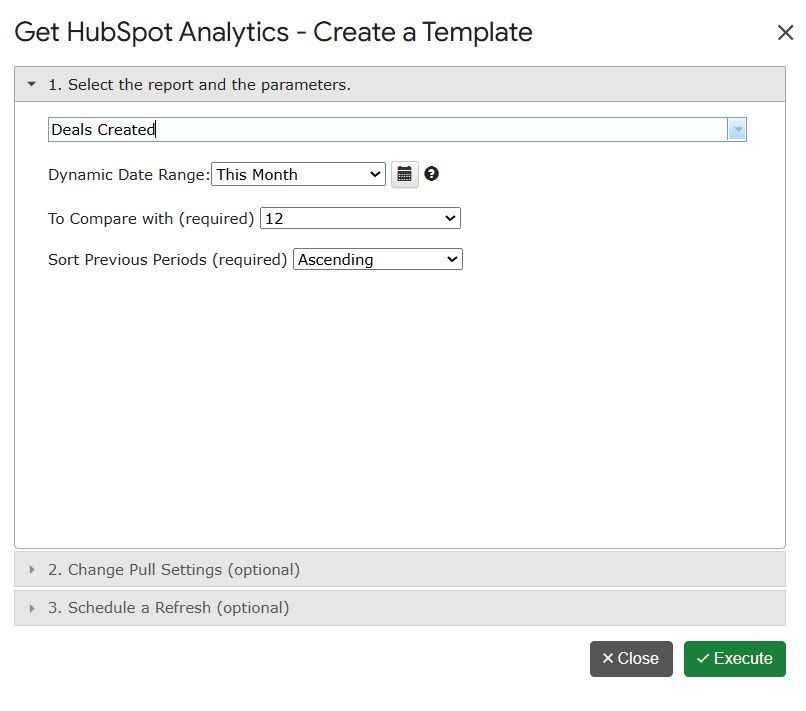
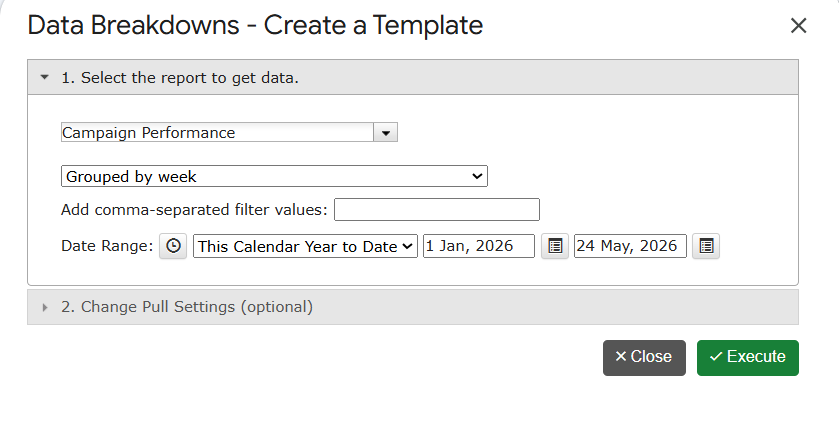
We’ve shipped two new template-driven dialogs in G-Integrator for HubSpot that pull HubSpot analytics straight into your spreadsheet — no more CSV exports, no juggling external BI tools. Build once, save as a template, refresh on demand.

1. Get Custom Reports — reusable HubSpot analytics templates

The new Get Custom Reports dialog lets you assemble a HubSpot analytics report once and run it on demand. Pick the scope — contacts, companies, deals, tickets, or custom objects — define your filters, choose your columns, and save the configuration as a reusable template. Anyone on your team can run it later, in any sheet, without rebuilding it from scratch.

  • Scope-aware reports for contacts, companies, deals, tickets and custom objects.
  • Composite filter logic — combine multiple conditions in a single query.
  • Reusable templates, shareable with teammates via the Cloud Templates manager.
  • One-click refresh via the existing Refresh HubSpot Data action.

2. Data Breakdowns — pivot HubSpot data without leaving the sheet

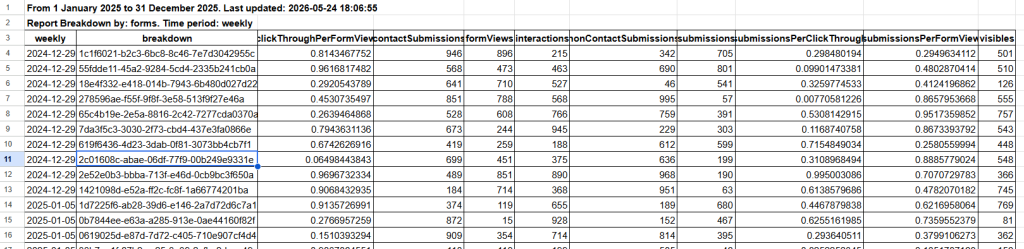
The new Data Breakdowns dialog is the fastest way to slice HubSpot data by dimension and frequency. Pick a metric, group it by one or more dimensions, choose a frequency (daily, weekly, monthly, quarterly), and the breakdown streams directly into your active sheet — with totals, formatting, and refresh metadata wired up automatically.

  • Dimension × frequency breakdowns — pivot-style summaries without a pivot table.
  • Automatic paging — large datasets stream into the sheet page by page.
  • Refresh-ready — sheet metadata is captured so the report refreshes in place.
  • Premium & Lite aware — advanced features unlock automatically with your subscription.

Getting started in 30 seconds

  1. Open any Google Sheet.
  2. Go to Extensions › G-Integrator for HubSpot and sign in if you haven’t already.
  3. Choose Get HubSpot Analytics… and pick the dialog you need.
  4. Configure filters, save as a template, and run.
The data was randomized

Questions? Email support@g-integrator.com or visit the FAQ page.

📧 Important Update: Changes to the Marketing Emails Table in G-Integrator

Dear Clients,

This email is to provide a critical heads-up regarding upcoming, mandatory changes to the Marketing Emails synchronized table within the G-Integrator application.

Why the Change is Necessary

HubSpot has sunsetted (retired) the Version 1 Marketing Email API, which our application previously relied on. To ensure the continuous, stable synchronization of your data, we have successfully updated G-Integrator to utilize the new HubSpot Version 3 Marketing Email API.

Impact on Your Data and Templates

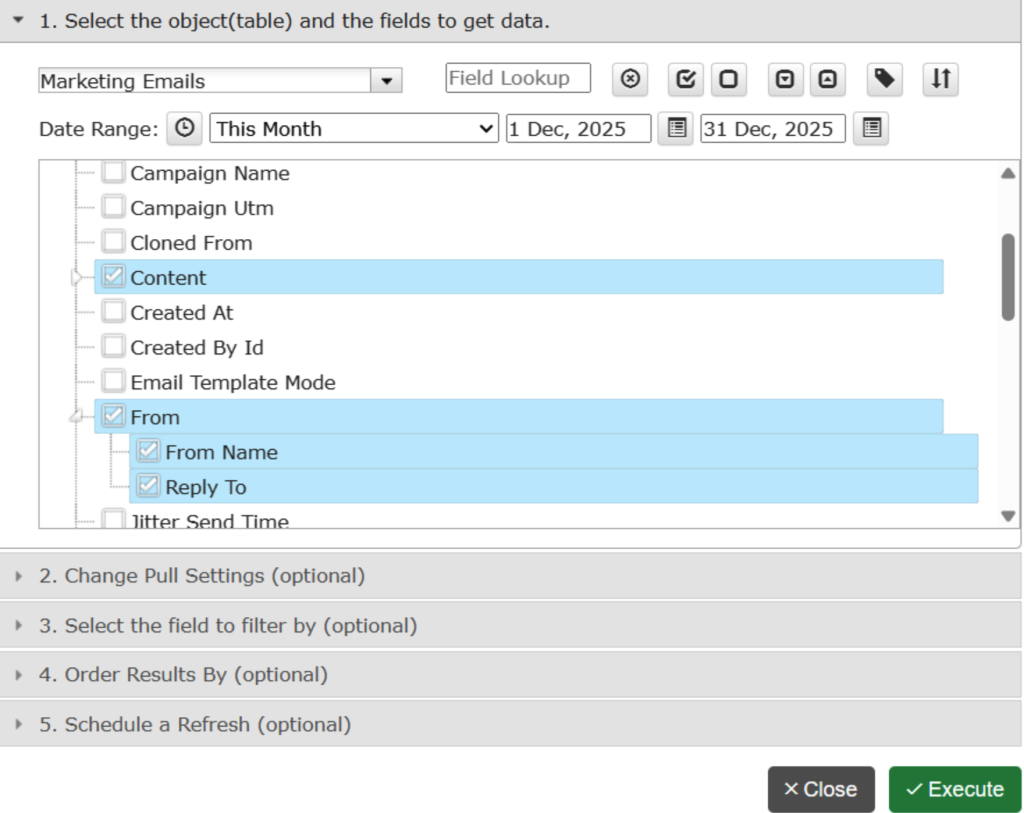
Unfortunately, this required API migration introduces some changes to the structure of the Marketing Emails table:

  • Field Removal: Some existing fields available in your saved templates will no longer be available due to the V3 API structure.
  • New Data: You will now have access to new fields and potentially nested tables within the Marketing Emails data structure (please refer to the screenshot provided below for details).

Good news: The Marketing Email Statistics table, which uses the same updated API, has not been changed and will continue to function as expected.

Required Action

We kindly ask you to review your saved templates that rely on the Marketing Emails table and update them to reflect the new data structure. We are confident that you will be able to easily leverage the new data fields soon.

We apologize for any inconvenience this transition may cause and appreciate your quick action in updating your templates.

Please do not hesitate to contact us if you have any questions or require assistance.

New Feature: Easily Disconnect G-Integrator from Your HubSpot Account

Dear clients,

As part of our ongoing commitment to making the G-Integrator app safer and more transparent, we’ve added a small but important new feature – a menu option that allows you to disconnect G-Integrator from your HubSpot account.

To understand why this might be useful, let’s briefly go over how the connection works.

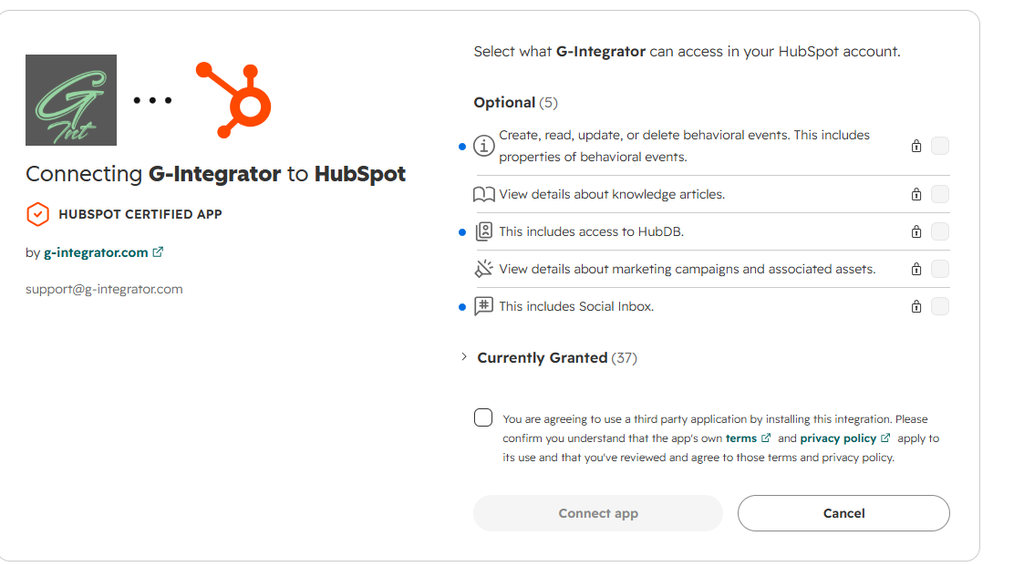
When you first sign in to your HubSpot account through G-Integrator, HubSpot displays the app authorization screen. By clicking “Connect app”, you grant G-Integrator permission to read and write specific data in your HubSpot account – exactly as described on that screen.

We deeply value your trust and will never misuse these permissions. However, we recognize that you may sometimes wish to revoke access.

You can always do this directly in your HubSpot account by navigating to Integrations → Connected Apps, then selecting Uninstall (see our FAQ for detailed steps). But in the spirit of full transparency, we wanted to make it even simpler – just one click away.

That’s why we’ve introduced a new menu option:
About → Disconnect G-Integrator from my HubSpot account

Selecting this option will send a secure API call to HubSpot to disconnect G-Integrator from your account. None of your HubSpot data will be affected, and you can reconnect anytime by choosing HubSpot Sign In menu again.

We hope you’ll never need to use this option – but it’s there for your peace of mind.

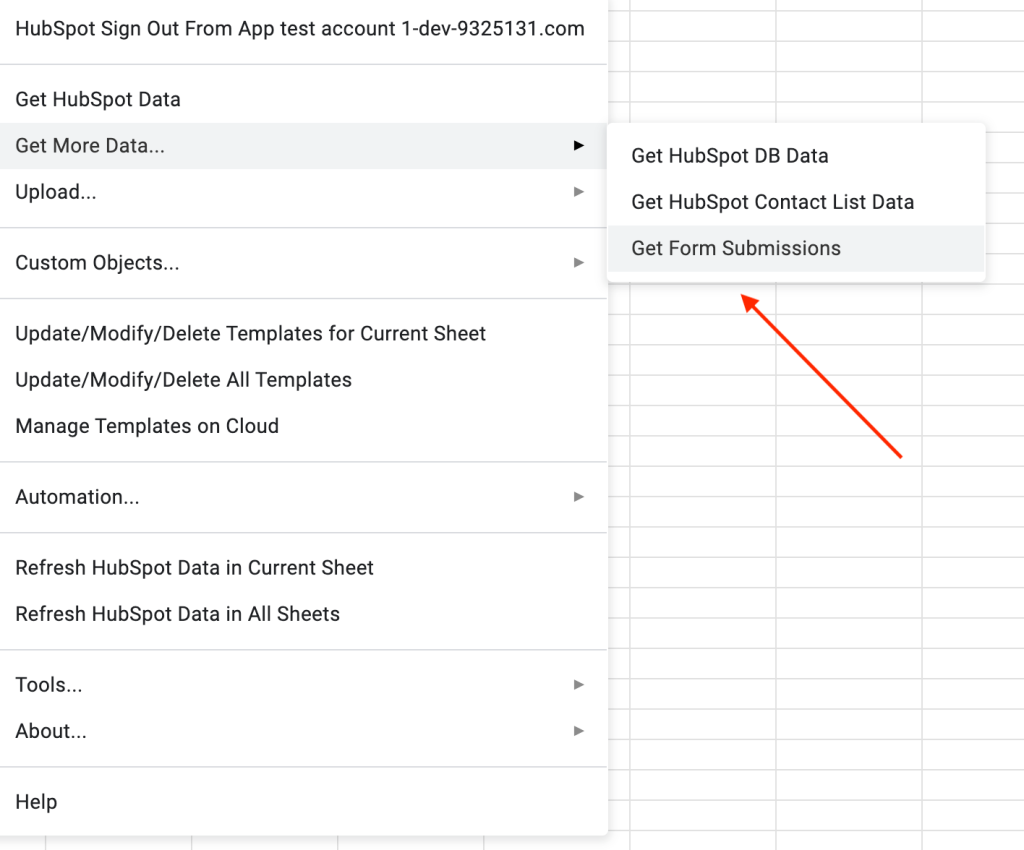
Get Form Submissions – a brand new feature

Dear clients,

We’re excited to announce a new feature in the G-Integrator for HubSpot addon: Form Submissions.

You can access it via Get More Data → Get Form Submissions.

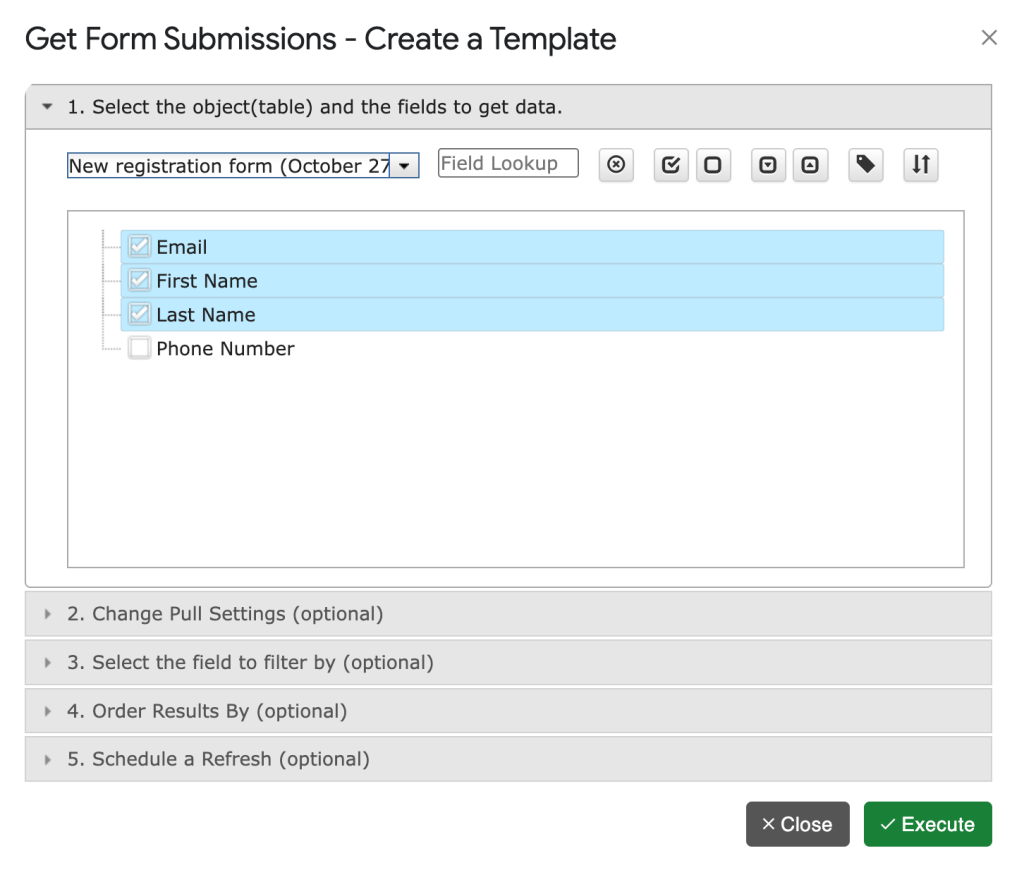
 The workflow is consistent with our other “Get Data” features:

  1. Choose the form you want.
  2. Select the fields you need.
  3. Apply any optional filters.
  4. Click Execute to retrieve the data.

You can also add “Form Submissions” to your workflow/auto-refresh for automatic downloads.

Note: If a form contains multiple values for the same field, they will be combined with a semicolon (;). For example: value1; value2; value3.

We hope you find this new functionality helpful. As always, please share any questions or suggestions — we’d love to hear your feedback.

We hope that you will enjoy this new functionality. Please let us know if you have any questions or suggestions. 

Announcing a New Feature for G-Integrator for HubSpot: Add New Records Only (Incremental Update)

We are excited to introduce a powerful new feature to our G-Integrator for HubSpot addon: “Incremental Update”. This enhancement is designed to optimize your data synchronization process, making it more efficient and reducing the time it takes to update your records.

Why This Feature Matters

Many of our clients manage large volumes of data within HubSpot, such as calls, emails, and other records that rarely change once created. Previously, each synchronization would require re-querying the entire dataset, which could be time-consuming and resource-intensive. This often led to automatic updates being terminated prematurely due to the Google Script engine’s 6-minute execution limit.

With the new “Incremental Update” feature, you can now synchronize only the records that have been created since the last query execution. This targeted approach significantly reduces the amount of data being processed, thereby decreasing the overall download time and ensuring your updates complete within the allowed time frame.

Benefits of Incremental Updates

  1. Faster Synchronizations: By only downloading new records, the synchronization process is much quicker, saving you valuable time.
  2. Reduced Resource Usage: Minimizing the amount of data processed reduces the strain on your system, leading to more efficient operations.
  3. Increased Reliability: Preventing automatic updates from being terminated ensures your data is always up-to-date without the need for manual intervention.
  4. Improved Performance: Streamlined data handling means you can focus on your core business activities without worrying about lengthy data synchronization processes.

Important Warnings

While the incremental update feature offers significant advantages, it is important to be aware of the following:

  1. Order By Conditions: If you have one or more “order by” conditions, the entire data set will be re-ordered during synchronization. This can take significant time if there are hundreds of thousands of records. Plan accordingly to avoid potential delays.
  2. Data Integrity: The query does not update or validate any existing data. If the existing data is changed manually, the result can be unpredictable. Ensure that your data remains consistent and avoid manual changes during the synchronization process to maintain accuracy.
  3. Unchanged Source Data: This feature works only if the source data in the HubSpot account are not changed. The addon will never re-download any existing data, so if they are changed in HubSpot, the sync will be lost. If you need to update existing data, you can temporarily uncheck the “Add New Records Only (Incremental Update)” option, manually re-synchronize the data, and then check it on again.

How to Use the Incremental Update Feature

Using this new feature is straightforward. Follow these steps to enable incremental updates in your G-Integrator for HubSpot addon:

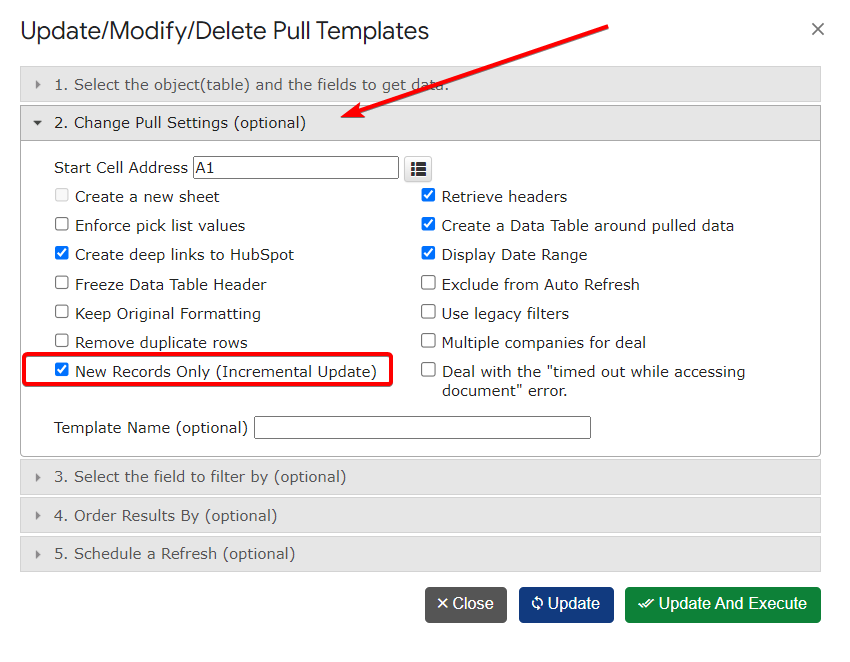
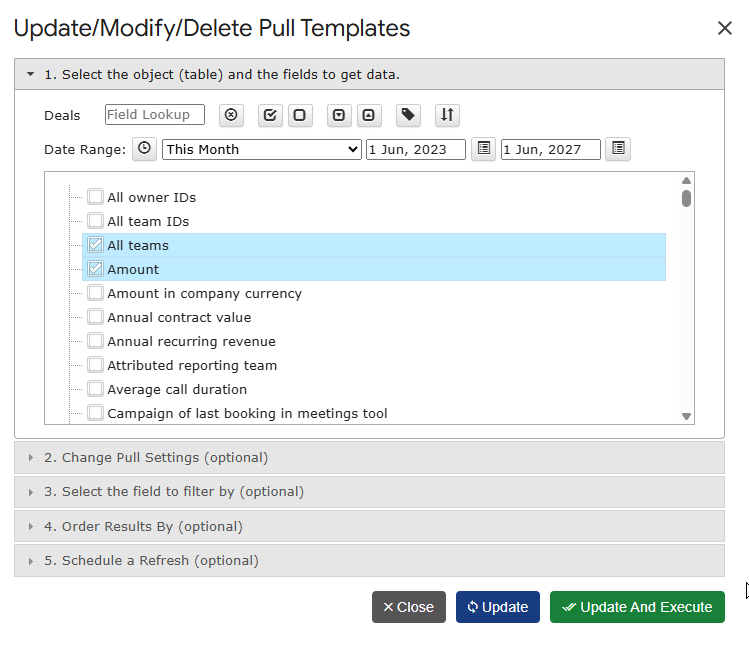
  1. Access the Settings: Navigate to the “2. Change Pull Settings (optional)” tab in your download template
  2. Enable Incremental Update: Look for the option labeled “New Records Only (Incremental Update)” and toggle it on.
  3. Save and Sync: Save your settings and initiate a synchronization. The addon will now only query and add new records created after the last execution.

Real-World Applications

Imagine you have thousands of call records in HubSpot that are never modified once logged. With incremental updates, you no longer need to re-download all these calls every time you sync your data. Instead, the addon will quickly fetch only the new calls since the last update, drastically reducing the synchronization time and ensuring your data set is always current.

Feedback and Support

We believe this feature will greatly enhance your experience with G-Integrator for HubSpot, and we are eager to hear your feedback. Should you have any questions or need assistance, our support team is always here to help. Please contact us by email: support@g-integrator.com

Thank you for choosing G-Integrator for HubSpot. We are committed to continuously improving our tools to better serve your needs.

Happy integrating!

The G-Integrator Team

Introducing Exciting New Features in the G-Integrator for HubSpot Addon

We are thrilled to announce a series of powerful enhancements to the G-Integrator for HubSpot addon, designed to make your data synchronization tasks smoother and more comprehensive. Here’s a detailed look at what’s new:

1. Download Associations for Multiple HubSpot Objects

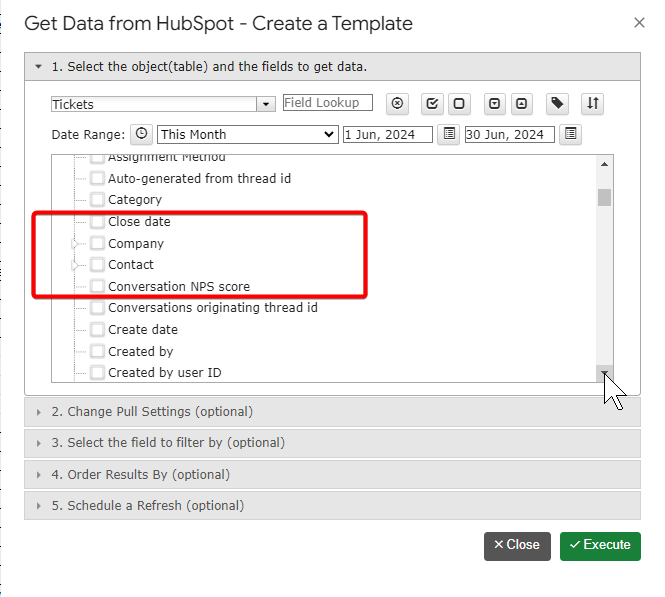
We are excited to introduce the ability to download associations to Company, Contact, and more for multiple HubSpot objects that you already can download. Now, when you pull data such as Calls, Meetings, Quotes, Invoices, and other objects into your Google Spreadsheets, you can also include their related associations. This enhancement ensures a more comprehensive and interconnected view of your HubSpot data, making it easier to manage and analyze.

2. New HubSpot Objects Added

We have expanded the range of HubSpot objects you can work with in G-Integrator. The new additions include:

  • Fees: Track and manage additional costs with ease.
  • Orders: Keep a detailed record of your sales orders.
  • Taxes: Ensure compliance and manage tax details accurately.
  • Discounts: Monitor and apply discounts effectively.
  • Subscriptions: Manage recurring revenue streams seamlessly.

These new objects will enable you to have a more holistic view of your business operations right from your Google Spreadsheet.

3. Enhanced Upload Functionality with Contact Email Association

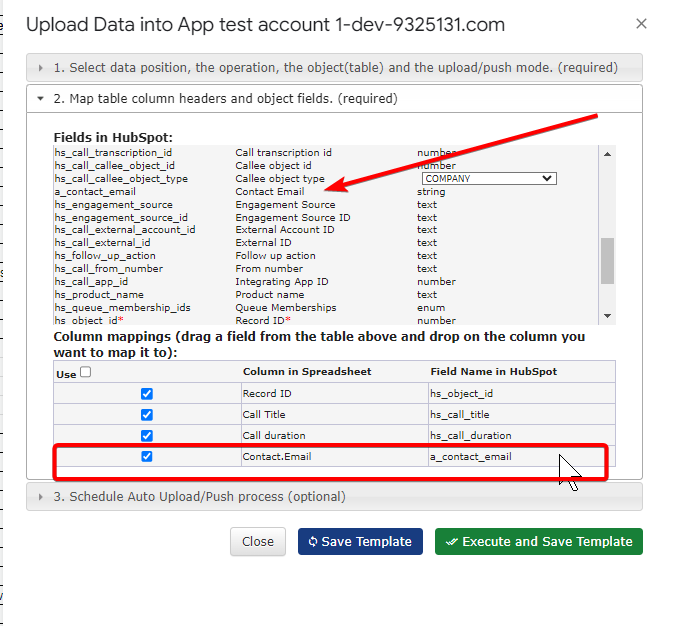
Uploading HubSpot objects has become even more versatile. You can now associate any HubSpot object with an existing contact by mapping the new “Contact Email” field to the corresponding column in your spreadsheet. This feature simplifies the process of linking data and ensures that your records are always connected correctly.

Conclusion

These improvements are part of our ongoing commitment to providing you with the best tools to enhance your productivity and data management capabilities. With these new features, G-Integrator for HubSpot becomes even more indispensable for anyone looking to leverage their HubSpot data within Google Spreadsheets.

Stay tuned for more updates, and as always, we welcome your feedback to continue improving our services.


We hope you enjoy these new features! If you have any questions or need assistance, please don’t hesitate to reach out to our support team. Happy integrating!