Coupler.io Alternatives for Google Sheets: Which Connector Fits You?

Coupler.io is a popular way to pull business data into Google Sheets. However, it is not the right fit for everyone. Its pricing grows with the number of connections and rows, and many teams only need one or two data sources. If that sounds like you, several Coupler.io alternatives deserve a look.

In this post, we compare the main options for getting CRM, accounting, and e-commerce data into Google Sheets. Additionally, we explain when a focused single-source add-on beats a broad multi-source platform.

What to look for in a Sheets connector

Before you compare tools, decide what actually matters for your workflow:

  • Sources. Do you need twenty integrations, or just your CRM and your payment platform?
  • Scheduling. Can refreshes run automatically, even with the spreadsheet closed?
  • Two-way sync. Can you push edited data back to the source, or only pull it?
  • Filtering. Can you request a precise subset, or must you pull everything and filter in Sheets?
  • Pricing model. Per-connection and per-row pricing punishes growth. Flat pricing does not.

Keep these five points in mind. Meanwhile, let’s look at the options.

Option 1: G-Integrator — focused add-ons with two-way sync

G-Integrator takes a different approach from multi-source platforms. Instead of one tool with dozens of shallow connectors, it offers dedicated Google Sheets add-ons, each built deeply around one source:

Because each add-on targets one platform, it goes deeper than a generic connector. For example, the Zoho CRM add-on supports COQL queries with WHERE clauses and lookup joins, and the HubSpot add-on ships a full report catalog. Furthermore, the CRM add-ons push data back: you can update, insert, or upsert records straight from a sheet — something pull-only connectors cannot do.

Scheduled workflows refresh your data from hourly to monthly, with optional email alerts and timestamped backups. The refresh runs even when the spreadsheet is closed.

Pricing: each add-on has a free two-week trial with full functionality, then a flat Premium plan. There is no per-row or per-connection metering, so costs stay predictable as your data grows.

Best for: teams that live in one or two platforms (HubSpot, Zoho, Shopify, or Stripe) and want depth, two-way sync, and flat pricing.

Option 2: Multi-source platforms (Coupler.io and similar)

Tools like Coupler.io shine when you genuinely need many sources in one place — for instance, an agency that blends ad platforms, analytics, and CRM data into one dashboard. They typically offer a wide catalog of connectors and destination options beyond Sheets.

The trade-offs are real, though. First, breadth usually comes at the cost of depth: generic connectors rarely support source-specific features like COQL queries or write-back. Second, usage-based pricing means the bill climbs as connections and rows grow. Therefore, check the current pricing page carefully against your expected volume before committing.

Best for: agencies and analysts combining many different sources into blended reports.

Option 3: Native exports and CSV imports

Every platform exports CSV files, and Google Sheets imports them. This costs nothing, so it is worth mentioning. Nevertheless, manual exports have a hidden price: someone must remember to run them, the formatting breaks constantly, and the data is stale the moment it lands. As a rule, CSV workflows survive about two weeks before someone asks for automation.

Best for: one-off pulls that you will never repeat.

Option 4: Apps Script and custom API code

If you have developer time, Google Apps Script can call any API directly. You get total control, and there is no subscription. On the other hand, you also own the maintenance: authentication, pagination, rate limits, retries, and every API version change. What starts as a weekend script often becomes an unowned liability after the author moves on.

Best for: engineering teams with unusual requirements and time to maintain code.

Side-by-side comparison

G-IntegratorCoupler.io-style platformsCSV exportCustom code
SourcesHubSpot, Zoho CRM, Zoho Books, Shopify, StripeManyAnyAny
Depth per sourceDeep (COQL, reports, related lists)GenericBasicUnlimited
Two-way syncYes (update/insert/upsert)RarelyNoIf you build it
Scheduled refreshHourly to monthlyYesNoIf you build it
Pricing modelFlat per add-onScales with usageFreeDeveloper time
Setup timeMinutesMinutes to hoursMinutes, repeatedlyDays

How to choose

The decision usually comes down to two questions. How many sources do you need? And do you need to write data back?

  • One or two of: HubSpot, Zoho CRM, Zoho Books, Shopify, Stripe → a focused G-Integrator add-on gives you more depth for a flat price.
  • Five or more unrelated sources → a multi-source platform earns its fee.
  • A single pull you will never repeat → just export a CSV.
  • Exotic requirements plus available developers → custom Apps Script.

Frequently asked questions

Is there a free Coupler.io alternative?

Fully free options are CSV exports and hand-written Apps Script. Both work, but both trade money for your time. G-Integrator offers a free two-week trial with full functionality, so you can confirm the fit before paying.

Can G-Integrator replace Coupler.io completely?

That depends on your sources. If your data lives in HubSpot, Zoho CRM, Zoho Books, Shopify, or Stripe, then yes — with more depth and two-way sync on top. If you also need ad platforms or databases, you may want a platform tool alongside.

Do the G-Integrator add-ons refresh data automatically?

Yes. Scheduled workflows run from hourly to monthly and work even when the spreadsheet is closed. You can also add email alerts and automatic timestamped backups.

Can I push data back to my CRM from Google Sheets?

Yes. The HubSpot and Zoho CRM add-ons support update, insert, and upsert from selected rows — a key difference from pull-only connectors.

Wrap-up

Coupler.io is a solid product for many-source reporting. Still, most teams pull from one or two systems, and for them a focused add-on is simpler, deeper, and cheaper. Pick the tool that matches your source list, not the longest feature table.

Ready to compare in practice? Browse the G-Integrator add-ons and start a free two-week trial for your platform. Setup takes minutes, and our Help Center walks you through every step.
How to Bulk Update Zoho CRM Records from Google Sheets

Editing records one by one in Zoho CRM is slow. Meanwhile, mass changes come up all the time: reassigning lead owners, fixing phone formats, updating deal stages after a pipeline change, or cleaning imported junk. The good news? You can bulk update Zoho CRM records straight from Google Sheets, where bulk editing is what spreadsheets do best.

In this guide, you will pull records into a sheet, edit them with familiar spreadsheet tools, and then push the changes back to Zoho CRM. No CSV exports, no import wizard, and no code.

Why edit Zoho CRM data in a spreadsheet?

Zoho CRM has a mass update tool, but it changes one field to one value at a time. In contrast, a spreadsheet gives you much more power:

  • Formulas. Fix phone formats, split names, or build values from other columns.
  • Find and replace. Correct a misspelled company name across 500 records at once.
  • Filters and sorting. Isolate exactly the rows that need a change before you touch anything.
  • A visible audit trail. You see every value before and after, side by side.

Moreover, the whole edit happens outside the CRM. As a result, nothing changes in Zoho until you explicitly push the rows back.

What you need

The add-on includes a free two-week trial, so you can run a full update cycle before paying anything.

Step 1: Pull the records you want to change

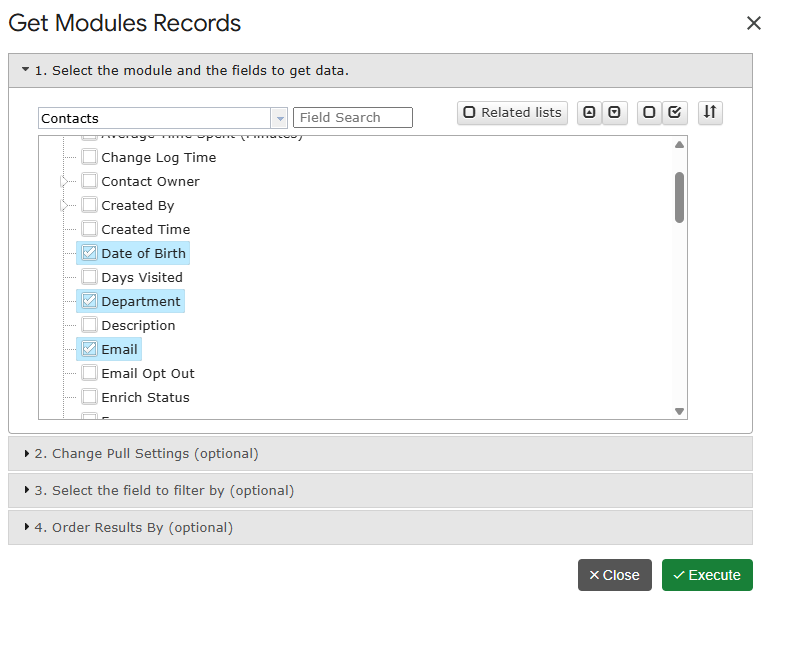
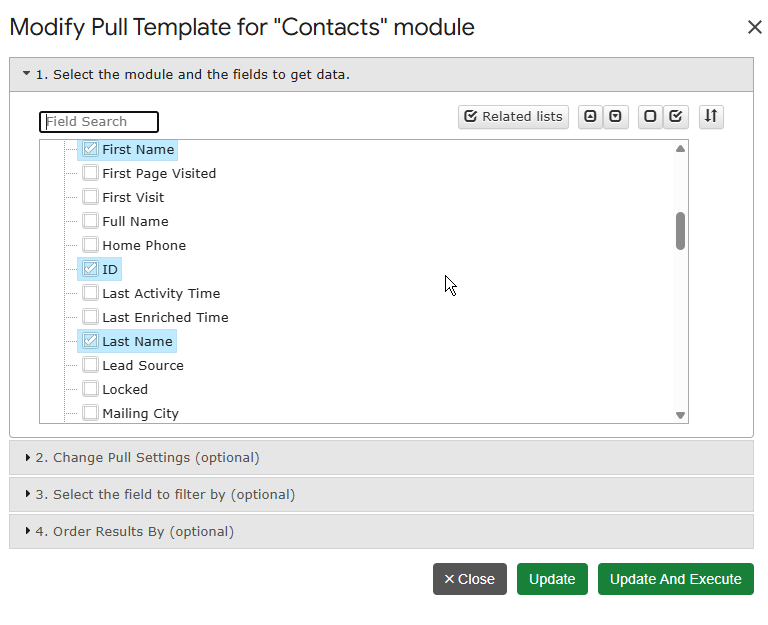
First, open your spreadsheet and connect the add-on to your Zoho account. Then click Get Module Records, pick the module (Contacts, Leads, Accounts, Deals, Tasks, or any custom module), and select the fields you plan to edit in the field tree. Finally, choose a start cell and click Execute.

Two tips make the next steps easier:

  • Always include the ID field. The record ID tells Zoho exactly which record to update, so matching is precise.
  • Pull only the columns you need. A narrow sheet is faster to edit and faster to upload.

The pull is auto-saved as a refreshable template. Therefore, you can rerun the same selection next week with one click.

Advanced: if you need a precise subset — for example, only leads created last quarter with no owner — use Get Data using COQL instead and write a query with a WHERE clause.

Step 2: Edit the data in bulk

Now the fun part. Because the data sits in Google Sheets, every spreadsheet trick applies:

  • Use find and replace to fix a recurring typo.
  • Add a helper column with a formula, then paste the results as values into the real column.
  • Sort by owner, filter by stage, and change hundreds of cells with one drag-fill.

However, keep two rules in mind. First, never edit the ID column — it is the key that links each row to its Zoho record. Second, keep picklist values exact: Zoho rejects values that do not match the field’s allowed options.

Step 3: Push the changes back to Zoho CRM

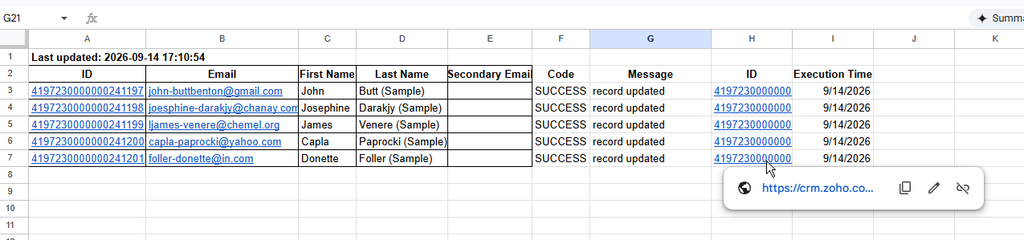
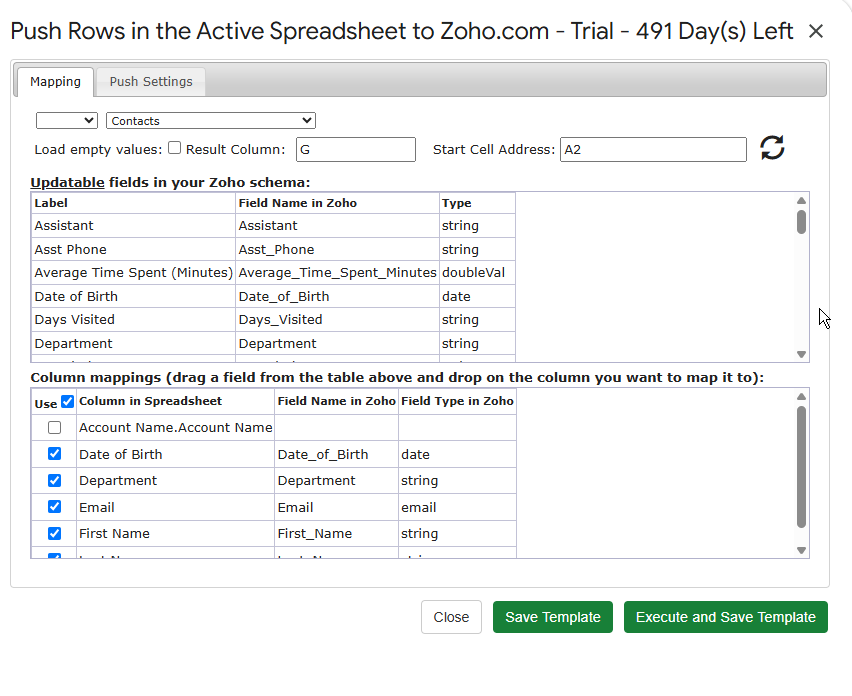
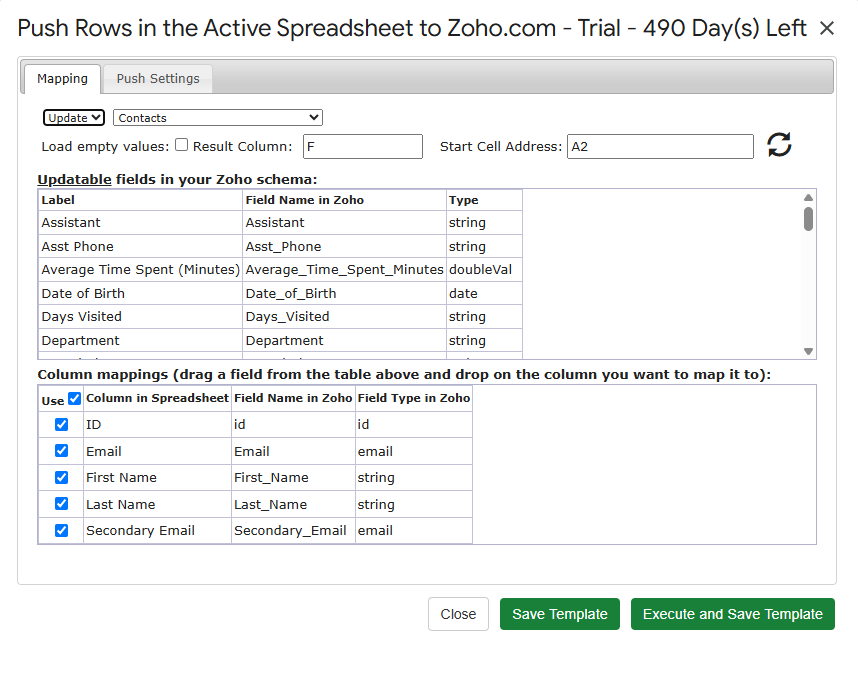
Once the rows look right, select them and click Update / Insert / Upsert Selected Row(s) in the add-on menu. A mapping dialog opens. There, you:

  1. Map each spreadsheet column to its Zoho field.
  2. Choose a result column, where the add-on writes a status for every row.
  3. Click Execute and Save Template.

The mapping is saved as a reusable template. Consequently, the next bulk update takes seconds: pull, edit, select, execute.

Update, insert, or upsert — which one?

  • Update changes existing records. Rows must carry a record ID.
  • Insert creates new records from the selected rows.
  • Upsert does both: it updates a row when a match exists and inserts it otherwise. This is ideal for mixed lists.

Step 4: Check the results

After the push, look at the result column. Each row shows its own status, so a partial failure never hides. If a few rows fail — usually due to a picklist mismatch or a required field — fix just those cells and push only the failed rows again. In other words, you never redo the whole batch.

Common bulk update scenarios

ScenarioHow to do it
Reassign lead ownerPull leads with Owner + ID, replace owner values, update
Fix phone formatsAdd a formula column, paste as values, update
Change deal stages in bulkFilter deals by stage, edit the Stage column, update
Merge cleanup after importFix values in Sheets, upsert the corrected list
Add new contacts + update old onesOne sheet, one upsert run

Frequently asked questions

Can I update custom modules and custom fields?

Yes. Get Module Records lists custom modules alongside standard ones, and the mapping dialog shows every field your Zoho edition exposes, including custom fields.

How many records can I update at once?

The add-on processes the rows you select and paginates the work automatically. Large batches simply take a little longer — you do not need to split them by hand.

Will this overwrite fields I did not map?

No. Only mapped columns change. Unmapped Zoho fields keep their current values.

Does this work on the free Zoho CRM edition?

Yes. The add-on works with any Zoho CRM edition. On the G-Integrator side, you get a free two-week trial; after that, pick a plan on the pricing page.

Can I undo a bulk update?

There is no automatic undo. However, an easy safeguard exists: before you push, duplicate the sheet tab. That copy holds the original values, so you can push them back if needed.

Wrap-up

Bulk edits do not have to mean CSV exports and import wizards. Instead, pull records with Get Module Records, clean them with spreadsheet tools, and push them back with Update / Insert / Upsert Selected Row(s). With saved templates on both sides, the second run takes under a minute.

Ready to try it on your own data? Install G-Integrator for Zoho CRM and start your free two-week trial. For the full mapping reference, see the Upload data to Zoho CRM guide in our Help Center.

Zoho CRM COQL Queries from Google Sheets: Joins and One-to-Many Pulls


Zoho CRM’s standard export gives you one module at a time. That works fine for a flat contact list. However, the moment you need deals joined with their accounts, or contacts filtered by a field on a parent record, flat exports fall short.

This is the job of Zoho CRM COQL queries. COQL — CRM Object Query Language — is Zoho’s SQL-like query language. In this guide, you will run COQL from Google Sheets with the G-Integrator for Zoho CRM add-on. First, we will cover the syntax. Then we will walk through real examples, including joins and one-to-many pulls.

What is COQL?

COQL lets you query Zoho CRM records with SELECT statements, much like SQL:

SELECT Last_Name, Email, Lead_Source
FROM Contacts
WHERE Lead_Source = 'Web'

If you know basic SQL, you already know most of COQL. Still, there are a few Zoho-specific rules to keep in mind:

  • A WHERE clause is required. Zoho rejects queries without one. If you want all records, use a condition that always holds, such as WHERE id is not null.
  • Field names use API names. Write “Account_Name", not “Account Name”. You can check API names under Setup → Developer Space → APIs in Zoho, or simply pick fields from the add-on’s field list.
  • Joins work through lookup fields. Dot notation reaches fields on a related record, up to two relations deep.

What you’ll need

  • A Zoho CRM account (any edition)
  • A Google account
  • The G-Integrator for Zoho CRM add-on from the Google Workspace Marketplace — it comes with a free two-week trial

No API keys and no code outside the query itself. Moreover, the add-on handles paging for you, so large results arrive in full.

Step 1: Connect Google Sheets to Zoho CRM

First, install the add-on in a Google Sheets spreadsheet. Then open:

Extensions → G-Integrator for Zoho CRM → Zoho Sign In

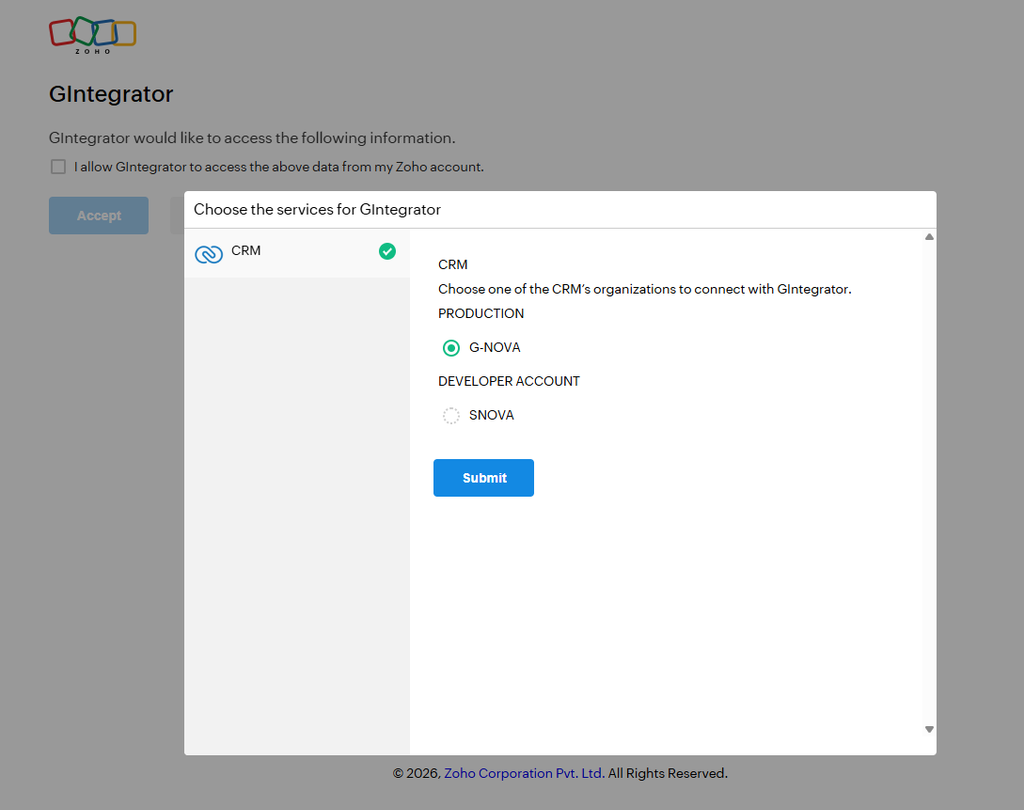
Sign in through Zoho’s own consent screen. The add-on never sees your password, and you can revoke access from your Zoho account at any time.

Step 2: Run your first COQL query

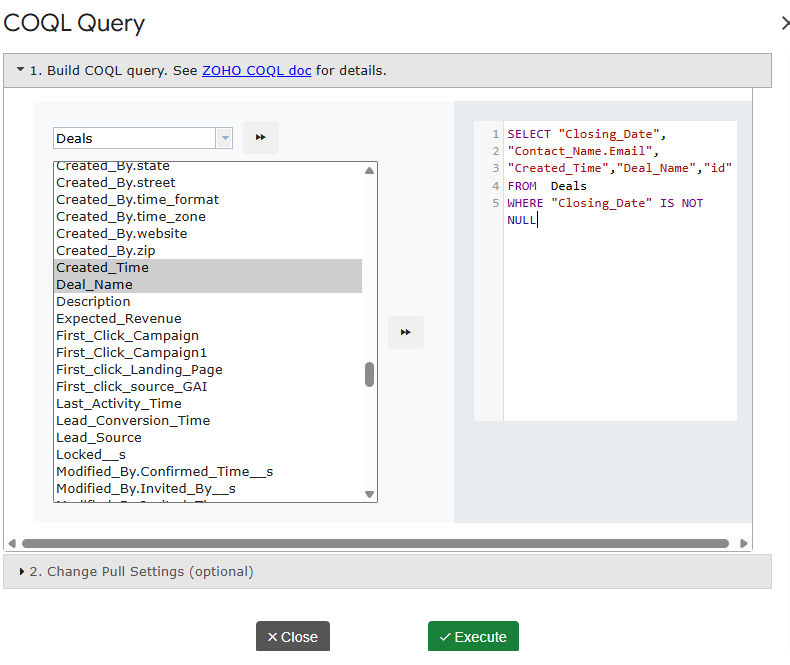
Next, click Get Data using COQL in the add-on menu. Type your query into the editor and run it:

SELECT Last_Name, First_Name, Email, Created_Time
FROM Contacts
WHERE Created_Time > '2026-01-01T00:00:00-05:00'

The matching rows land in your sheet, one record per row, with a header row on top.

Additionally, the add-on saves the query as a template. As a result, you can re-run it later with one click — or on a schedule, as we will see below.

Example queries you can copy

Filter by a picklist and sort

SELECT Deal_Name, Amount, Stage, Closing_Date
FROM Deals
WHERE Stage = 'Negotiation/Review'
ORDER BY Closing_Date asc

Join: pull account fields onto each deal

Lookup fields act as your join keys. For instance, each deal has an Account_Name lookup, so you can reach fields on the account through dot notation:

SELECT Deal_Name, Amount, Account_Name.Account_Name, Account_Name.Industry
FROM Deals
WHERE Amount > 10000

Every row now shows the deal next to its account’s name and industry. In SQL terms, this is an inner join — yet you wrote no JOIN clause at all.

Two levels deep

COQL follows lookups across two relations. For example, from a contact you can reach the owner of its parent account:

SELECT Last_Name, Account_Name.Account_Name, Account_Name.Owner.last_name
FROM Contacts
WHERE Account_Name is not null

One-to-many: repeat the parent for each child

A one-to-many pull lists child records with their parent’s fields on every row. To do that, query the child module and join up to the parent:

SELECT Account_Name.Account_Name, Deal_Name, Amount, Stage
FROM Deals
WHERE Account_Name.Industry = 'Technology'
ORDER BY Account_Name.Account_Name asc

The result reads like a report: each account appears once per deal, ready for a pivot table. Afterwards, you can group by account in the sheet to get totals per parent.

Multiple conditions

SELECT Last_Name, Email, Lead_Source, City
FROM Leads
WHERE (Lead_Source = 'Web' or Lead_Source = 'Referral') and City is not null

Wrap OR groups in parentheses, just as you would in SQL.

Step 3: Refresh your queries on a schedule

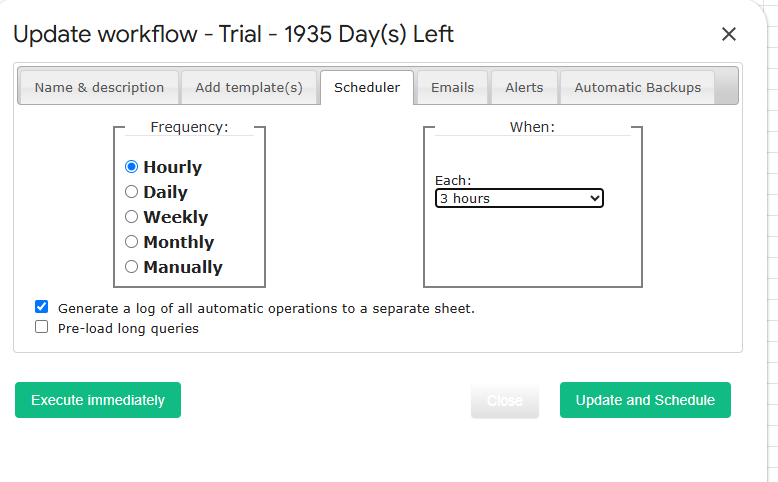
Finally, put the whole thing on autopilot. Open Workflows in the add-on menu and attach your saved COQL template to a schedule — hourly, daily, or weekly.

From then on, the sheet re-runs the query and rewrites the rows on its own. Consequently, any chart or pivot table built on that tab stays current without any clicks. See the automation guide for the details.

COQL tips and common errors

  • “WHERE clause is mandatory.” Add WHERE id is not null when you want everything.
  • Unknown field. Use the API name, not the display label. Find API names under Setup → Developer Space → APIs in Zoho CRM.
  • Dates and times. Use ISO format with a timezone offset, e.g. '2026-01-01T00:00:00-05:00'.
  • Large results. Zoho returns records in pages. The add-on pages through them for you, so you get the full result set in one run.
  • Start small. Test with a tight WHERE clause first. Then widen it once the columns look right.

What does it cost?

G-Integrator for Zoho CRM comes with a free two-week trial, so you can test COQL pulls, templates, and workflows with your own data before you pay. After that, Premium plans bill monthly or yearly. Check the pricing page for current plans.

Frequently asked questions

Do I need to know SQL to use COQL?

Basic SELECT/WHERE knowledge is enough. In fact, the examples above cover most day-to-day needs — copy one and swap in your fields.

Can COQL join Zoho CRM modules?

Yes, through lookup fields. Dot notation such as Account_Name.Industry reaches fields on the related record, up to two relations deep.

How do I pull one-to-many data, like all deals per account?

Query the child module (Deals) and select parent fields through the lookup. Each child row then carries its parent’s fields, which makes grouping in Google Sheets easy.

Can the query refresh automatically?

Yes. Save the query as a template, then attach it to a workflow. The add-on re-runs it hourly, daily, or weekly and rewrites the rows in your sheet.

Which Zoho CRM editions support COQL?

COQL is part of Zoho’s API v2 and later, and it is available on standard editions. The add-on talks to that API, so if your edition has API access, COQL works.

Wrap-up

Flat exports answer flat questions. For joined and one-to-many data, COQL is the sharper tool — and with G-Integrator, it runs right inside Google Sheets, on a schedule if you like. Install G-Integrator for Zoho CRM, paste one of the examples above, and you will have joined CRM data in your sheet within five minutes. The two-week trial gives you full access to try it with your own modules.

How to Sync Zoho CRM with Google Sheets: Import, Update, and Schedule Refreshes

Your CRM holds the data. Your spreadsheet is where you work with it. Yet moving records between Zoho CRM and Google Sheets by hand – export, download, import, clean up – wastes time and breaks the moment someone edits a record.

This guide shows you how to set up a Zoho CRM Google Sheets integration with the G-Integrator for Zoho CRM add-on. First, you will pull leads, contacts, or deals into a sheet. Then you will push changes back to the CRM. Finally, you will schedule automatic refreshes, so your sheet stays current on its own.

What you’ll need

  • A Zoho CRM account (any edition)
  • A Google account
  • The G-Integrator for Zoho CRM add-on from the Google Workspace Marketplace – it comes with a free two-week trial

No API keys and no code. The add-on talks to Zoho through the official API.

Step 1: Connect Google Sheets to Zoho CRM

First, install the add-on in a Google Sheets spreadsheet. Then open:

Extensions – G-Integrator for Zoho CRM – Zoho Sign In

Click through Zoho’s sign-in flow and grant access. The add-on never sees your password. Also, you can revoke access from your Zoho account at any time.

If you belong to several Zoho organizations, choose the one you need. You can switch later.

Step 2: Import records into your sheet

Next, click Get Module Records in the add-on menu. In the dialog:

  1. Pick a module – Contacts, Leads, Accounts, Deals, or any custom module.
  2. Select the fields you want as columns.
  3. Add filters if you only need part of the data – for example, leads created this month.
  4. Run the pull.

Your records land in the sheet in seconds, one row per record. Moreover, the add-on saves your choices as a template. So the next pull – manual or scheduled – uses the same module, fields, and filters.

Pull related lists too

Need the records linked to a parent record – say, all deals under each account? Then use Get Related Lists. Pick the parent module and the related list, and the add-on flattens the result into rows.

Power users: query the CRM directly

If you know exactly what you want, click Get Data using COQL and write a query in Zoho’s CRM Query Language. This supports joins and one-to-many pulls. For examples, see our COQL guide.

Step 3: Push changes back to Zoho CRM

A one-way export is only half the story. With G-Integrator, you can also update the CRM from your sheet.

Edit the rows you need, select them, and then choose:

Update / Insert / Upsert Selected Row(s)

Map your spreadsheet columns to CRM fields once, and the add-on saves the mapping for next time. As a result, bulk edits become simple: fix fifty phone numbers in the sheet, select the rows, and push them back in one action.

  • Update changes existing records.
  • Insert creates new ones.
  • Upsert does both – it updates a record when it exists and creates it when it does not.

Step 4: Schedule automatic refreshes

Finally, remove the manual step for good. Open:

Automation – Create Workflow

Choose the pull templates you want to refresh and set a schedule – hourly, daily, or weekly. From then on, the add-on reruns the pulls and rewrites the sheet by itself. In addition, workflows can email you after each run, so you know the data is fresh.

Bonus: 25+ built-in CRM reports

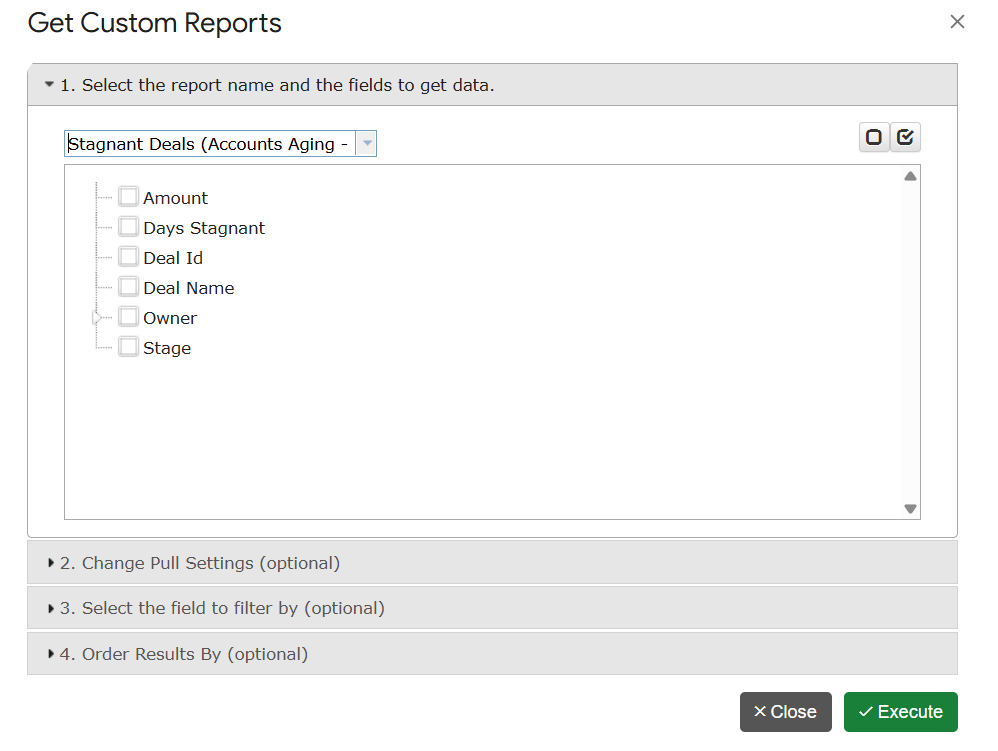
Besides raw records, the add-on ships with more than 25 ready-made reports. Open Reports – Custom Reports and pick one – sales analytics, aging, balances, inventory, and more. Each report renders straight into your sheet and can join the same refresh schedule. Browse the full list in the report catalog.

Do you use Zoho Analytics as well? Then open Reports – Zoho Analytics to pull Analytics reports, views, and tables into the same spreadsheet.

Manual export vs. a live integration

Manual CSV exportG-Integrator
Time per update5-10 minutesZero – runs on schedule
Data freshnessStale right awayRefreshed hourly, daily, or weekly
Write-back to CRMRe-import by handUpdate / Insert / Upsert from the sheet
Filters and fieldsRe-picked every timeSaved as reusable templates
ReportsBuild your own25+ built in

Frequently asked questions

Is there a free plan?

No, but there is a free two-week trial with every feature enabled. After that, pick a plan on the pricing page.

Which modules can I pull?

All standard modules – Leads, Contacts, Accounts, Deals, Tasks, and so on – plus your custom modules. Related lists work too.

Can several people share the same templates?

Yes. Use Manage Templates on Cloud to share pull templates across your team, so everyone runs the same queries. See templates and sharing.

Will scheduled refreshes overwrite my formulas?

The refresh rewrites the data range of the pull. Therefore, keep your own formulas and charts on a separate tab that reads from the data tab.

Is my CRM data safe?

Yes. The add-on connects through Zoho’s official sign-in flow and never stores your password. Data moves directly between Zoho CRM and your Google Sheet.

Get started

Install G-Integrator for Zoho CRM from the Google Workspace Marketplace and start your free two-week trial. Ten minutes later, your leads, contacts, and deals will live in Google Sheets – and stay current without you. Learn more on the product page or in the quickstart guide.

Introducing Subscription Manager: Self-Service Billing for Your G-Integrator Account

We’re excited to introduce the G-Integrator Subscription Manager — a new self-service portal that puts you in full control of your G-Integrator subscription, whether you’re using our HubSpot, Zoho CRM, or Zoho Books integration. No more emailing support to check your plan, add a teammate, or grab an invoice: it’s all just a sign-in away.

How to access it

You can reach the Subscription Manager in two ways:

Sign in with your Google account

Access is as simple as signing in with the Google account you use with G-Integrator. There’s nothing to install and no separate password to remember — your identity is verified securely, and the portal automatically finds your subscription based on your account email.

One portal, all your G-Integrator products

If you use more than one G-Integrator product, switching between them is a single click. The portal supports:

  • G-Integrator for HubSpot
  • G-Integrator for Zoho CRM
  • G-Integrator for Zoho Books

Just pick a project from the dropdown and every section below — subscription status, plans, invoices, and license groups — updates for that product.

Instant subscription lookup

The Subscription lookup card gives you an at-a-glance view of your account: license status, current plan, days remaining, days left in trial, customer and subscription IDs, and — for group subscriptions — how many seats are on your license. Admins can also look up any account by email, which is handy for quickly answering a customer’s support question.

Switch plans yourself, with instant estimates

The new Subscription plans card lists every available plan side by side with pricing, and lets you switch instantly — no support ticket required. Before you confirm, the portal shows you exactly what will happen: any prorated charge due now, credits applied, or credits issued for the unused period of your current plan, so there are never any surprises on your next invoice.

Need to update the card on file? A single button opens a secure, Chargebee-hosted page to update your payment method — your card details never touch our servers

Group subscriptions with a built-in discount

Premium plans now support group subscriptions: set the number of seats you need directly on the plan table, and every seat beyond the first automatically gets a 15% discount. It’s the easiest way to license an entire team under one subscription.

Share your license with your team

Once you’re on a Premium plan, the License group card lets you share your license with teammates by simply pasting their email addresses. You can review who’s currently in your group at any time, and add more members whenever your team grows.

Heads up: reducing your seat count — including switching off a Premium plan — disbands the license group, so all members lose access immediately. The portal always warns you before you confirm a change like this.

All your invoices, one click away

The Invoices card lists your full billing history — date, invoice number, status, total, and amount due — with a one-click PDF download for each invoice. No more digging through email for a receipt.

Built for security

Every request is authenticated with your verified Google identity, and only a small, whitelisted set of G-Integrator admins can act on behalf of another account — for example, to help a customer during a support request. Everyone else can only ever see and manage their own subscription.

Try it now

The Subscription Manager is live today for all G-Integrator customers. Head to g-integrator.com/subscriptions or open About → My subscription from within any G-Integrator product, sign in with your Google account, pick your product, and take control of your subscription — plans, teams, and invoices, all in one place.

New Advanced Reporting Suite for G-Integrator for Zoho CRM

At G-Integrator, we are constantly looking for ways to bridge the gap between your CRM data and your strategic decisions. I am excited to share that we have officially launched a new suite of Advanced Custom Reports designed to give you deeper, actionable intelligence directly within your workflow.

What’s New?

Our team has developed six high-fidelity automated reports to help you streamline data analysis and optimize your sales funnel:

  • Lead Source ROI & Conversion: Stop guessing which marketing channels work. Track your spend efficiency in real-time.
  • Revenue Forecast Report: Gain clarity on future earnings with predictive analysis based on your current pipeline weight.
  • Sales Rep Leaderboard: Foster healthy competition and track quota attainment with live performance metrics.
  • Stagnant Deals (Accounts Aging): Quickly identify where deals are getting stuck to prevent revenue leakage.
  • Win/Loss Analysis: Perform a deep dive into why deals close—or why they stall—to refine your sales strategy.
  • Sales Pipeline Health: Use visual funnel reporting to identify and fix flow bottlenecks.

Stability & Performance

Alongside these features, we have implemented several under-the-hood optimizations. These updates ensure even smoother data synchronization between Google Sheets and Zoho CRM, providing you with a more reliable and stable experience.


How to Access the New Reports

You can find these tools immediately by navigating through the G-Integrator menu:

Menu → Reports → Custom Reports.

We Value Your Feedback

These improvements are a direct result of the feedback we receive from our global community. If G-Integrator is helping your business grow, please consider leaving us a review. Your support helps us continue to innovate and provide the best possible tools for your team.

For detailed guides, please visit our Documentation or reach out to our team at support@g-integrator.com.

Best regards,

Denis Novak

Founder & Owner, G-Integrator

Important Update: Mandatory Upgrade for G-Integrator for ZOHO

Dear Clients,

I am writing to share a critical update regarding the G-Integrator for ZOHO CRM addon.

To ensure the long-term stability and security of our tools, we are migrating our application to the modern V8 version of Google Apps Script. We plan to deploy this update during the upcoming weekend.

Why We Are Doing This

Google is officially retiring (sunsetting) its legacy script engine. To ensure your service continues without interruption, we must move to the new system before the January 2026 deadline.

Beyond compliance, this upgrade brings significant benefits to you:

  • Enhanced Security: Stronger data protection protocols.
  • Better Performance: Faster processing for your daily tasks.

What You Need to Know (Action Required)

Because the new V8 engine enforces stricter security standards, there are three changes to your workflow that you need to be aware of immediately:

  1. Document Ownership Required Previously, you could run the add-on on shared documents owned by others. With the new security protocols, you must be the owner of the Google Spreadsheet to use the G-Integrator. Please ensure you own the files you are working on to avoid permission errors.
  2. Browser Profile Matching (Chrome/Edge Users) If you use Google Chrome or Microsoft Edge, please ensure that your browser profile matches the Google Account logged into the spreadsheet. Mismatched accounts (e.g., being logged into Chrome as User A but the Spreadsheet as User B) may prevent the script from running.
  3. Page Reload after Login After signing into your Zoho account via the addon, you may be asked to reload your web page. This is a normal step to ensure the menu updates correctly with your new session data.

Our Commitment to You

I understand that changes to your daily workflow can be inconvenient, and I sincerely apologize for any disruption this causes. However, these steps are necessary to keep your data safe and ensure the tool remains compatible with Google’s evolving ecosystem.

My team and I are here to support you during this transition. If you have questions, simply reply to this email.

Thank you for your continued partnership.

—

Best regards, Denis Novak, G-Integrator LLC.

G-Integrator

Schedule a 30 min. meeting with me. 

Announcing an Enhancement for G-Integrator for Zoho CRM: Add New Records Only (Incremental Update)

We are excited to enhance a powerful feature of our G-Integrator for Zoho CRM addon: “Incremental Update”. This enhancement is designed to optimize your data synchronization process, making it more efficient and reducing the time it takes to update your records.

Why This Feature Matters

Many of our clients manage large volumes of data within Zoho CRM, such as calls, emails, and other records that rarely change once created. Previously, each synchronization would require re-querying the entire dataset, which could be time-consuming and resource-intensive. This often led to automatic updates being terminated prematurely due to the Google Script engine’s 6-minute execution limit.

With the new “Incremental Update” feature, you can now synchronize only the records that have been created since the last query execution. This targeted approach significantly reduces the amount of data being processed, thereby decreasing the overall download time and ensuring your updates complete within the allowed time frame.

Benefits of Incremental Updates

  1. Faster Synchronizations: By only downloading new records, the synchronization process is much quicker, saving you valuable time.
  2. Reduced Resource Usage: Minimizing the amount of data processed reduces the strain on your system, leading to more efficient operations.
  3. Increased Reliability: Preventing automatic updates from being terminated ensures your data is always up-to-date without the need for manual intervention.
  4. Improved Performance: Streamlined data handling means you can focus on your core business activities without worrying about lengthy data synchronization processes.

Important Warnings

While the incremental update feature offers significant advantages, it is important to be aware of the following:

  1. Order By Conditions: If you have one or more “order by” conditions, the entire data set will be re-ordered during synchronization. This can take significant time if there are hundreds of thousands of records. Plan accordingly to avoid potential delays.
  2. Data Integrity: The query does not update or validate any existing data. If the existing data is changed manually, the result can be unpredictable. Ensure that your data remains consistent and avoid manual changes during the synchronization process to maintain accuracy.
  3. Unchanged Source Data: This feature works only if the source data in the Zoho CRM account are not changed. The addon will never re-download any existing data, so if they are changed in Zoho CRM, the sync will be lost. If you need to update existing data, you can temporarily uncheck the “Add New Records Only (Incremental Update)” option, manually re-synchronize the data, and then check it on again.

How to Use the Incremental Update Feature

Using this new feature is straightforward. Follow these steps to enable incremental updates in your G-Integrator for Zoho CRM addon:

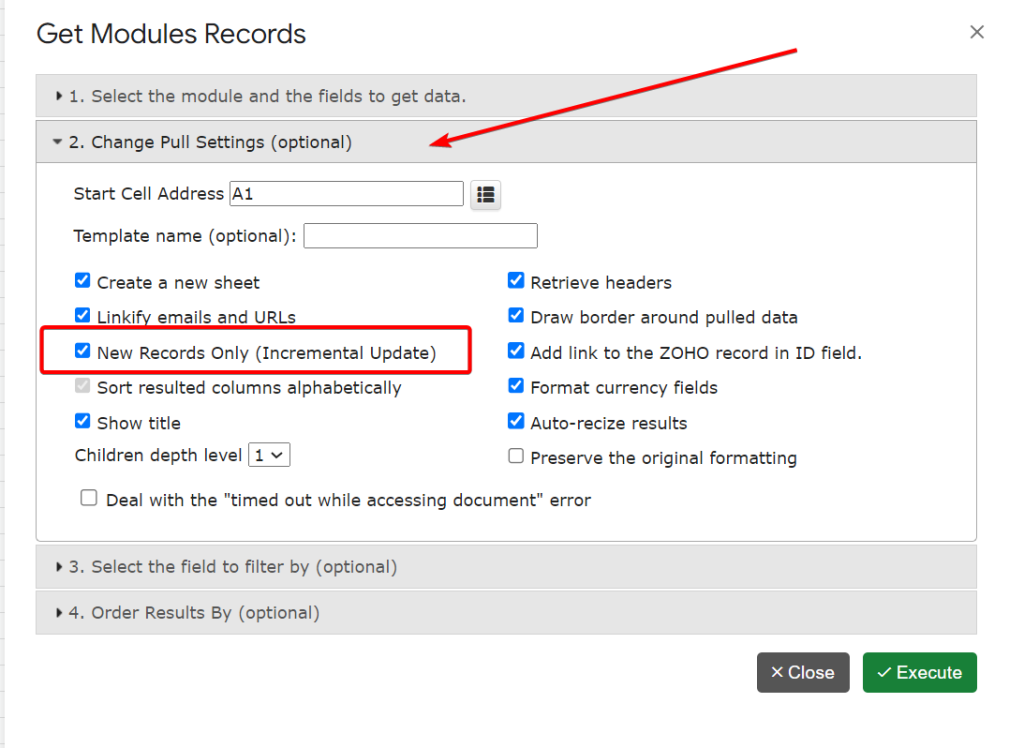
  1. Access the Settings: Navigate to the “2. Change Pull Settings (optional)” tab in your download template
  2. Enable Incremental Update: Look for the option labeled “New Records Only (Incremental Update)” and toggle it on.
  3. Save and Sync: Save your settings and initiate a synchronization. The addon will now only query and add new records created after the last execution.

Real-World Applications

Imagine you have thousands of call records in Zoho CRM that are never modified once logged. With incremental updates, you no longer need to re-download all these calls every time you sync your data. Instead, the addon will quickly fetch only the new calls since the last update, drastically reducing the synchronization time and ensuring your data set is always current.

Feedback and Support

We believe this feature will greatly enhance your experience with G-Integrator for Zoho CRM, and we are eager to hear your feedback. Should you have any questions or need assistance, our support team is always here to help. Please contact us by email: support@g-integrator.com

Thank you for choosing G-Integrator for Zoho CRM. We are committed to continuously improving our tools to better serve your needs.

Happy integrating!

The G-Integrator Team

Introducing COQL Query Execution in G-Integrator for Zoho

We are excited to announce a new feature in the G-Integrator for Zoho addon: the ability to execute COQL queries directly within your Zoho CRM!

COQL, which stands for Custom Object Query Language, is a powerful query language similar to SQL but with more restrictions, designed specifically for Zoho CRM.

While the G-Integrator’s template builder and powerful filters are usually the best choices for creating queries, there are times when you may benefit from the lower-level control provided by COQL. One of the great reasons for using COQL is its support for aggregate functions such as SUM(), AVG(), COUNT(), MIN(), and MAX(). These functions allow you to perform calculations directly within your query, reducing the need to retrieve large amounts of raw data and manipulate it in your spreadsheet.

Let’s consider a small example: I need to select a number and a total sum for each of stages in my deal.

Before the COQL query feature, I would have to do the following:

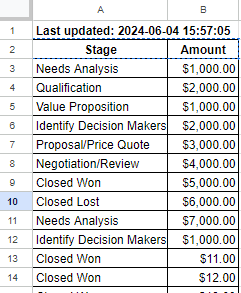
  1. Use the G-Integrator addon to get the Stage and Amount for all the deals:

2. Then, use the spreadsheet’s “Pivot table” functionality to summarize the deals’ list and get the data.

The problems of such approash are obvious. First of all, your account may contain hundreds of thouthands of deals. Getting all of them woulf take a significant time.

Secondly, working with the Pivot tables it’s not easy and it is another place where the error can happen.

But now there is a better solution.

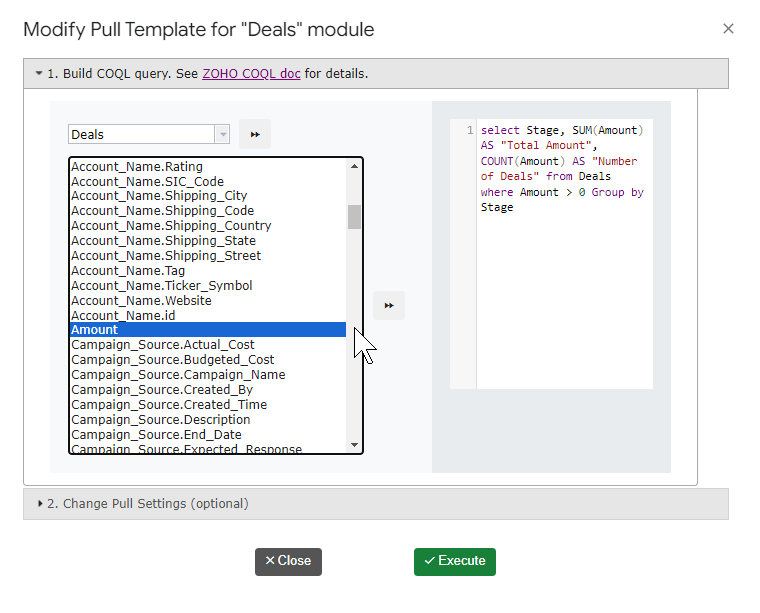
Here’s an example of a COQL query that calculates the total amount and number of deals grouped by stage, where the deal amount is greater than 0:

select Stage, SUM(Amount) AS "Total Amount", COUNT(Amount) AS "Number of Deals" 
from Deals
where Amount > 0
group by Stage

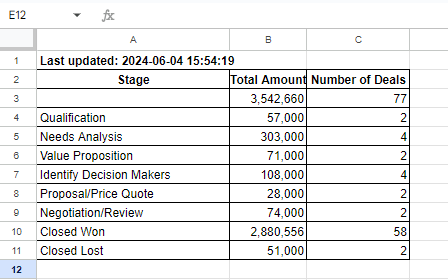
This query will return a concise result set that summarizes the total amount and number of deals for each stage, making it easier to analyze your data.

See, how easier and faster this is comparing to the previous solution!

To learn more about COQL and how to use it in your Zoho CRM, check out the Zoho documentation.

We believe that the addition of COQL query execution to G-Integrator for Zoho will empower you to extract even more value from your Zoho CRM data. Whether you need to perform complex calculations or simply want a more efficient way to analyze your data, COQL is a powerful tool that can help you achieve your goals.

Stay tuned for more updates, and as always, we welcome your feedback to continue improving our services.


We hope you enjoy these new features! If you have any questions or need assistance, please don’t hesitate to reach out to our support team. Happy integrating!

Centralized Template Listing!

Dear G-Integrator Users,

We have some exciting news to share with you! Our team has been hard at work to improve your experience with the G-Integrator addon, and we’re delighted to unveil our latest enhancement – the ability to list all templates in one place!

All your templates in a single place.

We understand that managing G-Integrator templates can sometimes be a bit time-consuming. With our newest feature, we aim to simplify this process for you. Now, you can easily view and access all your templates from one centralized location, making template management a breeze.

Key Benefits of the New Convenience:

  1. Easy Template Modifications: Finding the right template is now quick and straightforward. No more hopping between sheets to locate the template you need to modify. Our centralized listing allows you to instantly spot the template in question, enabling smooth and hassle-free editing.
  2. Effortless Template Execution: Executing your templates has never been more convenient. With our new feature, you can select your desired template with a few clicks and execute it right from the interface. Simple and time-saving!
  3. Swift Cloud Uploads: Our new convenience enables you to upload any template to our secure cloud storage for sharing and reuse! The cloud storage feature is available for clients with the Premium plan.

How to Access the New Convenience:

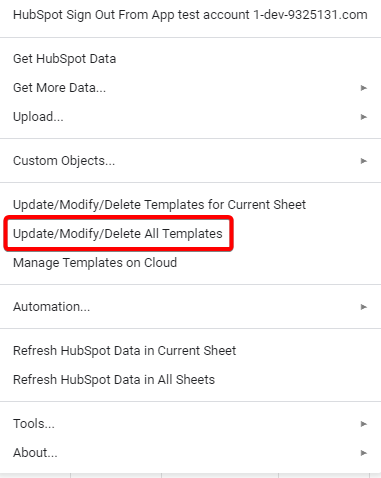
Open the G-Integrator addon within your Google Sheets, and click the new menu item “Update/Modify/Delete All Templates”. You will see the templates tab on the right-hand sidebar. Click on it, and voilà – you’ll have a comprehensive list of all your templates at your fingertips!


Your Feedback Matters:

As always, we greatly value your feedback. If you have any thoughts or ideas on how we can further improve your experience or if you encounter any issues with the new convenience, please don’t hesitate to reach out to our support team. Your input helps us continue refining G-Integrator to meet your needs. Please contact us at support@g-integrator.com with any questions or suggestions.