Dear Valued G-Integrator for Zoho CRM Customer,
We are excited to announce that we have recently deployed new features in G-Integrator for Zoho CRM, utilizing the V2 version of Zoho Analytics API. These updates bring enhanced reporting capabilities to your CRM experience, allowing you to make more data-driven decisions for your business.
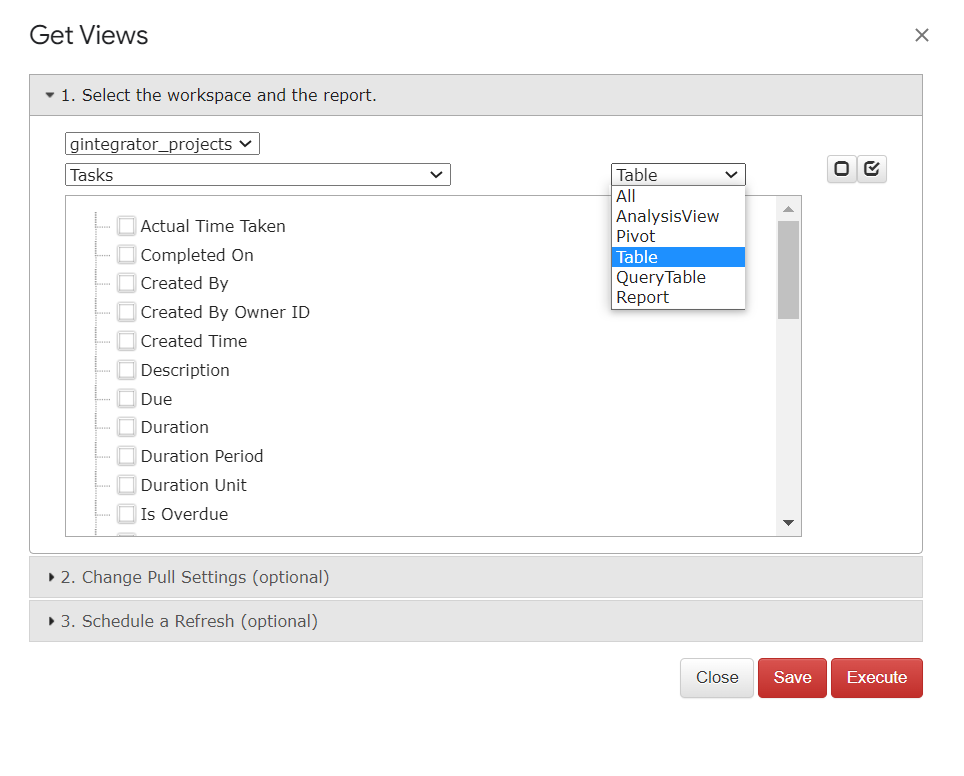
With the integration of Zoho Analytics API V2, you can now choose from the following report types to better analyze and visualize your CRM data:
- AnalysisView
- Pivot
- Table
- QueryTable
- Report
These report types cater to various data analysis and presentation needs, giving you the flexibility to choose the best format for your requirements.
Additionally, for “Table” and “QueryTable” report types, you now have the option to select specific columns you want to display. This feature allows you to focus on the most relevant information and customize the reports according to your needs.
Of course, you will need access to Zoho Analytics in your Zoho account, we do not create reports, we just utilize the existing functionality.
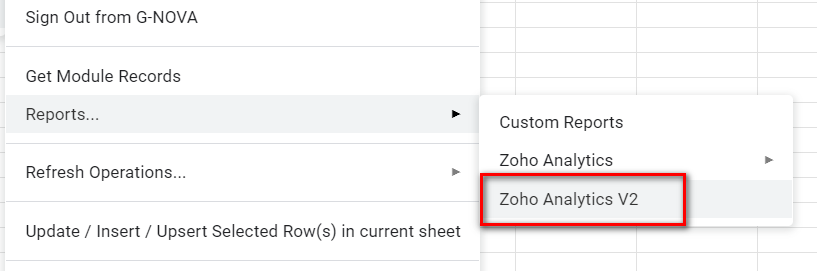
To start enjoying these new features, please select the menu “Reports…” → “Zoho Analytics V2” and select the workspace in your “G-Integrator for Zoho CRM” add-on.
We are confident that these updates will elevate your CRM experience and contribute to your business’s success. As always, we are committed to providing you with the best tools and services to support your growth.
Should you have any questions or need assistance, please don’t hesitate to reach out to our support team at [support_email] or visit our Help Center.
Thank you for being a valued G-Integrator for Zoho CRM customer. We appreciate your continued trust in our platform.
Best regards,
Denis Novak, G-Integrator LLC.