HubSpot Reports in Google Sheets Without Operations Hub

HubSpot ships its own Google Sheets sync, but there is a catch: the two-way sync lives in Operations Hub, and the useful parts sit behind the paid tiers. If you only want your HubSpot reports in Google Sheets, that price is hard to justify.

The good news? You don’t need Operations Hub at all. In this guide, you will pull contacts, companies, and deals into a sheet with the G-Integrator for HubSpot add-on. After that, you will run ready-made reports and set them to refresh on a schedule.

Why not just use Operations Hub?

Operations Hub is a strong product for data sync across many apps. However, it is a poor fit when your goal is simple reporting:

  • Price. The features most teams want start on the paid tiers, and the cost grows with your contact count. In contrast, a focused Sheets add-on costs a fraction of that.
  • Scope. Operations Hub syncs objects between apps. It does not build report tables such as aging buckets, sales by product, or traffic breakdowns for you.
  • Setup. Sync mappings take time to plan and test. A report pull, on the other hand, takes a few clicks.

So if your goal is “get my HubSpot data into a spreadsheet and keep it fresh,” a lighter tool does the job better.

What you’ll need

  • A HubSpot account — any tier works, including the free CRM
  • A Google account
  • The G-Integrator for HubSpot add-on from the Google Workspace Marketplace — it comes with a free two-week trial

No API keys and no code. The add-on talks to HubSpot through the official API, so your data stays between HubSpot and your sheet.

Step 1: Connect Google Sheets to HubSpot

First, install the add-on in a Google Sheets spreadsheet. Then open:

Extensions → G-Integrator for HubSpot → HubSpot Sign In

Click through HubSpot’s consent screen and grant access. The add-on never sees your password. Also, you can remove the app from your HubSpot account at any time under Settings → Connected Apps.
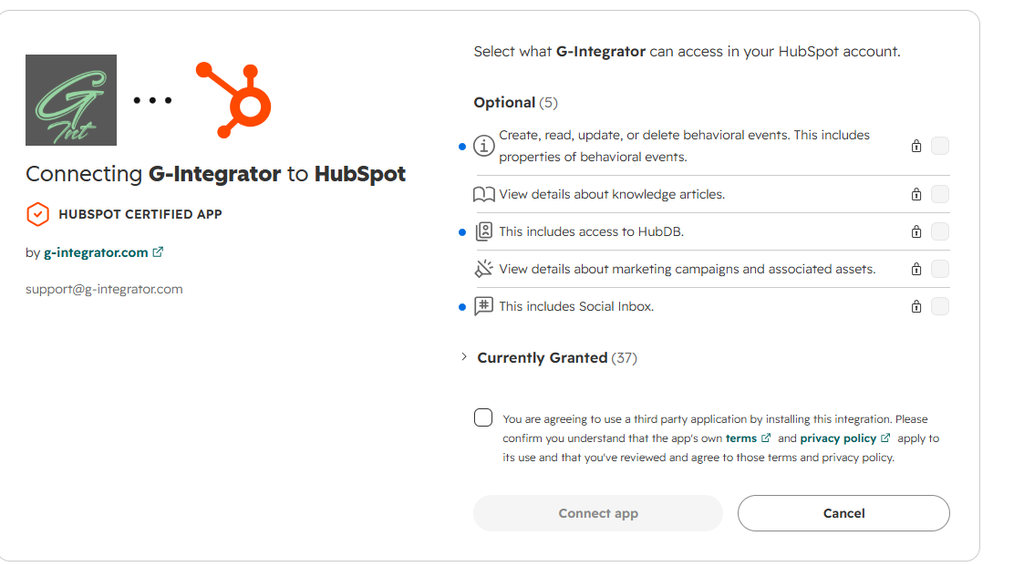
If you manage more than one portal, pick the one you need. You can switch later.

Step 2: Pull contacts, companies, and deals

Next, open Get Data from HubSpot in the add-on menu. In the dialog:

  1. Pick an object — Contacts, Companies, Deals, or Tickets.
  2. Select the properties you want as columns.
  3. Add filters so you only pull the rows you need — for example, deals created this quarter.
  4. Run the pull.

Your records land in the sheet in seconds, one row per record. Moreover, the add-on saves your choices as a template. As a result, every later pull — manual or scheduled — uses the same object, properties, and filters.

Step 3: Run ready-made HubSpot reports in Google Sheets

This is where the add-on goes far past a plain export. Open:

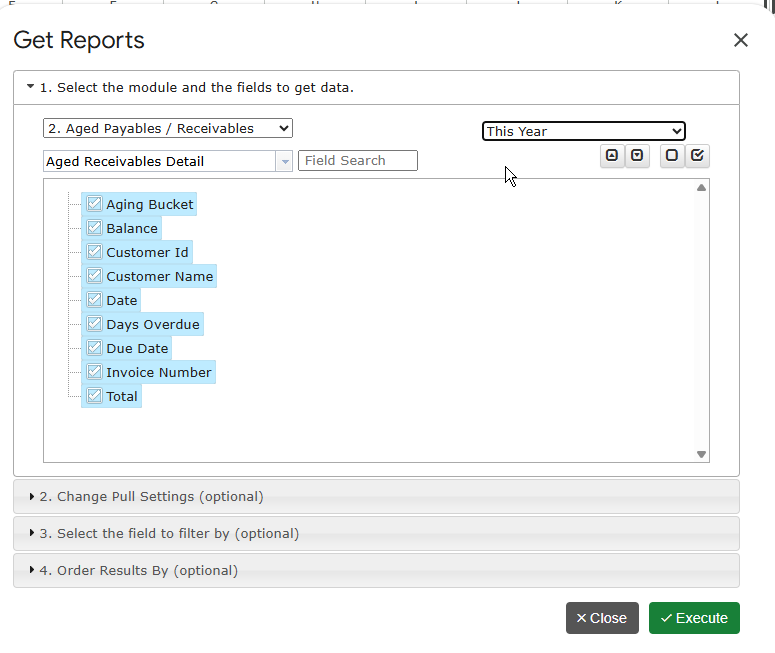
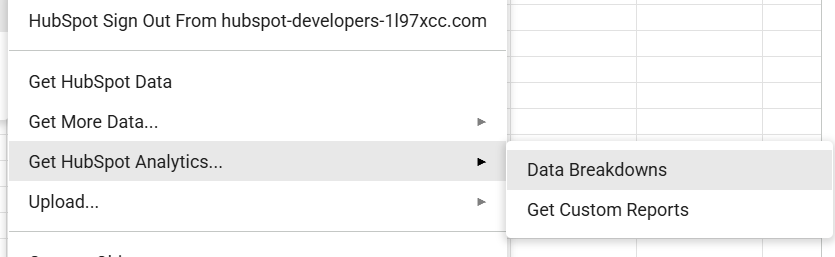
Get HubSpot Analytics… → Get Custom Reports

Here you will find 35+ built-in reports that HubSpot itself does not offer as flat tables. For example:

  • Sales reports — Sales by Customer, Sales by Product, and Sales Detail, built from your invoices and line items.
  • Aging and balances — Aged Receivables Detail and Summary, with overdue buckets (Current / 1–30 / 31–60 / 61–90 / 91+), plus Customer Balance reports.
  • Transaction lists — invoices, quotes, orders, and deals merged into one clean, date-ordered list.
  • CRM activity — contacts, companies, deals, and tickets created over time.
  • Marketing breakdowns — sessions, contacts, and customers by traffic source, campaign, form, landing page, or blog post.

Pick a report, choose a date range, and run it. The result lands in your sheet as a tidy table, ready for pivot tables and charts.
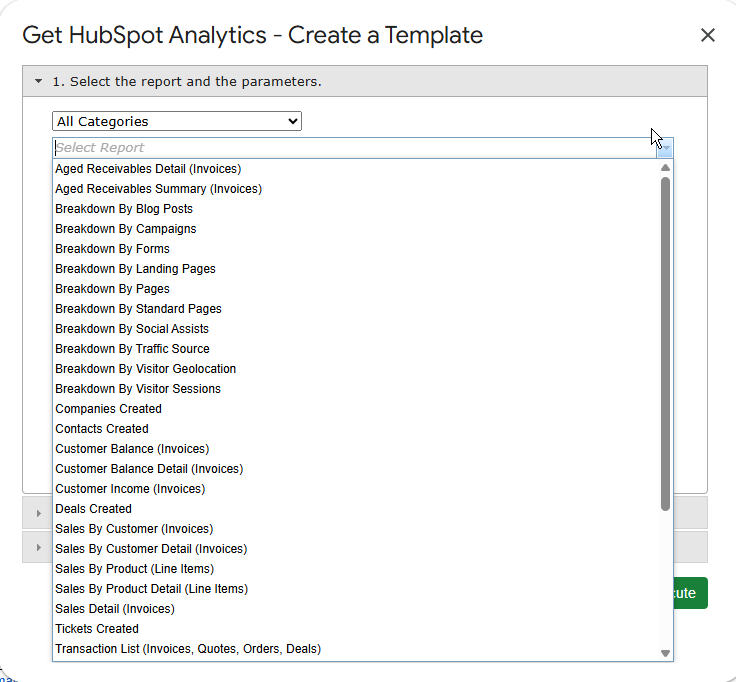
Additionally, you can set a dynamic date range such as “last 30 days.” The report then moves its window forward on every refresh. For the full list, see the report catalog.

Step 4: Schedule automatic refreshes

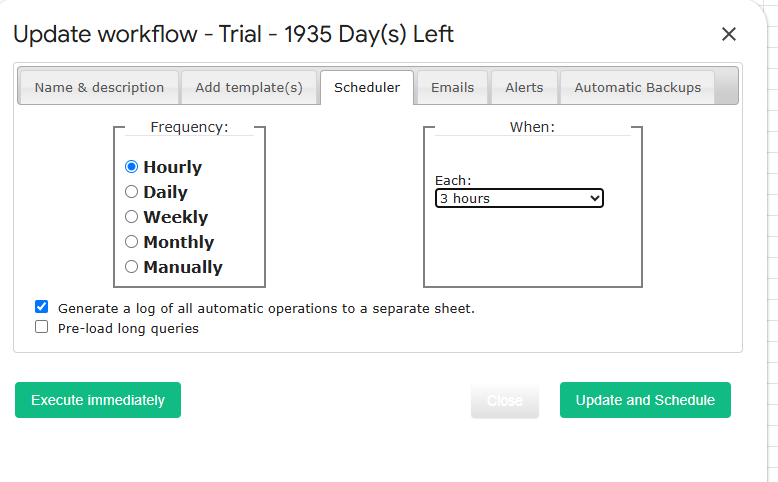
Finally, stop refreshing by hand. Open Workflows in the add-on menu and create a workflow that re-runs your pulls and reports on a schedule — hourly, daily, or weekly.

From then on, your sheet updates itself. Consequently, every chart, pivot table, and dashboard built on top of it stays current too. You can also add email alerts, so your team gets a message when fresh numbers arrive.
Bonus: push updates back to HubSpot

Although this guide focuses on reports, the add-on also works in the other direction. With Upload Data to HubSpot, you can insert, update, or upsert records straight from your sheet, with column-to-property mapping. In other words, you get the two-way part of Operations Hub for the objects that matter, without the price tag. See the upload guide for details.

What does it cost?

G-Integrator for HubSpot comes with a free two-week trial, so you can test every feature — pulls, reports, workflows, and uploads — before you pay. After the trial, Premium plans bill monthly or yearly, and they cost far less than an Operations Hub seat. Check the pricing page for current plans.

Frequently asked questions

Do I need Operations Hub or a paid HubSpot tier for this?

No. The add-on works with every HubSpot tier, including the free CRM. It reads your data through the official HubSpot API.

Can I refresh HubSpot reports in Google Sheets automatically?

Yes. Workflows re-run your pulls and reports on an hourly, daily, or weekly schedule. Dynamic date ranges move forward on their own.

Which HubSpot objects can I pull into a sheet?

Contacts, companies, deals, and tickets, plus invoices, quotes, orders, line items, custom objects, and HubDB tables. The 35+ built-in reports cover sales, aging, balances, CRM activity, and marketing analytics.

Is my HubSpot data safe?

Yes. You sign in through HubSpot’s own consent screen, and the add-on never sees your password. Furthermore, you can revoke access from your HubSpot settings at any time.

Can I write data back to HubSpot from Google Sheets?

Yes. The upload feature inserts, updates, or upserts records from your sheet with column mapping, so you can fix data in bulk without Operations Hub.

Wrap-up

Operations Hub earns its keep when you sync many apps in both directions. For reporting, though, it is too much tool at too high a price. Instead, install G-Integrator for HubSpot, connect your portal, and pull your first report in the next five minutes — the two-week trial gives you full access to see it work with your own data.
How to Sync Zoho CRM with Google Sheets: Import, Update, and Schedule Refreshes

Your CRM holds the data. Your spreadsheet is where you work with it. Yet moving records between Zoho CRM and Google Sheets by hand – export, download, import, clean up – wastes time and breaks the moment someone edits a record.

This guide shows you how to set up a Zoho CRM Google Sheets integration with the G-Integrator for Zoho CRM add-on. First, you will pull leads, contacts, or deals into a sheet. Then you will push changes back to the CRM. Finally, you will schedule automatic refreshes, so your sheet stays current on its own.

What you’ll need

  • A Zoho CRM account (any edition)
  • A Google account
  • The G-Integrator for Zoho CRM add-on from the Google Workspace Marketplace – it comes with a free two-week trial

No API keys and no code. The add-on talks to Zoho through the official API.

Step 1: Connect Google Sheets to Zoho CRM

First, install the add-on in a Google Sheets spreadsheet. Then open:

Extensions – G-Integrator for Zoho CRM – Zoho Sign In

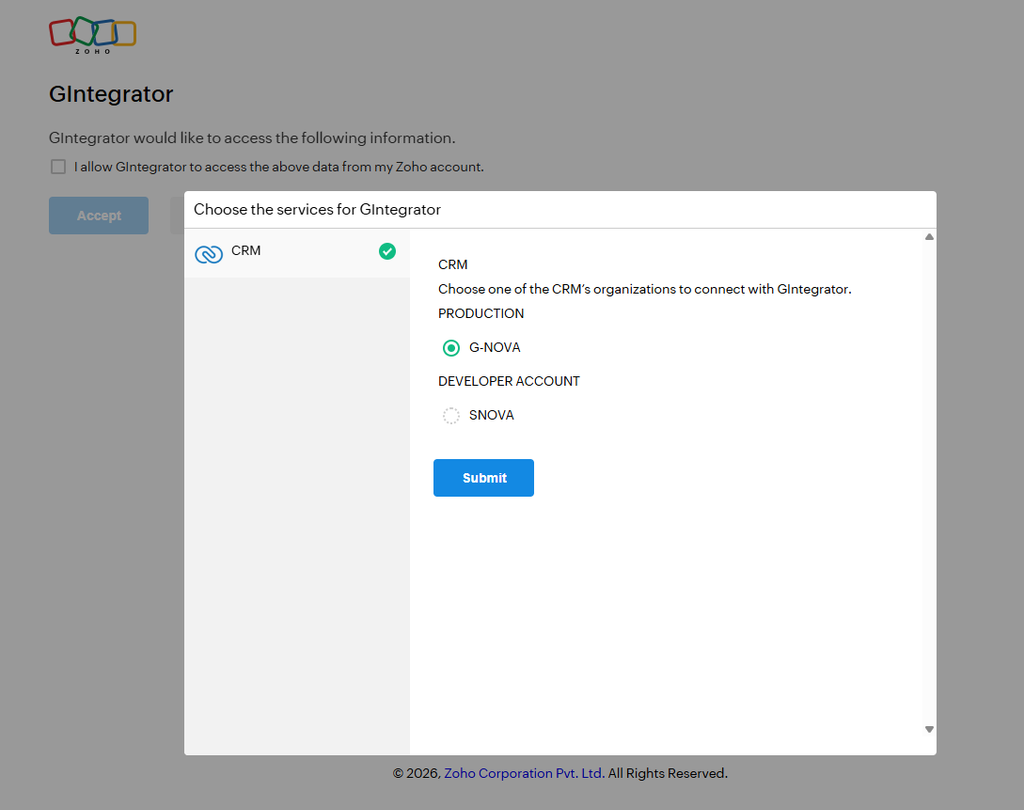
Click through Zoho’s sign-in flow and grant access. The add-on never sees your password. Also, you can revoke access from your Zoho account at any time.

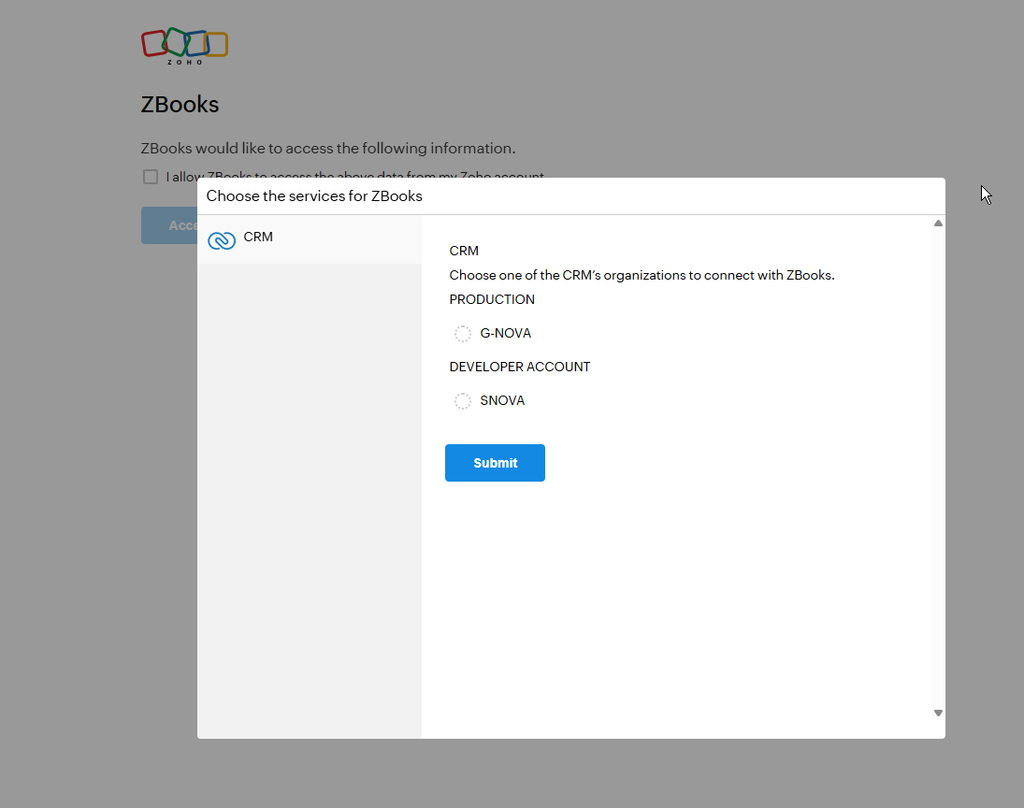
If you belong to several Zoho organizations, choose the one you need. You can switch later.

Step 2: Import records into your sheet

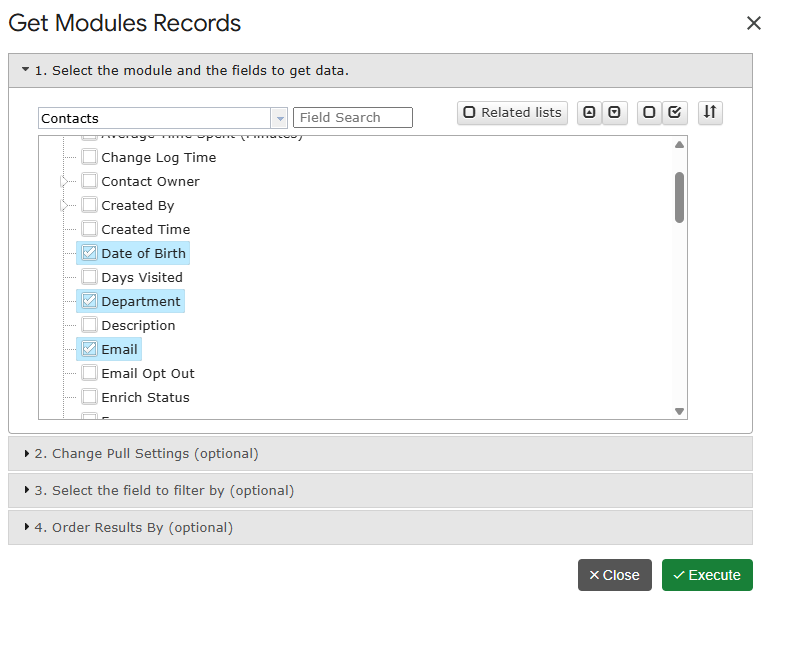
Next, click Get Module Records in the add-on menu. In the dialog:

  1. Pick a module – Contacts, Leads, Accounts, Deals, or any custom module.
  2. Select the fields you want as columns.
  3. Add filters if you only need part of the data – for example, leads created this month.
  4. Run the pull.

Your records land in the sheet in seconds, one row per record. Moreover, the add-on saves your choices as a template. So the next pull – manual or scheduled – uses the same module, fields, and filters.

Pull related lists too

Need the records linked to a parent record – say, all deals under each account? Then use Get Related Lists. Pick the parent module and the related list, and the add-on flattens the result into rows.

Power users: query the CRM directly

If you know exactly what you want, click Get Data using COQL and write a query in Zoho’s CRM Query Language. This supports joins and one-to-many pulls. For examples, see our COQL guide.

Step 3: Push changes back to Zoho CRM

A one-way export is only half the story. With G-Integrator, you can also update the CRM from your sheet.

Edit the rows you need, select them, and then choose:

Update / Insert / Upsert Selected Row(s)

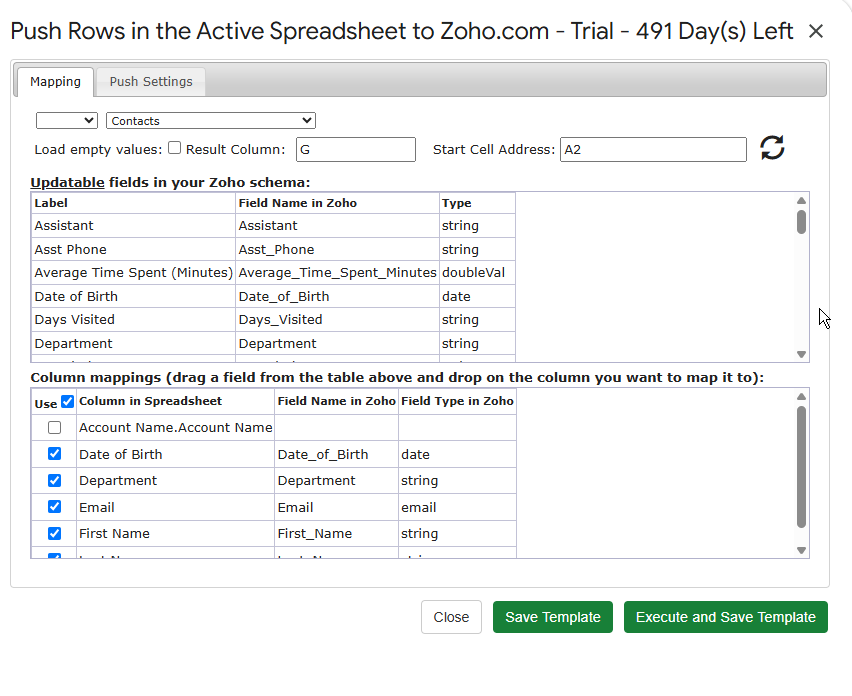
Map your spreadsheet columns to CRM fields once, and the add-on saves the mapping for next time. As a result, bulk edits become simple: fix fifty phone numbers in the sheet, select the rows, and push them back in one action.

  • Update changes existing records.
  • Insert creates new ones.
  • Upsert does both – it updates a record when it exists and creates it when it does not.

Step 4: Schedule automatic refreshes

Finally, remove the manual step for good. Open:

Automation – Create Workflow

Choose the pull templates you want to refresh and set a schedule – hourly, daily, or weekly. From then on, the add-on reruns the pulls and rewrites the sheet by itself. In addition, workflows can email you after each run, so you know the data is fresh.

Bonus: 25+ built-in CRM reports

Besides raw records, the add-on ships with more than 25 ready-made reports. Open Reports – Custom Reports and pick one – sales analytics, aging, balances, inventory, and more. Each report renders straight into your sheet and can join the same refresh schedule. Browse the full list in the report catalog.

Do you use Zoho Analytics as well? Then open Reports – Zoho Analytics to pull Analytics reports, views, and tables into the same spreadsheet.

Manual export vs. a live integration

Manual CSV exportG-Integrator
Time per update5-10 minutesZero – runs on schedule
Data freshnessStale right awayRefreshed hourly, daily, or weekly
Write-back to CRMRe-import by handUpdate / Insert / Upsert from the sheet
Filters and fieldsRe-picked every timeSaved as reusable templates
ReportsBuild your own25+ built in

Frequently asked questions

Is there a free plan?

No, but there is a free two-week trial with every feature enabled. After that, pick a plan on the pricing page.

Which modules can I pull?

All standard modules – Leads, Contacts, Accounts, Deals, Tasks, and so on – plus your custom modules. Related lists work too.

Can several people share the same templates?

Yes. Use Manage Templates on Cloud to share pull templates across your team, so everyone runs the same queries. See templates and sharing.

Will scheduled refreshes overwrite my formulas?

The refresh rewrites the data range of the pull. Therefore, keep your own formulas and charts on a separate tab that reads from the data tab.

Is my CRM data safe?

Yes. The add-on connects through Zoho’s official sign-in flow and never stores your password. Data moves directly between Zoho CRM and your Google Sheet.

Get started

Install G-Integrator for Zoho CRM from the Google Workspace Marketplace and start your free two-week trial. Ten minutes later, your leads, contacts, and deals will live in Google Sheets – and stay current without you. Learn more on the product page or in the quickstart guide.

Zoho Books Reports in Google Sheets: Balance Sheet, P&L and Cash Flow on Autopilot

Zoho Books has solid built-in reports. However, they live inside Zoho Books. So every time your accountant, investor, or team lead asks for numbers, you export a PDF or copy cells by hand. Then next month, you do it all again.

There is a simpler way. With G-Integrator for Zoho Books, you can run Zoho Books reports in Google Sheets directly. First, you pick a report. Then the add-on builds it in your sheet from live Zoho Books data. After that, a schedule keeps it fresh – no more monthly copy-paste.

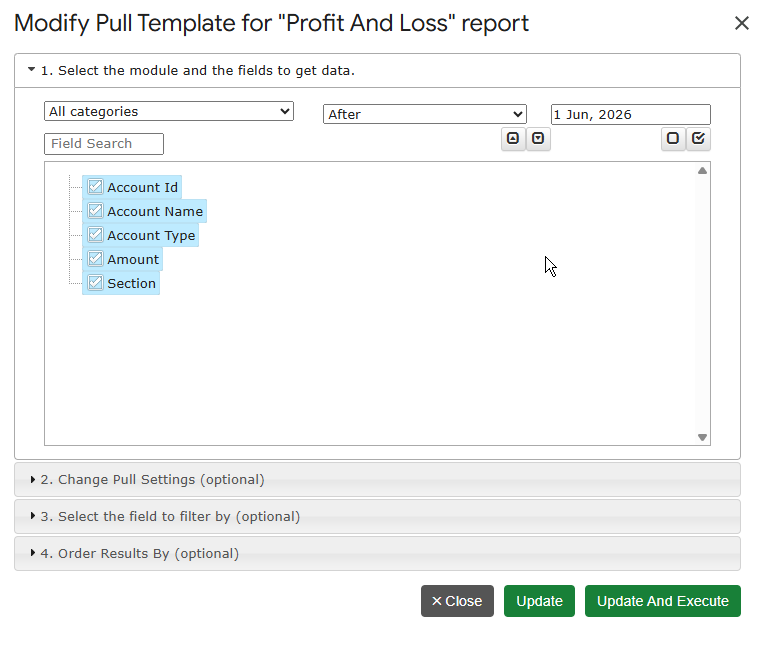
In this guide, you will set up three core reports: the Balance Sheet, the Profit and Loss, and the Cash Flow. You will also see how to refresh them on a schedule.

Why build reports in Google Sheets at all?

Because a spreadsheet is where the rest of your work happens. For example:

  • You can add your own formulas, charts, and notes next to real numbers.
  • You can share one link with your accountant instead of sending PDF files.
  • You can combine several reports on one tab and build a simple dashboard.
  • Also, Google Sheets keeps version history, so you can look back at any point in time.

In short, Zoho Books stays your source of truth. Meanwhile, Google Sheets becomes your reporting layer.

What you’ll need

  • A Zoho Books account (any plan)
  • A Google account
  • The G-Integrator for Zoho Books add-on from the Google Workspace Marketplace – it comes with a free two-week trial

Step 1: Connect Google Sheets to Zoho Books

First, open a spreadsheet and install the add-on. Then open:

Extensions – G-Integrator for Zoho Books – Zoho Sign In

Sign in with your Zoho account. The add-on uses Zoho’s official sign-in flow, so it never sees your password. In addition, you can revoke access from your Zoho account at any time.

If you manage more than one organization, pick the right one from the list. You can switch later with one click.

Step 2: Run your first report – the Balance Sheet

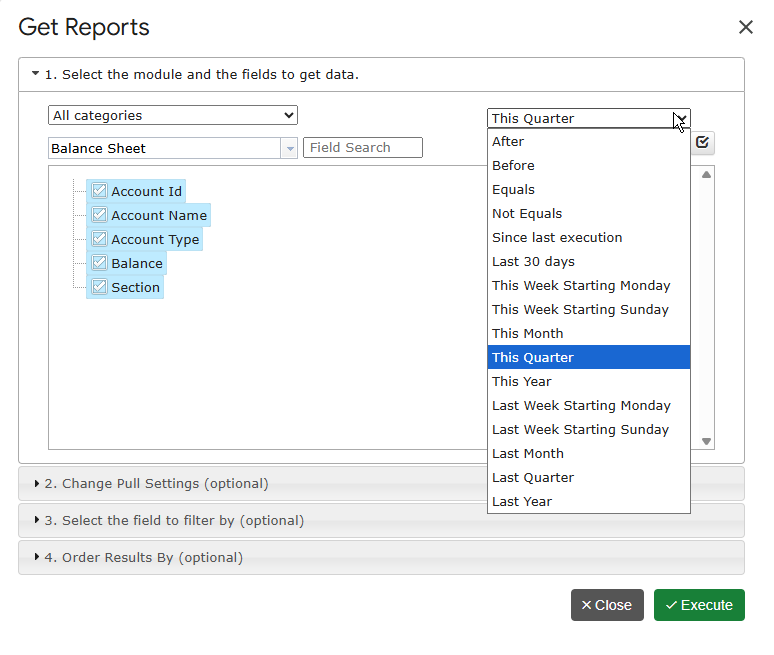
Next, open the add-on menu and choose the reports section. Pick Balance Sheet from the list. Then set the report date and run it.

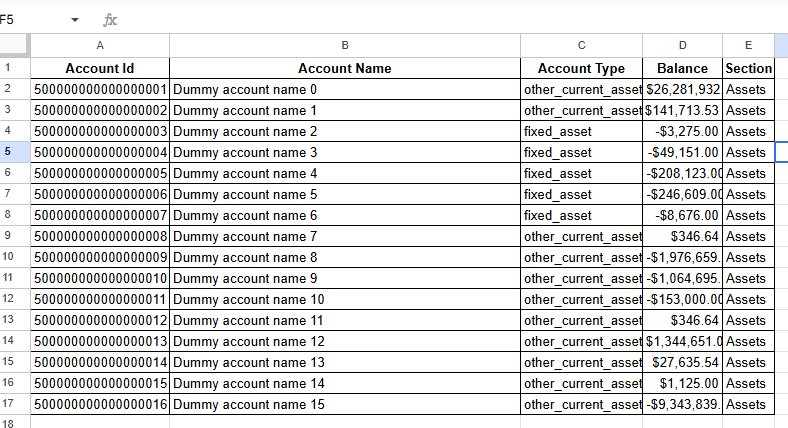
Within seconds, the sheet shows your assets, liabilities, and equity, rolled up from your general ledger. The report also includes a computed Net Income row, just like the one inside Zoho Books.

Need a different view? The catalog also includes Balance Sheet by Location, by Customer, by Vendor, and by Classes. Moreover, the Historical Balance Sheet shows your balance as of any past date. As a result, period-end snapshots and trend sheets become easy.

Step 3: Add the Profit and Loss

Now repeat the same steps and pick Profit And Loss. This is your income statement: Income, Cost of Goods Sold, and Expenses, with totals down to net profit.

A few useful variants:

  • Profit And Loss Variance – the current period next to the previous one, with the change in amount and percent.
  • Profit And Loss By Customer – see which customers actually make you money.
  • Profit And Loss Detail – every ledger line behind your income and expense accounts, so you can trace any number.

Step 4: Add the Cash Flow

Finally, run the Cash Flow report. It shows money moving in and out of your bank and cash accounts, classified by counter-account. Likewise, you can split it by Location, by Customer, or by Classes, or run the Historical Cash Flow for any past period.

At this point, you have all three core statements in one spreadsheet. Add a summary tab with a few charts, and you have a live finance dashboard.

Step 5: Put the reports on a schedule

This step removes the monthly routine. Open:

Automation – Create Workflow

Pick the tabs with your reports and set a schedule – hourly, daily, or weekly. From then on, G-Integrator reruns each report and updates the sheet by itself. Therefore, the numbers your team sees are always current. You can also get an email after each refresh.

Beyond the big three: 75+ reports in the catalog

The three statements above are just the start. The full catalog holds more than 75 Zoho Books reports, for example:

  • Aged Receivables Detail and Aged Receivables Summary – who owes you, and for how long
  • Aged Payables Detail and Aged Payables Summary – what you owe your vendors
  • Sales by Customer, Item, or Salesperson
  • Budgets and budget-versus-actual views
  • General Ledger and full transaction lists

You can browse the whole list in the report catalog.

Frequently asked questions

Is there a free plan?

No, but there is a free two-week trial. You can test every report and workflow before you pay. After the trial, pick a plan on the pricing page.

Do the reports match the numbers in Zoho Books?

Yes. The add-on builds each report from your live Zoho Books data through the official API. So the totals match what you see inside Zoho Books at the same moment.

Can I change how a report looks?

Yes. The report lands in a normal Google Sheets tab. Therefore, you can format cells, add columns with your own formulas, and build charts on top. On the next refresh, the data updates in place.

Can I also export raw records, like invoices or bills?

Yes. Besides reports, the add-on pulls raw tables: Invoices, Bills, Expenses, Payments, Items, and more. For a walkthrough, see our guide on exporting Zoho Books invoices to Google Sheets.

Is my accounting data safe?

Yes. The add-on connects through Zoho’s official sign-in flow and never stores your password. Furthermore, data flows straight from Zoho to your own Google Sheet.

Get started

Install G-Integrator for Zoho Books from the Google Workspace Marketplace and start your free two-week trial. Five minutes later, your Balance Sheet, P&L, and Cash Flow will live in Google Sheets – and they will update themselves. Learn more on the product page or in the quickstart guide.

How to Export Zoho Books Invoices to Google Sheets (2026 Guide)

If you run your accounting in Zoho Books, sooner or later you need your invoices in a spreadsheet: to build a custom aging report, share numbers with a bookkeeper who lives in Google Sheets, or combine billing data with information from other systems.

The manual route – exporting a CSV from Zoho Books and importing it into Sheets – works exactly once. The moment an invoice is paid, edited, or voided, your spreadsheet is stale, and you’re back to exporting and re-importing.

In this guide, you’ll set up a live connection between Zoho Books and Google Sheets in about five minutes using G-Integrator for Zoho Books, a Google Sheets add-on. Your invoices – including line items – land directly in your spreadsheet and can refresh themselves automatically on a schedule.

What you’ll need

  • A Zoho Books account (any plan)
  • A Google account
  • The G-Integrator for Zoho Books add-on – install it from the Google Workspace Marketplace

That’s it. No API keys, no scripts, no Zapier tasks to count.

Step 1: Install the add-on and sign in to Zoho Books

Open a Google Sheets spreadsheet and install G-Integrator for Zoho Books from the Extensions menu (Extensions → Add-ons → Get add-ons, then search for “G-Integrator”).

Once installed, open:

Extensions → G-Integrator for Zoho Books → Zoho Sign In

Sign in with your Zoho account and grant access. The add-on uses Zoho’s official OAuth flow – your password is never shared with the add-on, and you can revoke access from your Zoho account at any time.

If your Zoho account has several organizations, pick the one you want to pull invoices from – you can switch organizations at any time.

Step 2: Pull your invoices into the sheet

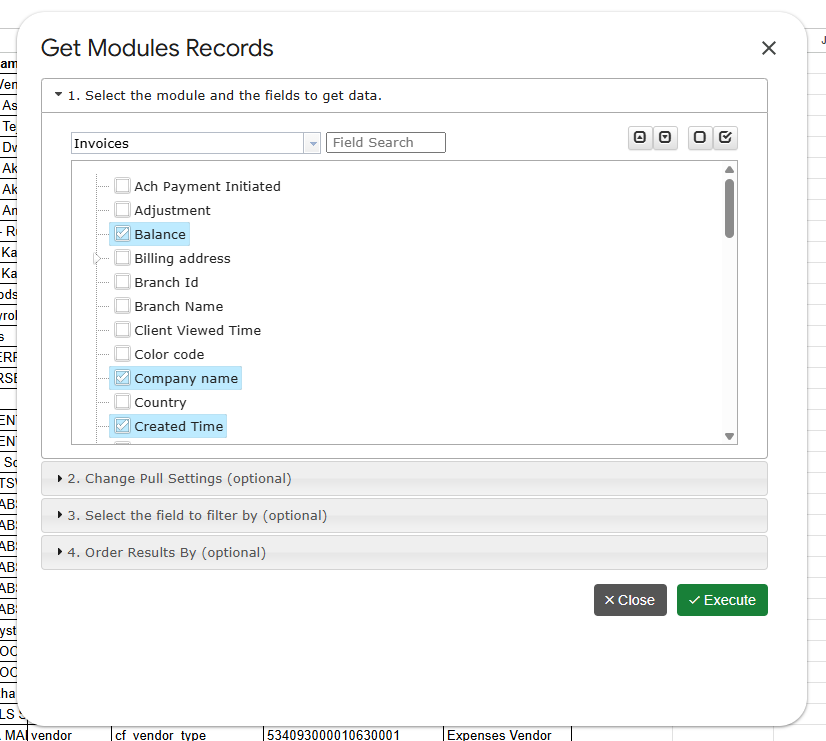
Open the add-on menu and click Get Module Records. In the dialog:

  1. Select Invoices from the table list.
  2. Pick the fields you need – invoice number, customer name, status, total, balance, invoice date, due date, and so on.
  3. Click to run the pull.

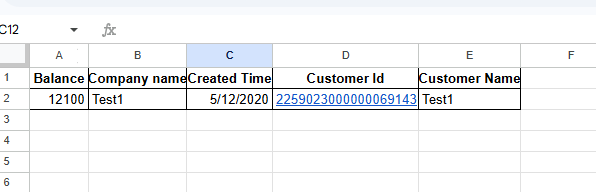
Your invoices appear in the sheet within seconds, one row per invoice – or one row per line item if you include line-item fields. Line items are flattened into rows automatically, so an invoice with five products becomes five analyzable rows. This is the detail level a CSV export from Zoho Books won’t give you in one file.

Filter to just the invoices you need

Don’t want your entire invoice history? Add filters in the same dialog – for example:

  • Status = unpaid for a live receivables list
  • Invoice date within the last quarter for period reporting
  • A specific customer for an account review

The pull settings are saved as a reusable template, so the next refresh uses exactly the same fields and filters.

Step 3: Schedule automatic refreshes

This is the step that eliminates CSV exports for good. Open:

Automation → Create Workflow

Choose the sheet with your invoice pull and set a schedule – hourly, daily, or weekly. From then on, G-Integrator re-runs the pull automatically and overwrites the sheet with current data. Paid invoices update their status, new invoices appear, voided ones drop off – with nobody touching the spreadsheet.

Workflows can also send you an email notification after each refresh, so your Monday-morning receivables sheet is waiting in your inbox before you’ve had coffee.

Bonus: skip the spreadsheet-building with 75+ ready-made reports

If the reason you’re exporting invoices is to build a report, you may not need to build anything. G-Integrator for Zoho Books ships with 75+ built-in financial reports that render directly in Google Sheets, including:

  • A/R Aging (by invoice or by customer)
  • Invoice Register and transaction lists
  • Balance Sheet, P&L and Cash Flow
  • Sales by customer / item / salesperson

Each report is generated from live Zoho Books data and can be put on the same automatic refresh schedule. See the full report catalog for the complete list.

Zoho Books CSV export vs. a live Sheets connection

Manual CSV exportG-Integrator
Line items includedSeparate exportFlattened into rows automatically
Data freshnessStale immediatelyAuto-refresh on schedule
FiltersRe-applied every timeSaved in a reusable template
Financial reportsBuild your own75+ built-in
Effort per update5–10 minutesZero

Frequently asked questions

Is there a free plan?

G-Integrator for Zoho Books has a free two-week trial period. After a trial, you will have to subscribe – see pricing.

Can I export bills, expenses, and payments too?

Yes – Invoices is just one of the available tables. You can pull Bills, Expenses, Payments, Credit Notes, Chart of Accounts, Items, Projects, and more. See the import guide.

Does it work with multiple Zoho Books organizations?

Yes. Sign in once and switch between organizations from the add-on – each pull template remembers which organization it belongs to.

Can I update Zoho Books from Google Sheets?

Yes. G-Integrator also supports uploads – update, insert or upsert Zoho Books records straight from your sheet. See uploading data.

Is my accounting data safe?

The add-on connects through Zoho’s official OAuth API – no passwords are stored, and data flows directly between Zoho and your Google Sheet. Access can be revoked from your Zoho account at any time.

Get started

Install G-Integrator for Zoho Books from the Google Workspace Marketplace, sign in, and your first invoice export is a two-click job. Learn more on the product page or jump straight to the quickstart guide.

Introducing Subscription Manager: Self-Service Billing for Your G-Integrator Account

We’re excited to introduce the G-Integrator Subscription Manager — a new self-service portal that puts you in full control of your G-Integrator subscription, whether you’re using our HubSpot, Zoho CRM, or Zoho Books integration. No more emailing support to check your plan, add a teammate, or grab an invoice: it’s all just a sign-in away.

How to access it

You can reach the Subscription Manager in two ways:

Sign in with your Google account

Access is as simple as signing in with the Google account you use with G-Integrator. There’s nothing to install and no separate password to remember — your identity is verified securely, and the portal automatically finds your subscription based on your account email.

One portal, all your G-Integrator products

If you use more than one G-Integrator product, switching between them is a single click. The portal supports:

  • G-Integrator for HubSpot
  • G-Integrator for Zoho CRM
  • G-Integrator for Zoho Books

Just pick a project from the dropdown and every section below — subscription status, plans, invoices, and license groups — updates for that product.

Instant subscription lookup

The Subscription lookup card gives you an at-a-glance view of your account: license status, current plan, days remaining, days left in trial, customer and subscription IDs, and — for group subscriptions — how many seats are on your license. Admins can also look up any account by email, which is handy for quickly answering a customer’s support question.

Switch plans yourself, with instant estimates

The new Subscription plans card lists every available plan side by side with pricing, and lets you switch instantly — no support ticket required. Before you confirm, the portal shows you exactly what will happen: any prorated charge due now, credits applied, or credits issued for the unused period of your current plan, so there are never any surprises on your next invoice.

Need to update the card on file? A single button opens a secure, Chargebee-hosted page to update your payment method — your card details never touch our servers

Group subscriptions with a built-in discount

Premium plans now support group subscriptions: set the number of seats you need directly on the plan table, and every seat beyond the first automatically gets a 15% discount. It’s the easiest way to license an entire team under one subscription.

Share your license with your team

Once you’re on a Premium plan, the License group card lets you share your license with teammates by simply pasting their email addresses. You can review who’s currently in your group at any time, and add more members whenever your team grows.

Heads up: reducing your seat count — including switching off a Premium plan — disbands the license group, so all members lose access immediately. The portal always warns you before you confirm a change like this.

All your invoices, one click away

The Invoices card lists your full billing history — date, invoice number, status, total, and amount due — with a one-click PDF download for each invoice. No more digging through email for a receipt.

Built for security

Every request is authenticated with your verified Google identity, and only a small, whitelisted set of G-Integrator admins can act on behalf of another account — for example, to help a customer during a support request. Everyone else can only ever see and manage their own subscription.

Try it now

The Subscription Manager is live today for all G-Integrator customers. Head to g-integrator.com/subscriptions or open About → My subscription from within any G-Integrator product, sign in with your Google account, pick your product, and take control of your subscription — plans, teams, and invoices, all in one place.

What’s New: HubSpot Analytics & Data Breakdowns, Right Inside Google Sheets

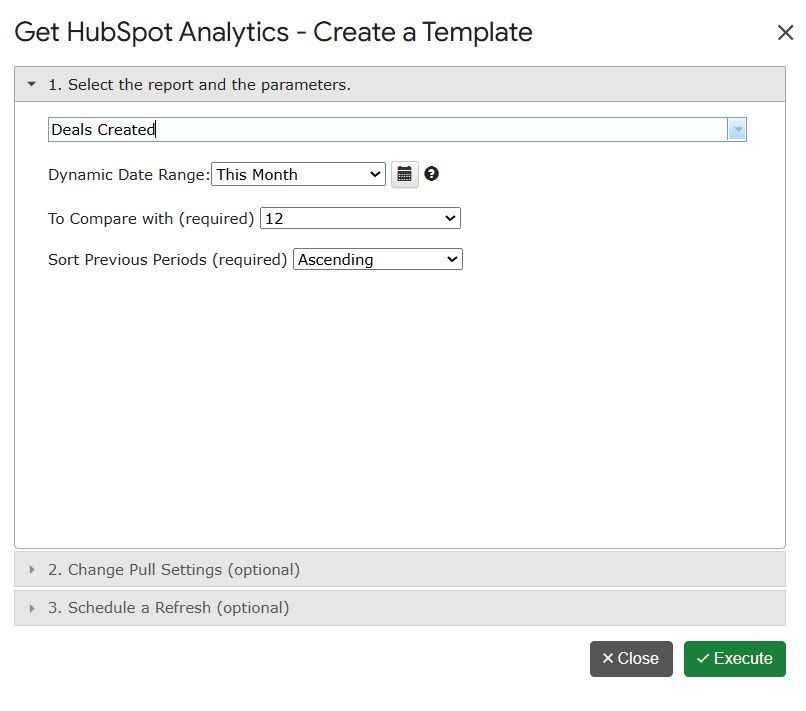
We’ve shipped two new template-driven dialogs in G-Integrator for HubSpot that pull HubSpot analytics straight into your spreadsheet — no more CSV exports, no juggling external BI tools. Build once, save as a template, refresh on demand.

1. Get Custom Reports — reusable HubSpot analytics templates

The new Get Custom Reports dialog lets you assemble a HubSpot analytics report once and run it on demand. Pick the scope — contacts, companies, deals, tickets, or custom objects — define your filters, choose your columns, and save the configuration as a reusable template. Anyone on your team can run it later, in any sheet, without rebuilding it from scratch.

  • Scope-aware reports for contacts, companies, deals, tickets and custom objects.
  • Composite filter logic — combine multiple conditions in a single query.
  • Reusable templates, shareable with teammates via the Cloud Templates manager.
  • One-click refresh via the existing Refresh HubSpot Data action.

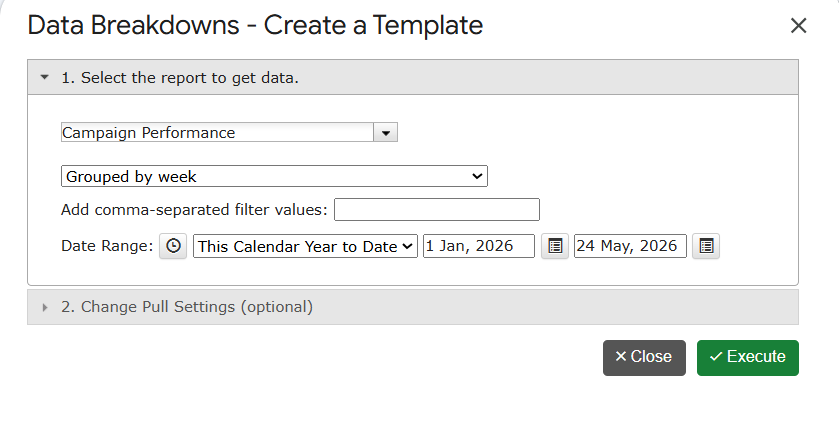
2. Data Breakdowns — pivot HubSpot data without leaving the sheet

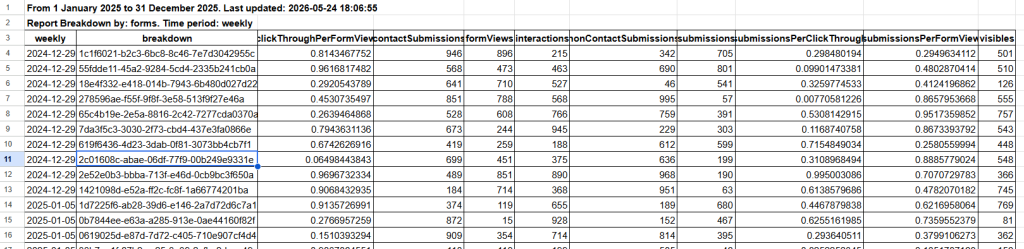
The new Data Breakdowns dialog is the fastest way to slice HubSpot data by dimension and frequency. Pick a metric, group it by one or more dimensions, choose a frequency (daily, weekly, monthly, quarterly), and the breakdown streams directly into your active sheet — with totals, formatting, and refresh metadata wired up automatically.

  • Dimension × frequency breakdowns — pivot-style summaries without a pivot table.
  • Automatic paging — large datasets stream into the sheet page by page.
  • Refresh-ready — sheet metadata is captured so the report refreshes in place.
  • Premium & Lite aware — advanced features unlock automatically with your subscription.

Getting started in 30 seconds

  1. Open any Google Sheet.
  2. Go to Extensions › G-Integrator for HubSpot and sign in if you haven’t already.
  3. Choose Get HubSpot Analytics… and pick the dialog you need.
  4. Configure filters, save as a template, and run.
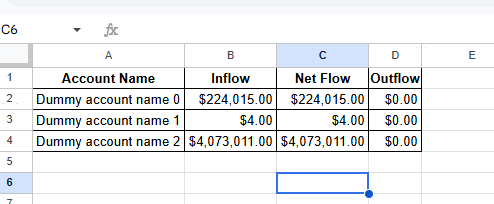
The data was randomized

Questions? Email support@g-integrator.com or visit the FAQ page.

New Advanced Reporting Suite for G-Integrator for Zoho CRM

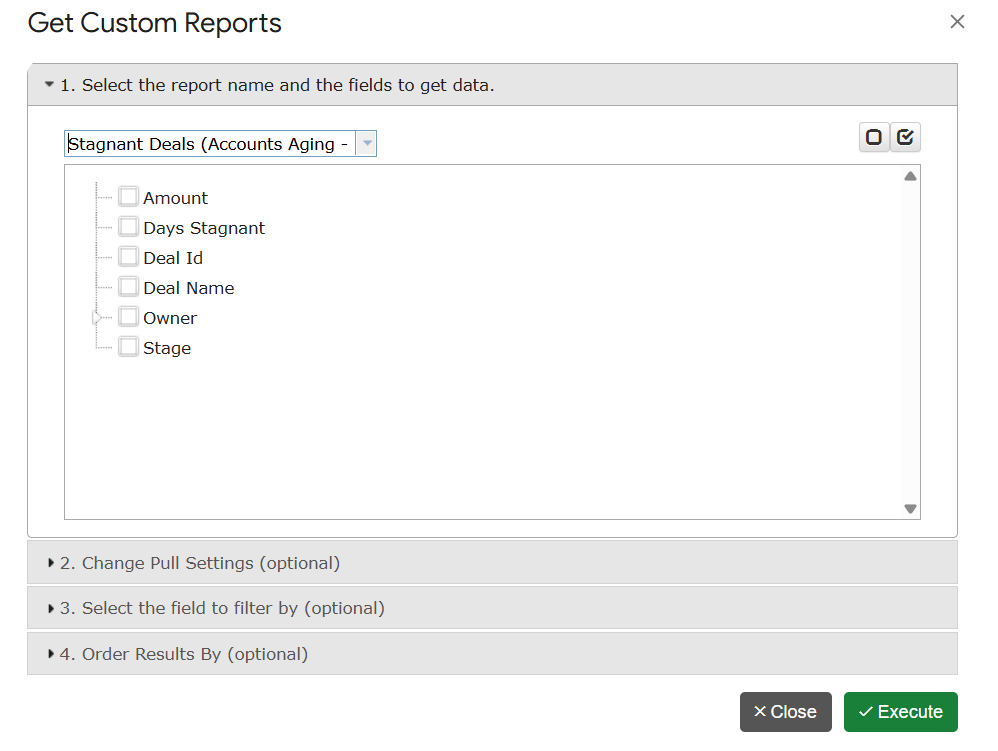
At G-Integrator, we are constantly looking for ways to bridge the gap between your CRM data and your strategic decisions. I am excited to share that we have officially launched a new suite of Advanced Custom Reports designed to give you deeper, actionable intelligence directly within your workflow.

What’s New?

Our team has developed six high-fidelity automated reports to help you streamline data analysis and optimize your sales funnel:

  • Lead Source ROI & Conversion: Stop guessing which marketing channels work. Track your spend efficiency in real-time.
  • Revenue Forecast Report: Gain clarity on future earnings with predictive analysis based on your current pipeline weight.
  • Sales Rep Leaderboard: Foster healthy competition and track quota attainment with live performance metrics.
  • Stagnant Deals (Accounts Aging): Quickly identify where deals are getting stuck to prevent revenue leakage.
  • Win/Loss Analysis: Perform a deep dive into why deals close—or why they stall—to refine your sales strategy.
  • Sales Pipeline Health: Use visual funnel reporting to identify and fix flow bottlenecks.

Stability & Performance

Alongside these features, we have implemented several under-the-hood optimizations. These updates ensure even smoother data synchronization between Google Sheets and Zoho CRM, providing you with a more reliable and stable experience.


How to Access the New Reports

You can find these tools immediately by navigating through the G-Integrator menu:

Menu → Reports → Custom Reports.

We Value Your Feedback

These improvements are a direct result of the feedback we receive from our global community. If G-Integrator is helping your business grow, please consider leaving us a review. Your support helps us continue to innovate and provide the best possible tools for your team.

For detailed guides, please visit our Documentation or reach out to our team at support@g-integrator.com.

Best regards,

Denis Novak

Founder & Owner, G-Integrator

Update: Enhancing Your Insights with New Custom Reports and Improved Stability

Hello everyone,

At G-Integrator, we are committed to building tools that don’t just move data, but actually help you understand your business better. We are thrilled to share some significant updates we’ve rolled out to make your integration experience more powerful and reliable.

What’s New: Specialized Custom Reports

We have introduced a new “Reports” menu, giving you direct access to high-value custom reports designed to sharpen your financial oversight:

  • Budget Vs Actual Report: Easily track your planned budget against actual expenses and revenues to identify variances and maintain strict financial discipline.
  • Product Margin Report: Dive into the profitability of individual products or services to help you make data-driven decisions on pricing and inventory.
  • Project Profitability Report: Measure the true financial success of specific projects by comparing dedicated costs directly against project revenues.
  • The “Collections & Cash Flow” Dashboard (Aged Receivables): Gain better visibility into your outstanding invoices and manage your cash flow more effectively.
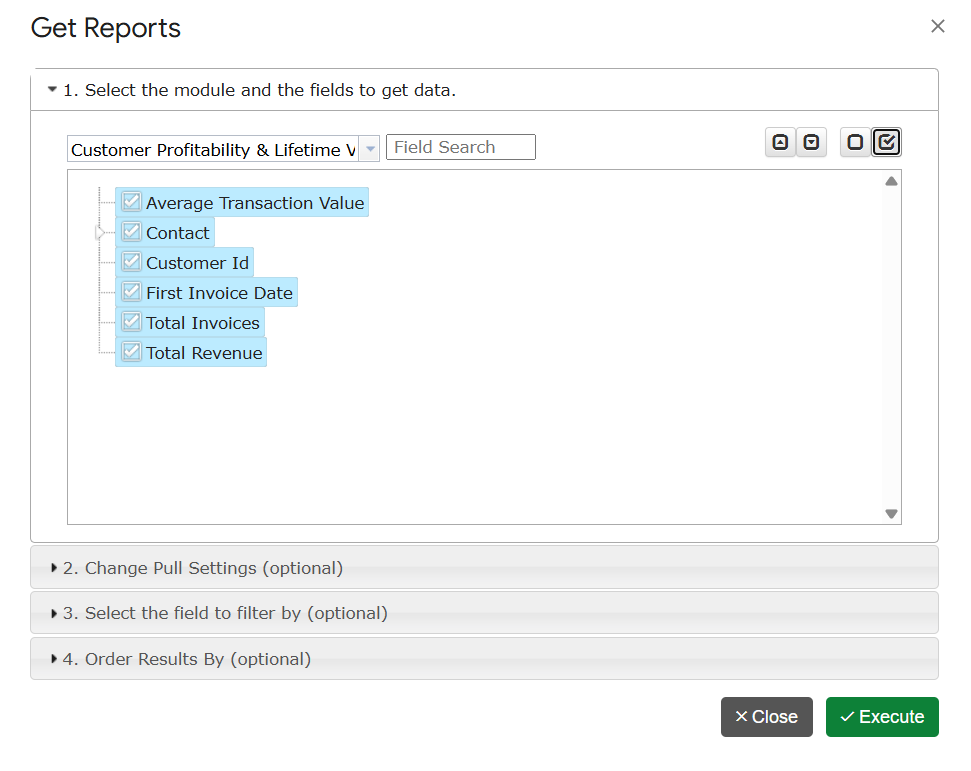
  • Customer Profitability & Lifetime Value (LTV): Identify your most valuable clients and understand the long-term revenue impact of your customer relationships.

Stability & Performance Improvements

Beyond new features, our team has focused heavily on the mechanics of the application. We’ve implemented various performance optimizations and bug fixes to ensure smoother data syncing between Google Sheets and Zoho Books. Our goal is to provide a seamless, stable experience that you can rely on daily.

Advanced Automation: Workflows

For our Premium subscribers, we invite you to explore the “Workflows” functionality under the Automation menu. This feature serves as a smarter, more robust version of our standard autorefresh, designed to handle your data updates with even greater precision.


How to Get Started

  • Accessing Reports: Simply open your G-Integrator sidebar and click the “Reports” menu to see the new options.
  • Accessing this Update: You can find this information anytime via the Menu > About… section of the app.
  • Need Help?: You can view our FAQ Page or Documentation at any time.
  • Support: If you have questions about these updates, please reach out to us at support@g-integrator.com.

Your feedback drives every update we make. If you are enjoying these new features, please consider leaving us a review on the Google Marketplace. It helps our team immensely.

Thank you for your continued partnership.

Best regards,

The G-Integrator Team G-Integrator, LLC

Important Update: Mandatory Upgrade for G-Integrator for ZOHO

Dear Clients,

I am writing to share a critical update regarding the G-Integrator for ZOHO CRM addon.

To ensure the long-term stability and security of our tools, we are migrating our application to the modern V8 version of Google Apps Script. We plan to deploy this update during the upcoming weekend.

Why We Are Doing This

Google is officially retiring (sunsetting) its legacy script engine. To ensure your service continues without interruption, we must move to the new system before the January 2026 deadline.

Beyond compliance, this upgrade brings significant benefits to you:

  • Enhanced Security: Stronger data protection protocols.
  • Better Performance: Faster processing for your daily tasks.

What You Need to Know (Action Required)

Because the new V8 engine enforces stricter security standards, there are three changes to your workflow that you need to be aware of immediately:

  1. Document Ownership Required Previously, you could run the add-on on shared documents owned by others. With the new security protocols, you must be the owner of the Google Spreadsheet to use the G-Integrator. Please ensure you own the files you are working on to avoid permission errors.
  2. Browser Profile Matching (Chrome/Edge Users) If you use Google Chrome or Microsoft Edge, please ensure that your browser profile matches the Google Account logged into the spreadsheet. Mismatched accounts (e.g., being logged into Chrome as User A but the Spreadsheet as User B) may prevent the script from running.
  3. Page Reload after Login After signing into your Zoho account via the addon, you may be asked to reload your web page. This is a normal step to ensure the menu updates correctly with your new session data.

Our Commitment to You

I understand that changes to your daily workflow can be inconvenient, and I sincerely apologize for any disruption this causes. However, these steps are necessary to keep your data safe and ensure the tool remains compatible with Google’s evolving ecosystem.

My team and I are here to support you during this transition. If you have questions, simply reply to this email.

Thank you for your continued partnership.

—

Best regards, Denis Novak, G-Integrator LLC.

G-Integrator

Schedule a 30 min. meeting with me. 

📧 Important Update: Changes to the Marketing Emails Table in G-Integrator

Dear Clients,

This email is to provide a critical heads-up regarding upcoming, mandatory changes to the Marketing Emails synchronized table within the G-Integrator application.

Why the Change is Necessary

HubSpot has sunsetted (retired) the Version 1 Marketing Email API, which our application previously relied on. To ensure the continuous, stable synchronization of your data, we have successfully updated G-Integrator to utilize the new HubSpot Version 3 Marketing Email API.

Impact on Your Data and Templates

Unfortunately, this required API migration introduces some changes to the structure of the Marketing Emails table:

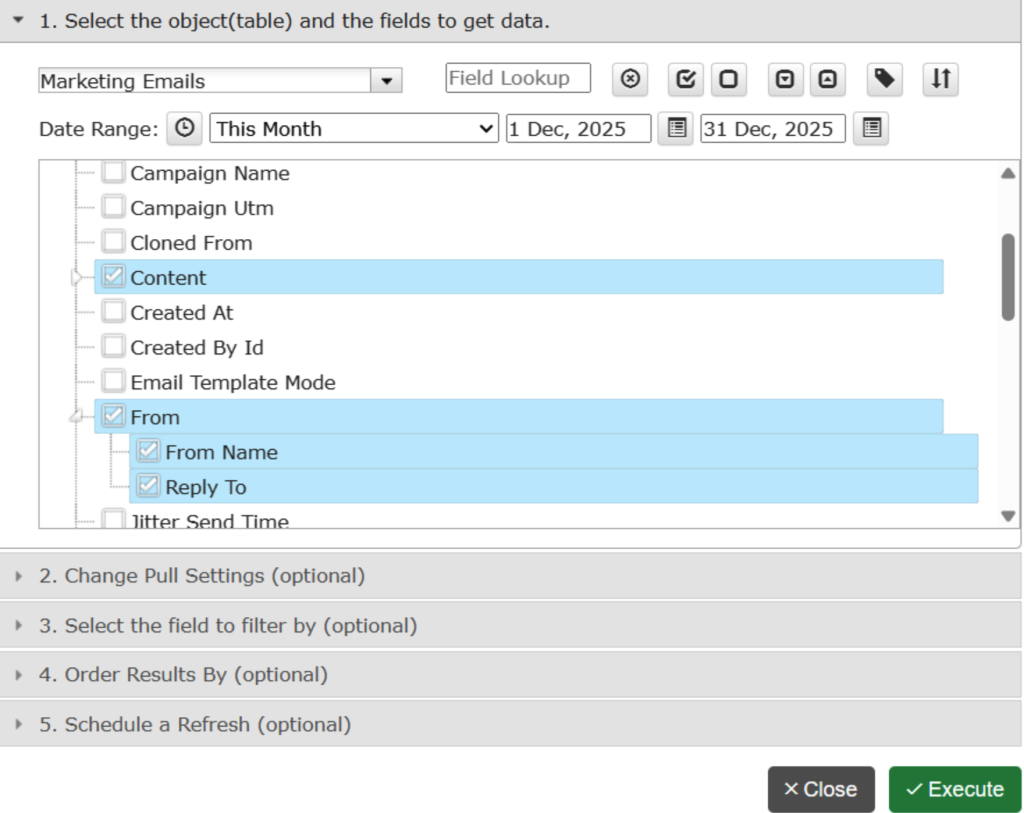
  • Field Removal: Some existing fields available in your saved templates will no longer be available due to the V3 API structure.
  • New Data: You will now have access to new fields and potentially nested tables within the Marketing Emails data structure (please refer to the screenshot provided below for details).

Good news: The Marketing Email Statistics table, which uses the same updated API, has not been changed and will continue to function as expected.

Required Action

We kindly ask you to review your saved templates that rely on the Marketing Emails table and update them to reflect the new data structure. We are confident that you will be able to easily leverage the new data fields soon.

We apologize for any inconvenience this transition may cause and appreciate your quick action in updating your templates.

Please do not hesitate to contact us if you have any questions or require assistance.