Xero Joins the Family: MCP Integrator Now Speaks Your Ledger

MCP Integrator - AI assistant connected to WooCommerce, Stripe and QuickBooks Online or Xero through one hub

When we introduced MCP Integrator, we promised more of your stack would be covered. Today the accounting side gets its first expansion: Xero joins the family.
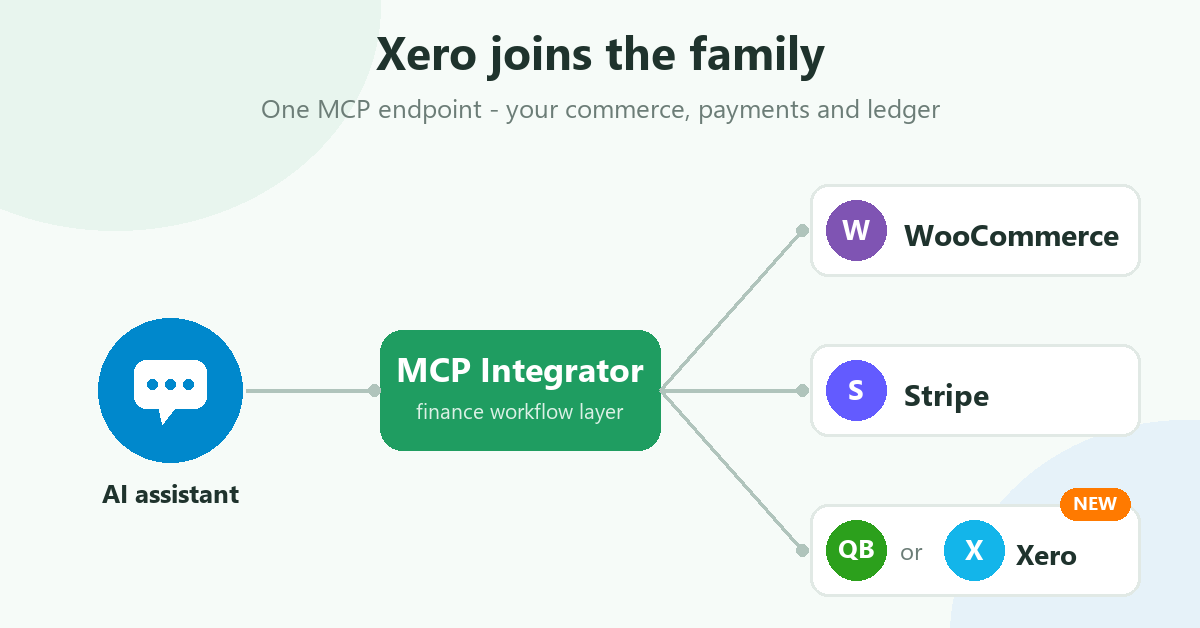
MCP Integrator - AI assistant connected to WooCommerce, Stripe and QuickBooks Online or Xero through one hub
One hosted MCP endpoint connects your AI assistant to WooCommerce, Stripe and your ledger — QuickBooks Online or Xero.

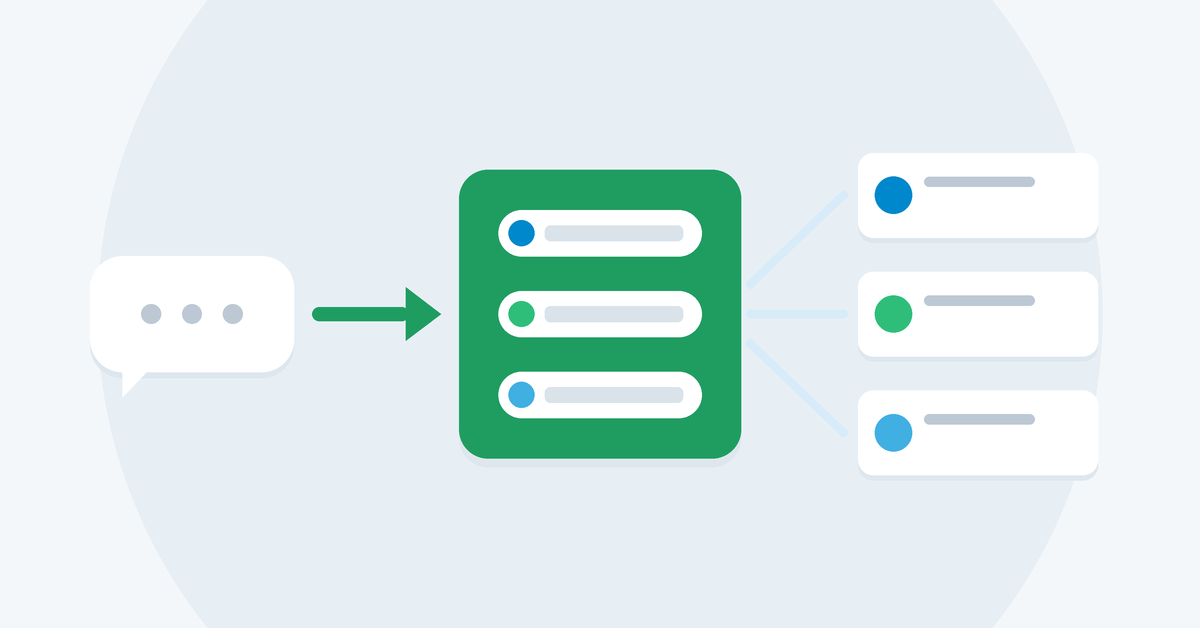
MCP Integrator now connects your AI assistant to WooCommerce, Stripe and your choice of ledger — QuickBooks Online or Xero. One hosted MCP endpoint, the same purpose-built finance tools, and no change to how you work: you ask the question in plain language; the server coordinates the vendor lookups and returns structured evidence the AI can explain.

Your ledger, your choice

Every workspace connects one ledger — QuickBooks Online or Xero. If your business runs on Xero, you no longer need to adapt: connect it from the workspace connect page and every tool works against it. Want to switch later? Disconnect the current ledger and link the other; the rest of your setup stays in place.
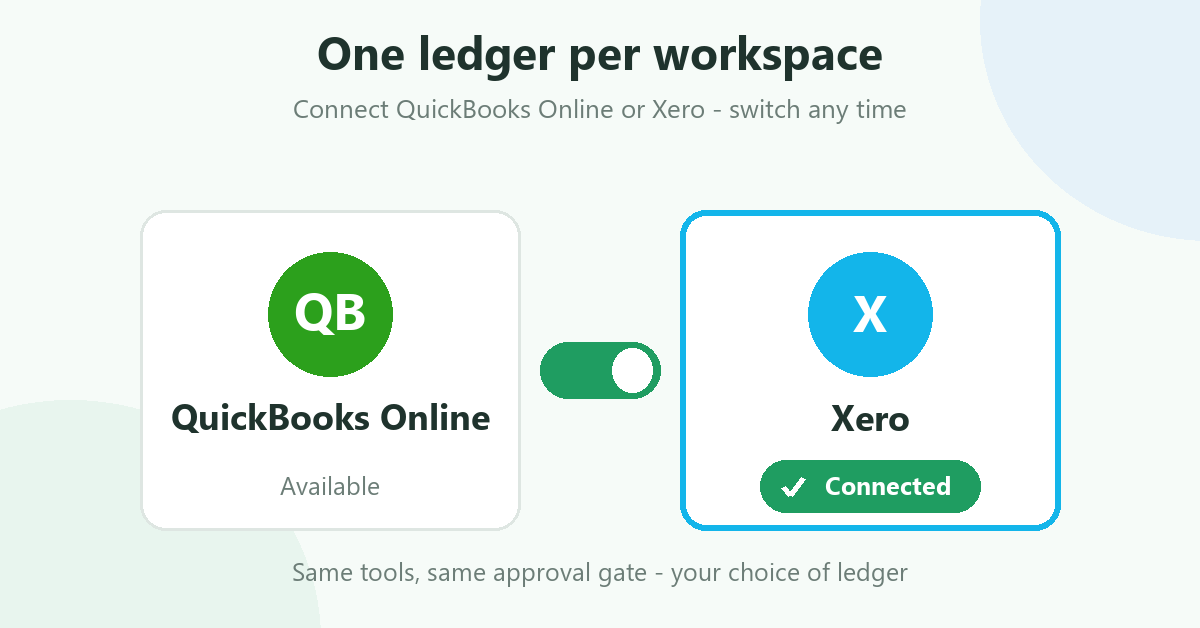
One ledger per workspace - connect QuickBooks Online or Xero and switch any time
Pick the ledger your business runs on; every tool works against it.

Everything you already know works with Xero

The finance workflow layer is ledger-agnostic, so the whole toolset carries over unchanged:

  • Customer 360 — look up a customer by email and bring together commerce activity and invoice standing, now sourced from Xero invoices and payments.
  • Order financials — follow the money for a WooCommerce order across payments, refunds and gateway references.
  • Payout reconciliation — compare Stripe payouts against transaction evidence, with fees, refunds, matches and variances explained, and a proposed balanced journal entry. Still propose-only by default.
  • Run history & unresolved variances — pick up prior investigations instead of starting from scratch.

Approval-gated posting — now to Xero manual journals

Once a payout is reconciled, your assistant can request that it be posted to Xero as a manual journal — but, exactly as with QuickBooks, nothing is ever written to your ledger without an explicit human approval. The post_journal tool opens the request; a person approves it via a one-time email link or the approve tool. Approvals are snapshot-exact and guarded against double-posting: retries, concurrent approvals and repeated clicks all resolve to a single ledger entry.

Before the first posting, bind the four abstract journal roles to real accounts from your Xero chart of accounts on the account-mapping page — a one-time, two-minute step. See the approval-gate guide for the full flow.

Connecting Xero takes a minute

  1. Open the workspace connect page and click Connect Xero.
  2. Sign in on Xero’s page, pick the organisation, and approve access. The server requests invoices, payments, contacts and settings (read) plus manual journals and offline access for approval-gated posting.
  3. You’re redirected back with “Connected Xero” — then ask your assistant to run connections_status and confirm every vendor reports CONNECTED.

The step-by-step instructions live in the Connect your vendors guide.

Security, unchanged

  • OAuth 2.1 for AI-client access — no credentials pasted into a chat.
  • AES-256 encryption at rest for vendor tokens, HTTPS in transit.
  • Workspace isolation keeps your vendor connections and finance data tenant-scoped.

Get started

Premium is available with monthly or annual billing and a 2-week free trial.

👉 Explore the product on the MCP Integrator page, follow the setup guide, or review pricing.

Same questions, same evidence, same human approval gate — now on the ledger your business already runs on.
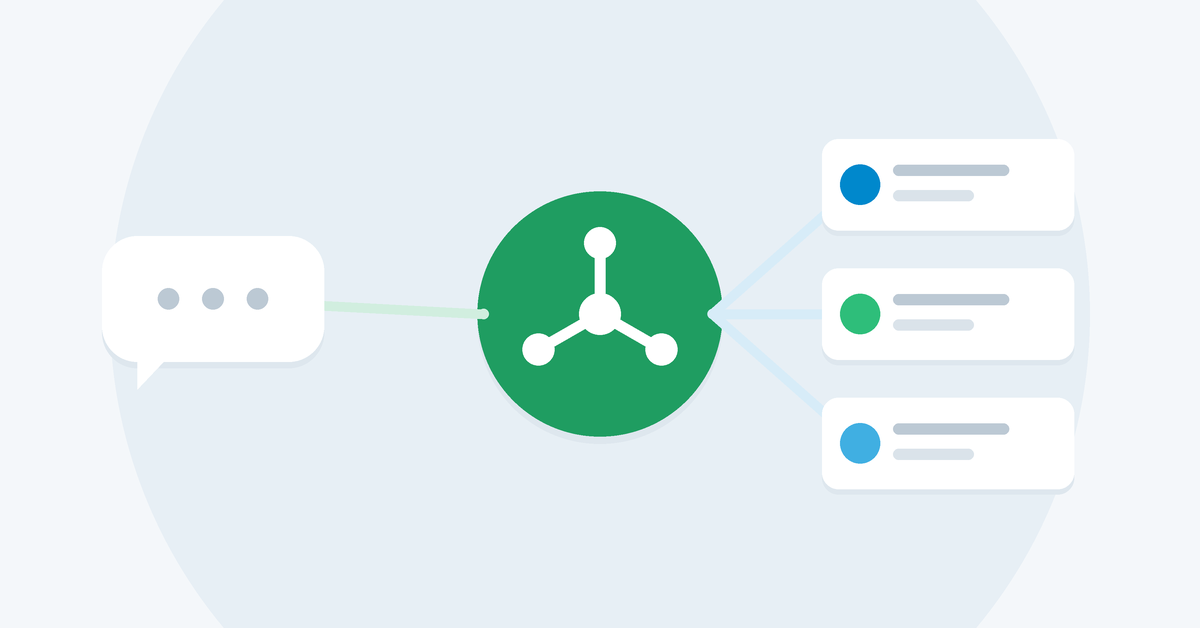
Meet MCP Integrator: One Connected Finance Investigation for WooCommerce, Stripe & QuickBooks Online

MCP Integrator - AI assistant connected to WooCommerce, Stripe and QuickBooks Online through one hub

Your customer says “I already paid.” Your books say otherwise. Meet MCP Integrator — and find out why without piecing together three dashboards.

MCP Integrator connects your AI assistant to WooCommerce, Stripe and QuickBooks Online
One hosted MCP endpoint connects your AI assistant to WooCommerce, Stripe and QuickBooks Online.

The problem: the money trail crosses three systems

A typical accounts-receivable question — “She says she paid. Why is there still a balance? And what happened to her refund?” — rarely lives in one place. The order sits in WooCommerce, the payment and payout in Stripe, and the invoice in QuickBooks Online. Someone has to open all three, pick the right records, relate orders to payments, account for fees and refunds, and decide what remains unresolved.

MCP Integrator moves that repeatable finance work into a shared tool layer that your AI assistant can use. You ask the question in plain language; the server coordinates the vendor lookups and returns structured evidence the AI can explain.

What is MCP, and why does it matter here?

MCP is the Model Context Protocol — the open standard that lets an AI client call external tools. Claude Desktop, VS Code / GitHub Copilot and Cursor all support it.

An AI client connected to three separate vendor MCP servers can query each platform, but it still has to invent the reconciliation workflow each time. MCP Integrator is different: it is one hosted MCP endpoint with purpose-built finance tools. There is no server for you to deploy, and the cross-system matching logic runs server-side.

AI client, MCP Integrator workflow layer, and the three vendor platforms

Your assistant asks one question; the finance workflow layer coordinates the supported WooCommerce, Stripe and QuickBooks Online lookups.

Built for the questions that slow down your finance team

“What happened to the money for this order?”

Order financials. Start with a WooCommerce order number. Inspect order totals, payment transactions and refunds, including gateway names and transaction references — without switching between systems.

“Has this customer actually paid?”

Customer 360. Look up a customer by email to bring together commerce activity and invoice standing. Compare paid, partially paid and outstanding amounts before replying to a dispute. A partial payment that leaves an invoice open is a different story from a refund — and the evidence shows which one you are looking at.

“Why doesn’t this payout match the sales?”

Payout reconciliation. Compare supported Stripe payouts against transaction evidence. Review fees, refunds, matches and variances, with a proposed balanced journal entry. Reconciliation is propose-only — it never posts entries to QuickBooks. You stay in control.

Payout reconciliation with matched transactions and one flagged variance

Evidence, not forced matches: supported transactions are matched and explained; unsupported cases are flagged for follow-up.

“What still needs my attention before close?”

Run history & unresolved variances. Review stored unresolved payout variances for a date range, or inspect a past reconciliation run step by step — so you follow up on prior work instead of starting every investigation from scratch.

Security built in

  • OAuth 2.1 for AI-client access — authorize vendor connections without pasting credentials into a chat.
  • AES-256 encryption at rest for vendor tokens, HTTPS in transit.
  • Workspace isolation keeps your vendor connections and finance data tenant-scoped.

Coming soon: Shopify and more

WooCommerce is just the start. Shopify support is coming soon, bringing the same order-to-payout investigation to Shopify stores — and we are evaluating additional commerce and accounting platforms to connect next. The finance workflow layer stays the same: one hosted MCP endpoint, the same tools, more of your stack covered.

Getting started takes three steps

  1. Connect your AI client. Add the hosted MCP endpoint and complete OAuth sign-in (your client must support remote, streamable-HTTP MCP with OAuth).
  2. Authorize your vendors. Link WooCommerce, Stripe and QuickBooks Online through the workspace connect page.
  3. Ask a finance question. Check connection status, then investigate an order, a customer or a payout.

Premium is available with monthly or annual billing and a 2-week free trial.

👉 Explore the product on the MCP Integrator page, follow the setup guide and demo walkthrough, or review pricing.

Spend less time assembling the story. More time resolving it.