
We’ve shipped two new template-driven dialogs in G-Integrator for HubSpot that pull HubSpot analytics straight into your spreadsheet — no more CSV exports, no juggling external BI tools. Build once, save as a template, refresh on demand.
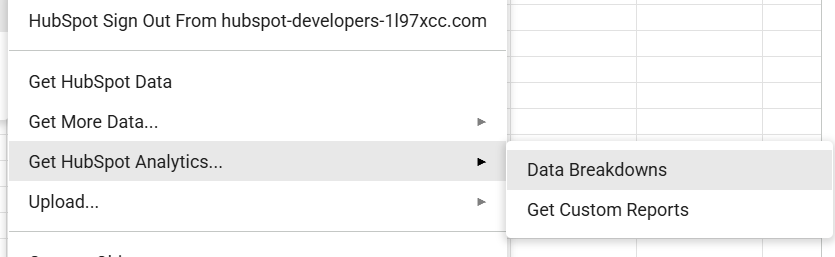
1. Get Custom Reports — reusable HubSpot analytics templates
The new Get Custom Reports dialog lets you assemble a HubSpot analytics report once and run it on demand. Pick the scope — contacts, companies, deals, tickets, or custom objects — define your filters, choose your columns, and save the configuration as a reusable template. Anyone on your team can run it later, in any sheet, without rebuilding it from scratch.
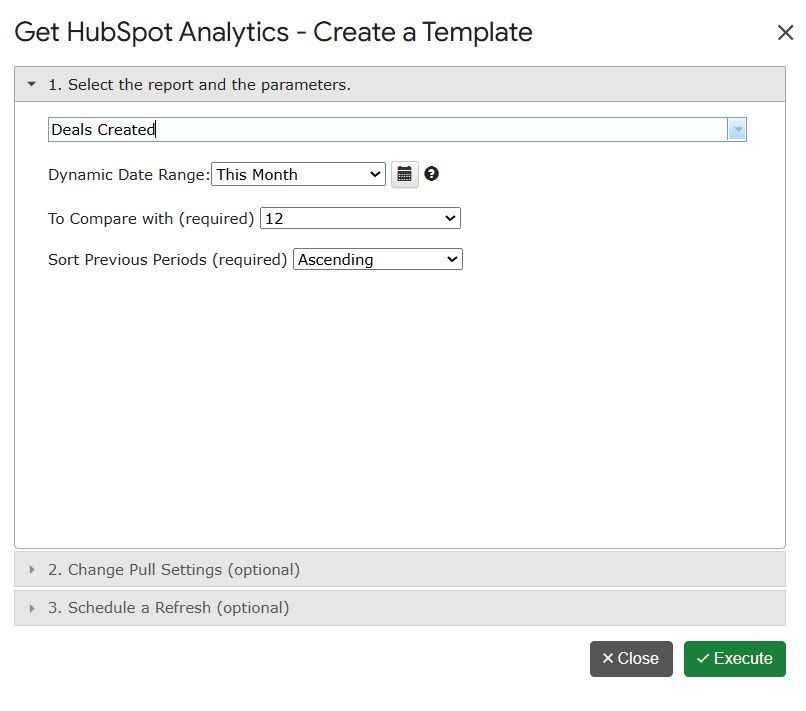
- Scope-aware reports for contacts, companies, deals, tickets and custom objects.
- Composite filter logic — combine multiple conditions in a single query.
- Reusable templates, shareable with teammates via the Cloud Templates manager.
- One-click refresh via the existing Refresh HubSpot Data action.
2. Data Breakdowns — pivot HubSpot data without leaving the sheet
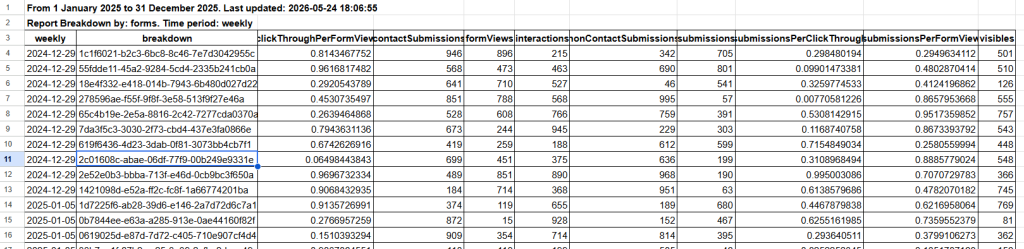
The new Data Breakdowns dialog is the fastest way to slice HubSpot data by dimension and frequency. Pick a metric, group it by one or more dimensions, choose a frequency (daily, weekly, monthly, quarterly), and the breakdown streams directly into your active sheet — with totals, formatting, and refresh metadata wired up automatically.
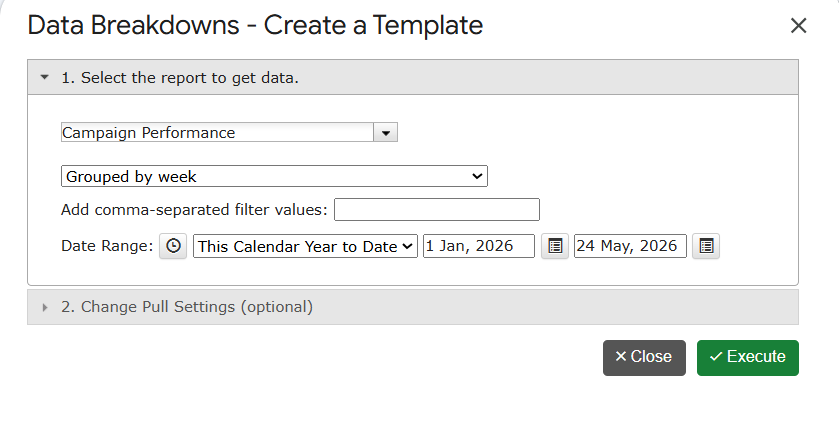
- Dimension × frequency breakdowns — pivot-style summaries without a pivot table.
- Automatic paging — large datasets stream into the sheet page by page.
- Refresh-ready — sheet metadata is captured so the report refreshes in place.
- Premium & Lite aware — advanced features unlock automatically with your subscription.
Getting started in 30 seconds
- Open any Google Sheet.
- Go to Extensions › G-Integrator for HubSpot and sign in if you haven’t already.
- Choose Get HubSpot Analytics… and pick the dialog you need.
- Configure filters, save as a template, and run.
Questions? Email support@g-integrator.com or visit the FAQ page.