
If you run your accounting in Zoho Books, sooner or later you need your invoices in a spreadsheet: to build a custom aging report, share numbers with a bookkeeper who lives in Google Sheets, or combine billing data with information from other systems.
The manual route – exporting a CSV from Zoho Books and importing it into Sheets – works exactly once. The moment an invoice is paid, edited, or voided, your spreadsheet is stale, and you’re back to exporting and re-importing.
In this guide, you’ll set up a live connection between Zoho Books and Google Sheets in about five minutes using G-Integrator for Zoho Books, a Google Sheets add-on. Your invoices – including line items – land directly in your spreadsheet and can refresh themselves automatically on a schedule.
What you’ll need
- A Zoho Books account (any plan)
- A Google account
- The G-Integrator for Zoho Books add-on – install it from the Google Workspace Marketplace
That’s it. No API keys, no scripts, no Zapier tasks to count.
Step 1: Install the add-on and sign in to Zoho Books
Open a Google Sheets spreadsheet and install G-Integrator for Zoho Books from the Extensions menu (Extensions → Add-ons → Get add-ons, then search for “G-Integrator”).
Once installed, open:
Extensions → G-Integrator for Zoho Books → Zoho Sign In
Sign in with your Zoho account and grant access. The add-on uses Zoho’s official OAuth flow – your password is never shared with the add-on, and you can revoke access from your Zoho account at any time.
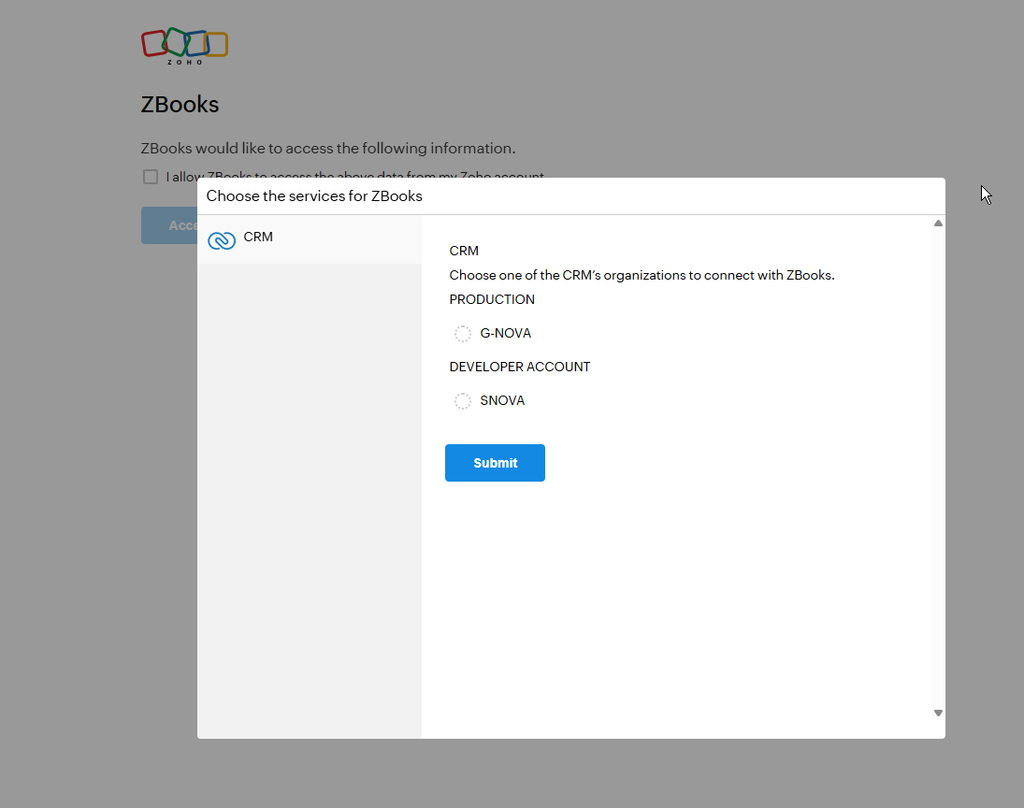
If your Zoho account has several organizations, pick the one you want to pull invoices from – you can switch organizations at any time.
Step 2: Pull your invoices into the sheet
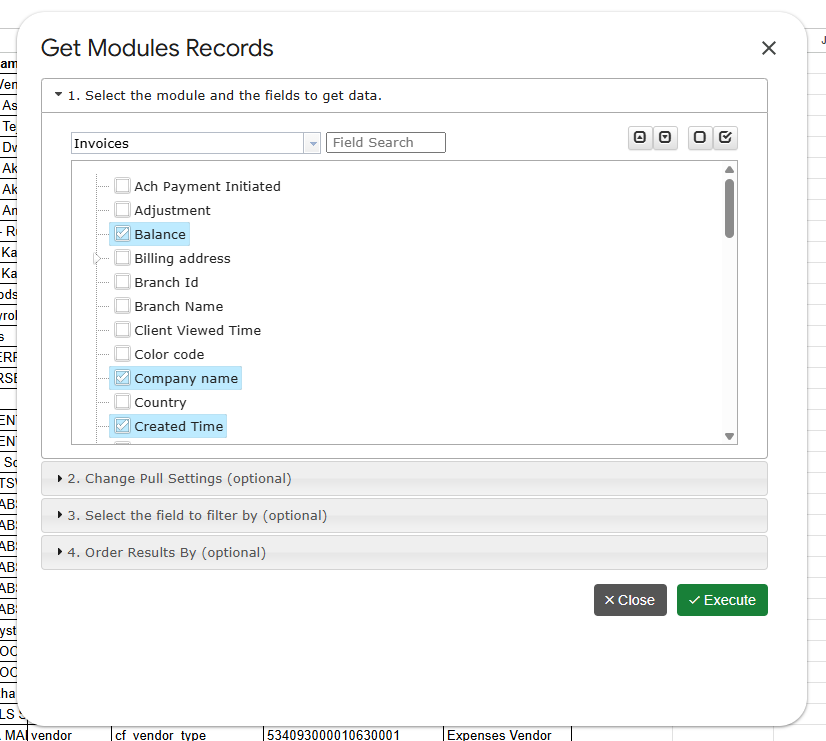
Open the add-on menu and click Get Module Records. In the dialog:
- Select Invoices from the table list.
- Pick the fields you need – invoice number, customer name, status, total, balance, invoice date, due date, and so on.
- Click to run the pull.
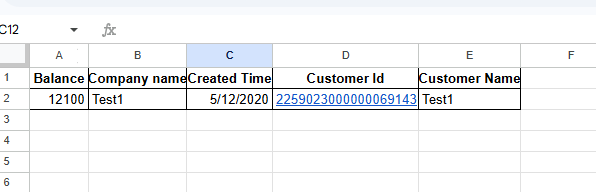
Your invoices appear in the sheet within seconds, one row per invoice – or one row per line item if you include line-item fields. Line items are flattened into rows automatically, so an invoice with five products becomes five analyzable rows. This is the detail level a CSV export from Zoho Books won’t give you in one file.
Filter to just the invoices you need
Don’t want your entire invoice history? Add filters in the same dialog – for example:
- Status = unpaid for a live receivables list
- Invoice date within the last quarter for period reporting
- A specific customer for an account review
The pull settings are saved as a reusable template, so the next refresh uses exactly the same fields and filters.
Step 3: Schedule automatic refreshes
This is the step that eliminates CSV exports for good. Open:
Automation → Create Workflow
Choose the sheet with your invoice pull and set a schedule – hourly, daily, or weekly. From then on, G-Integrator re-runs the pull automatically and overwrites the sheet with current data. Paid invoices update their status, new invoices appear, voided ones drop off – with nobody touching the spreadsheet.
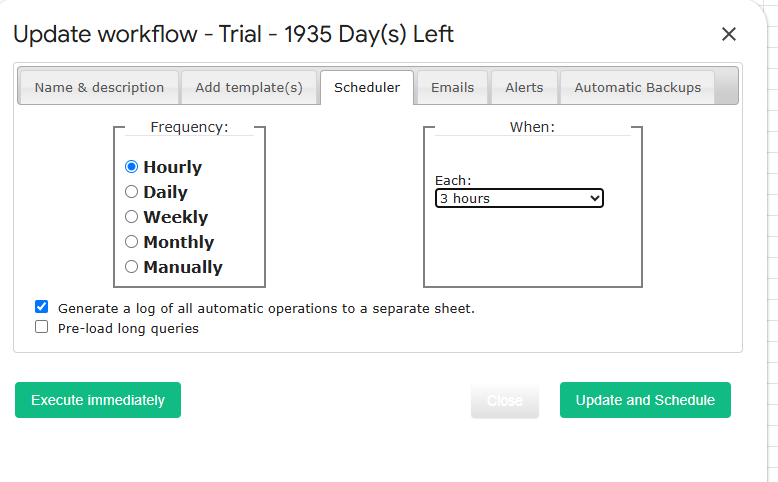
Workflows can also send you an email notification after each refresh, so your Monday-morning receivables sheet is waiting in your inbox before you’ve had coffee.
Bonus: skip the spreadsheet-building with 75+ ready-made reports
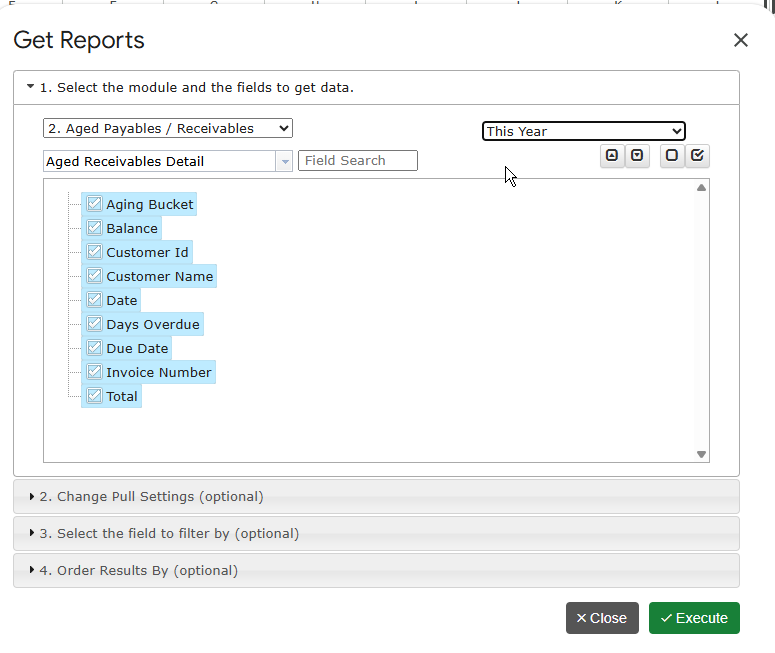
If the reason you’re exporting invoices is to build a report, you may not need to build anything. G-Integrator for Zoho Books ships with 75+ built-in financial reports that render directly in Google Sheets, including:
- A/R Aging (by invoice or by customer)
- Invoice Register and transaction lists
- Balance Sheet, P&L and Cash Flow
- Sales by customer / item / salesperson
Each report is generated from live Zoho Books data and can be put on the same automatic refresh schedule. See the full report catalog for the complete list.
Zoho Books CSV export vs. a live Sheets connection
| Manual CSV export | G-Integrator | |
|---|---|---|
| Line items included | Separate export | Flattened into rows automatically |
| Data freshness | Stale immediately | Auto-refresh on schedule |
| Filters | Re-applied every time | Saved in a reusable template |
| Financial reports | Build your own | 75+ built-in |
| Effort per update | 5–10 minutes | Zero |
Frequently asked questions
Is there a free plan?
G-Integrator for Zoho Books has a free two-week trial period. After a trial, you will have to subscribe – see pricing.
Can I export bills, expenses, and payments too?
Yes – Invoices is just one of the available tables. You can pull Bills, Expenses, Payments, Credit Notes, Chart of Accounts, Items, Projects, and more. See the import guide.
Does it work with multiple Zoho Books organizations?
Yes. Sign in once and switch between organizations from the add-on – each pull template remembers which organization it belongs to.
Can I update Zoho Books from Google Sheets?
Yes. G-Integrator also supports uploads – update, insert or upsert Zoho Books records straight from your sheet. See uploading data.
Is my accounting data safe?
The add-on connects through Zoho’s official OAuth API – no passwords are stored, and data flows directly between Zoho and your Google Sheet. Access can be revoked from your Zoho account at any time.
Get started
Install G-Integrator for Zoho Books from the Google Workspace Marketplace, sign in, and your first invoice export is a two-click job. Learn more on the product page or jump straight to the quickstart guide.