
Zoho Books has solid built-in reports. However, they live inside Zoho Books. So every time your accountant, investor, or team lead asks for numbers, you export a PDF or copy cells by hand. Then next month, you do it all again.
There is a simpler way. With G-Integrator for Zoho Books, you can run Zoho Books reports in Google Sheets directly. First, you pick a report. Then the add-on builds it in your sheet from live Zoho Books data. After that, a schedule keeps it fresh – no more monthly copy-paste.
In this guide, you will set up three core reports: the Balance Sheet, the Profit and Loss, and the Cash Flow. You will also see how to refresh them on a schedule.
Why build reports in Google Sheets at all?
Because a spreadsheet is where the rest of your work happens. For example:
- You can add your own formulas, charts, and notes next to real numbers.
- You can share one link with your accountant instead of sending PDF files.
- You can combine several reports on one tab and build a simple dashboard.
- Also, Google Sheets keeps version history, so you can look back at any point in time.
In short, Zoho Books stays your source of truth. Meanwhile, Google Sheets becomes your reporting layer.
What you’ll need
- A Zoho Books account (any plan)
- A Google account
- The G-Integrator for Zoho Books add-on from the Google Workspace Marketplace – it comes with a free two-week trial
Step 1: Connect Google Sheets to Zoho Books
First, open a spreadsheet and install the add-on. Then open:
Extensions – G-Integrator for Zoho Books – Zoho Sign In
Sign in with your Zoho account. The add-on uses Zoho’s official sign-in flow, so it never sees your password. In addition, you can revoke access from your Zoho account at any time.
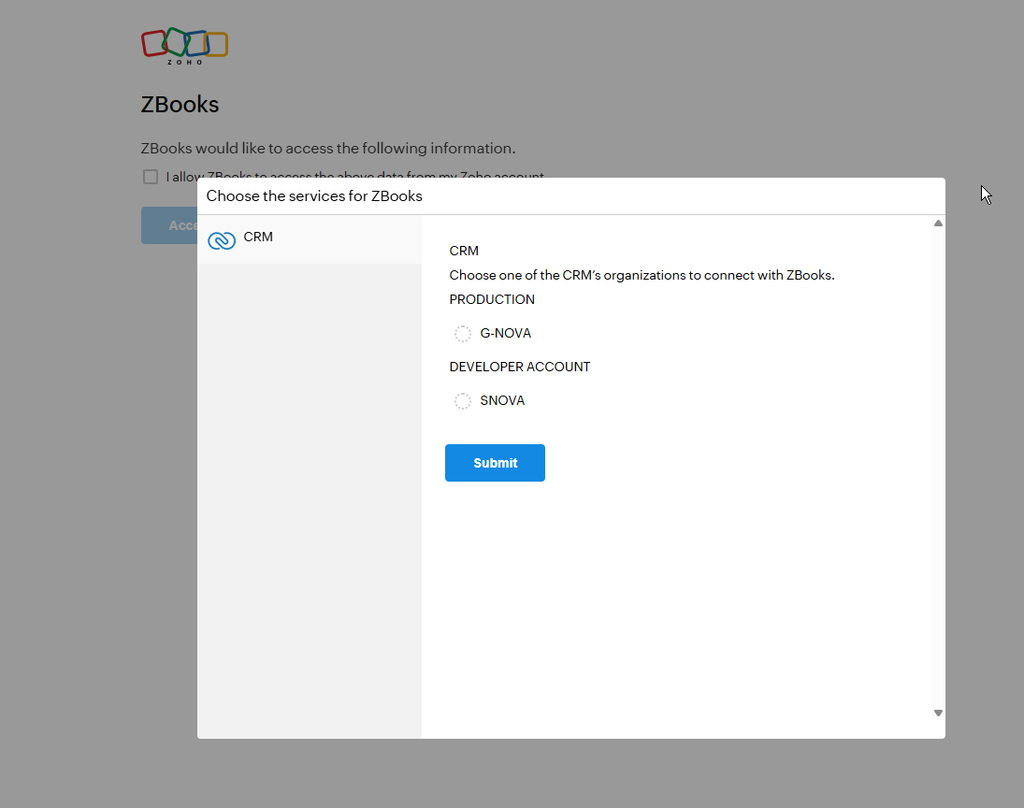
If you manage more than one organization, pick the right one from the list. You can switch later with one click.
Step 2: Run your first report – the Balance Sheet
Next, open the add-on menu and choose the reports section. Pick Balance Sheet from the list. Then set the report date and run it.
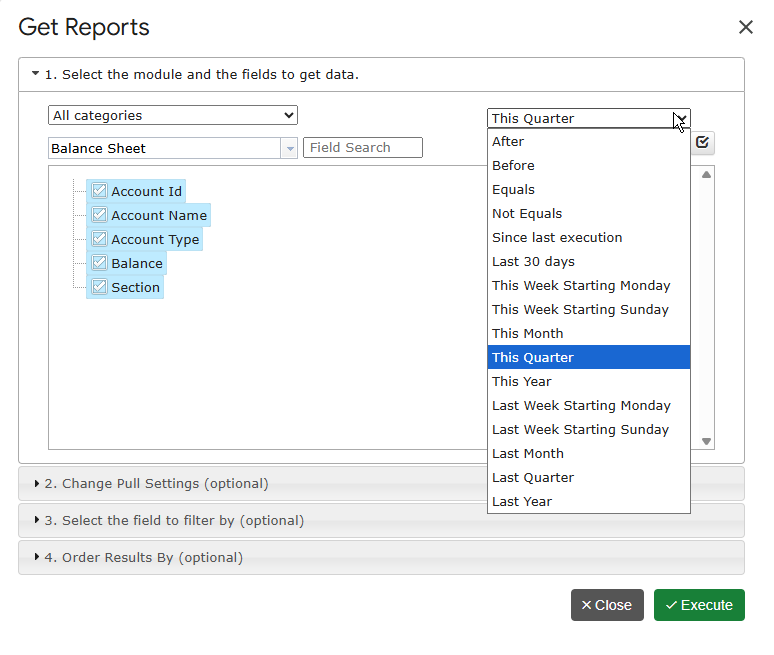
Within seconds, the sheet shows your assets, liabilities, and equity, rolled up from your general ledger. The report also includes a computed Net Income row, just like the one inside Zoho Books.
Need a different view? The catalog also includes Balance Sheet by Location, by Customer, by Vendor, and by Classes. Moreover, the Historical Balance Sheet shows your balance as of any past date. As a result, period-end snapshots and trend sheets become easy.
Step 3: Add the Profit and Loss
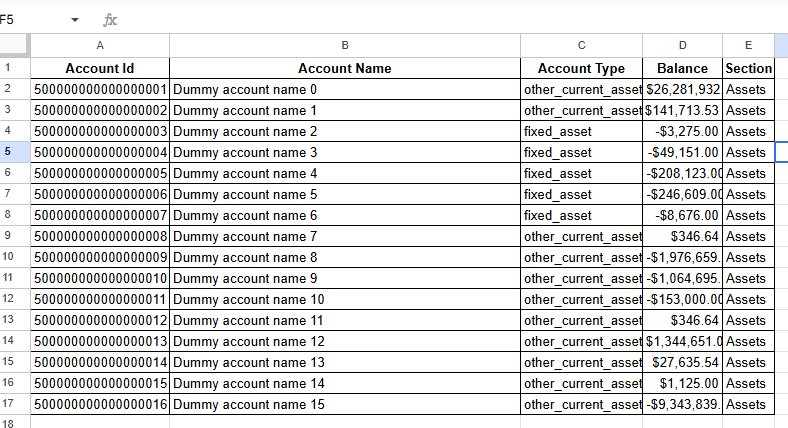
Now repeat the same steps and pick Profit And Loss. This is your income statement: Income, Cost of Goods Sold, and Expenses, with totals down to net profit.
A few useful variants:
- Profit And Loss Variance – the current period next to the previous one, with the change in amount and percent.
- Profit And Loss By Customer – see which customers actually make you money.
- Profit And Loss Detail – every ledger line behind your income and expense accounts, so you can trace any number.
Step 4: Add the Cash Flow
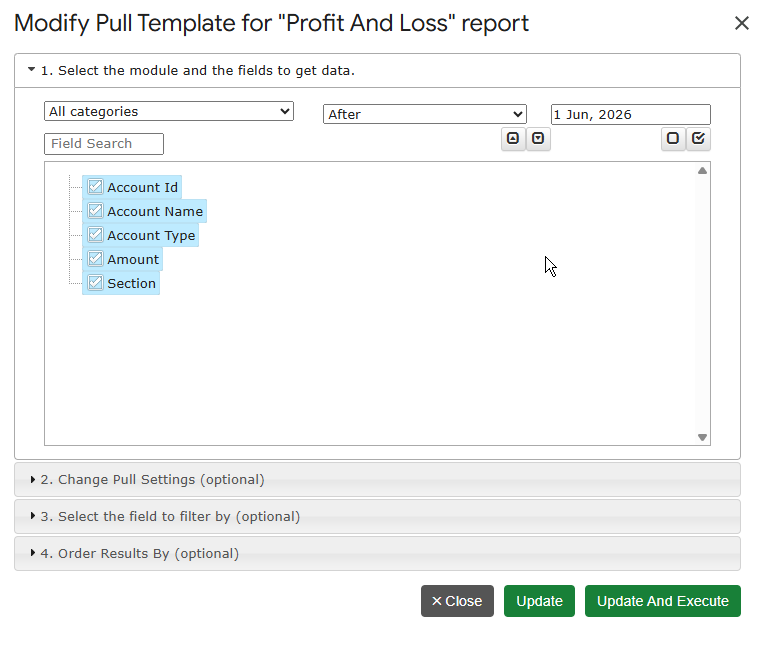
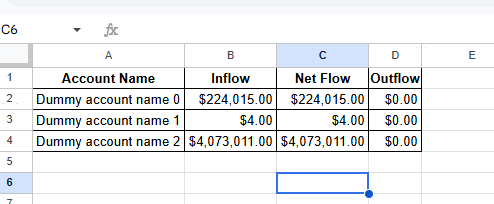
Finally, run the Cash Flow report. It shows money moving in and out of your bank and cash accounts, classified by counter-account. Likewise, you can split it by Location, by Customer, or by Classes, or run the Historical Cash Flow for any past period.
At this point, you have all three core statements in one spreadsheet. Add a summary tab with a few charts, and you have a live finance dashboard.
Step 5: Put the reports on a schedule
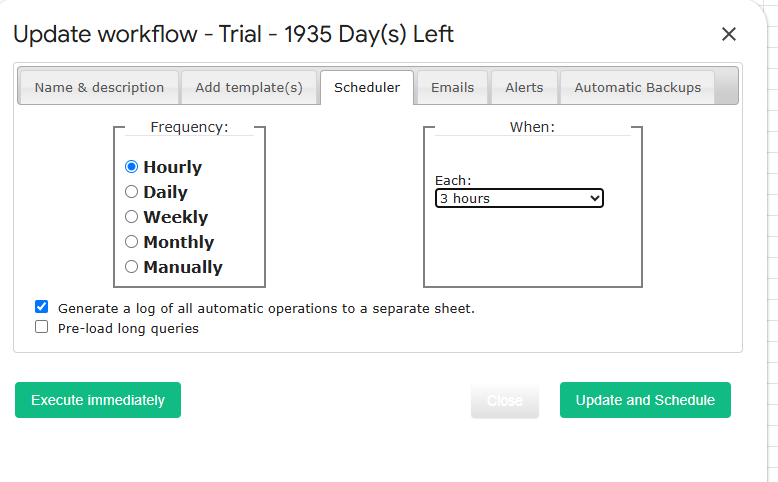
This step removes the monthly routine. Open:
Automation – Create Workflow
Pick the tabs with your reports and set a schedule – hourly, daily, or weekly. From then on, G-Integrator reruns each report and updates the sheet by itself. Therefore, the numbers your team sees are always current. You can also get an email after each refresh.
Beyond the big three: 75+ reports in the catalog
The three statements above are just the start. The full catalog holds more than 75 Zoho Books reports, for example:
- Aged Receivables Detail and Aged Receivables Summary – who owes you, and for how long
- Aged Payables Detail and Aged Payables Summary – what you owe your vendors
- Sales by Customer, Item, or Salesperson
- Budgets and budget-versus-actual views
- General Ledger and full transaction lists
You can browse the whole list in the report catalog.
Frequently asked questions
Is there a free plan?
No, but there is a free two-week trial. You can test every report and workflow before you pay. After the trial, pick a plan on the pricing page.
Do the reports match the numbers in Zoho Books?
Yes. The add-on builds each report from your live Zoho Books data through the official API. So the totals match what you see inside Zoho Books at the same moment.
Can I change how a report looks?
Yes. The report lands in a normal Google Sheets tab. Therefore, you can format cells, add columns with your own formulas, and build charts on top. On the next refresh, the data updates in place.
Can I also export raw records, like invoices or bills?
Yes. Besides reports, the add-on pulls raw tables: Invoices, Bills, Expenses, Payments, Items, and more. For a walkthrough, see our guide on exporting Zoho Books invoices to Google Sheets.
Is my accounting data safe?
Yes. The add-on connects through Zoho’s official sign-in flow and never stores your password. Furthermore, data flows straight from Zoho to your own Google Sheet.
Get started
Install G-Integrator for Zoho Books from the Google Workspace Marketplace and start your free two-week trial. Five minutes later, your Balance Sheet, P&L, and Cash Flow will live in Google Sheets – and they will update themselves. Learn more on the product page or in the quickstart guide.