
Your CRM holds the data. Your spreadsheet is where you work with it. Yet moving records between Zoho CRM and Google Sheets by hand – export, download, import, clean up – wastes time and breaks the moment someone edits a record.
This guide shows you how to set up a Zoho CRM Google Sheets integration with the G-Integrator for Zoho CRM add-on. First, you will pull leads, contacts, or deals into a sheet. Then you will push changes back to the CRM. Finally, you will schedule automatic refreshes, so your sheet stays current on its own.
What you’ll need
- A Zoho CRM account (any edition)
- A Google account
- The G-Integrator for Zoho CRM add-on from the Google Workspace Marketplace – it comes with a free two-week trial
No API keys and no code. The add-on talks to Zoho through the official API.
Step 1: Connect Google Sheets to Zoho CRM
First, install the add-on in a Google Sheets spreadsheet. Then open:
Extensions – G-Integrator for Zoho CRM – Zoho Sign In
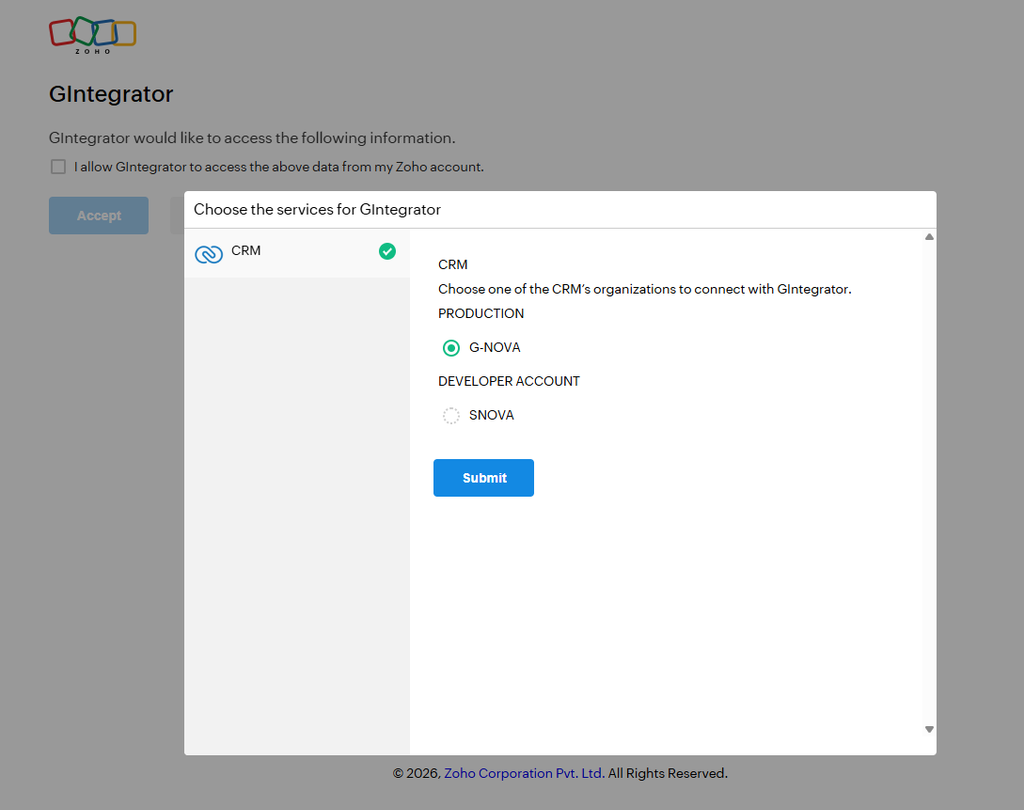
Click through Zoho’s sign-in flow and grant access. The add-on never sees your password. Also, you can revoke access from your Zoho account at any time.
If you belong to several Zoho organizations, choose the one you need. You can switch later.
Step 2: Import records into your sheet
Next, click Get Module Records in the add-on menu. In the dialog:
- Pick a module – Contacts, Leads, Accounts, Deals, or any custom module.
- Select the fields you want as columns.
- Add filters if you only need part of the data – for example, leads created this month.
- Run the pull.
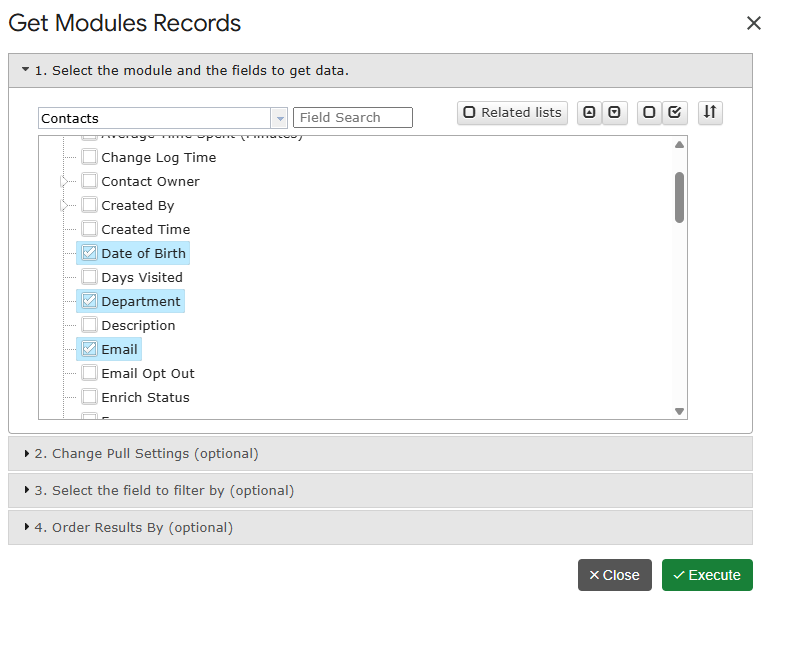
Your records land in the sheet in seconds, one row per record. Moreover, the add-on saves your choices as a template. So the next pull – manual or scheduled – uses the same module, fields, and filters.
Pull related lists too
Need the records linked to a parent record – say, all deals under each account? Then use Get Related Lists. Pick the parent module and the related list, and the add-on flattens the result into rows.
Power users: query the CRM directly
If you know exactly what you want, click Get Data using COQL and write a query in Zoho’s CRM Query Language. This supports joins and one-to-many pulls. For examples, see our COQL guide.
Step 3: Push changes back to Zoho CRM
A one-way export is only half the story. With G-Integrator, you can also update the CRM from your sheet.
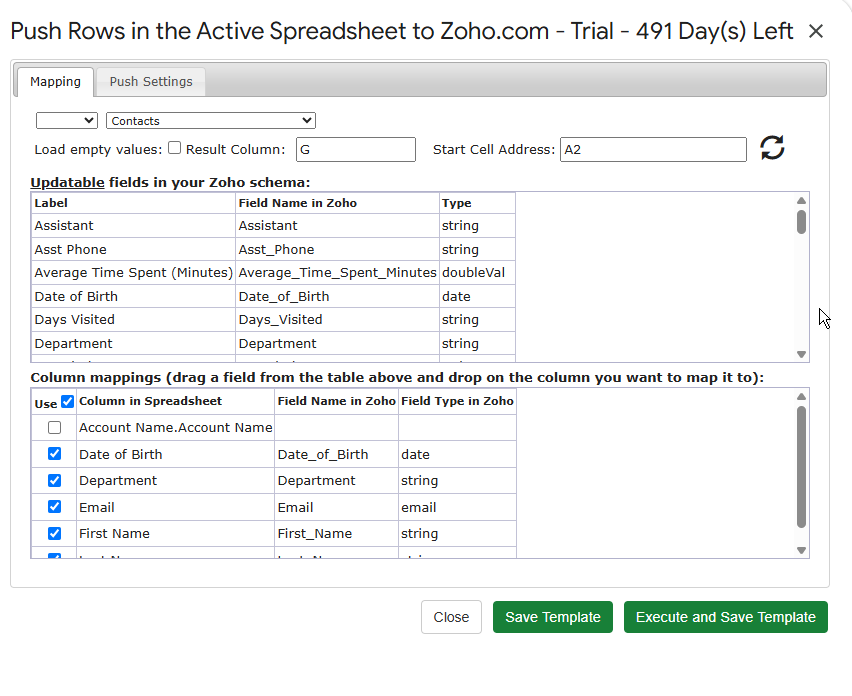
Edit the rows you need, select them, and then choose:
Update / Insert / Upsert Selected Row(s)
Map your spreadsheet columns to CRM fields once, and the add-on saves the mapping for next time. As a result, bulk edits become simple: fix fifty phone numbers in the sheet, select the rows, and push them back in one action.
- Update changes existing records.
- Insert creates new ones.
- Upsert does both – it updates a record when it exists and creates it when it does not.
Step 4: Schedule automatic refreshes
Finally, remove the manual step for good. Open:
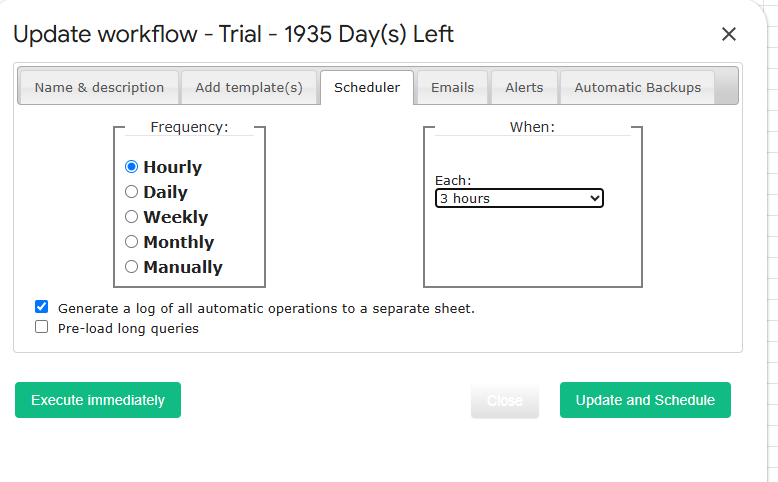
Automation – Create Workflow
Choose the pull templates you want to refresh and set a schedule – hourly, daily, or weekly. From then on, the add-on reruns the pulls and rewrites the sheet by itself. In addition, workflows can email you after each run, so you know the data is fresh.
Bonus: 25+ built-in CRM reports
Besides raw records, the add-on ships with more than 25 ready-made reports. Open Reports – Custom Reports and pick one – sales analytics, aging, balances, inventory, and more. Each report renders straight into your sheet and can join the same refresh schedule. Browse the full list in the report catalog.
Do you use Zoho Analytics as well? Then open Reports – Zoho Analytics to pull Analytics reports, views, and tables into the same spreadsheet.
Manual export vs. a live integration
| Manual CSV export | G-Integrator | |
|---|---|---|
| Time per update | 5-10 minutes | Zero – runs on schedule |
| Data freshness | Stale right away | Refreshed hourly, daily, or weekly |
| Write-back to CRM | Re-import by hand | Update / Insert / Upsert from the sheet |
| Filters and fields | Re-picked every time | Saved as reusable templates |
| Reports | Build your own | 25+ built in |
Frequently asked questions
Is there a free plan?
No, but there is a free two-week trial with every feature enabled. After that, pick a plan on the pricing page.
Which modules can I pull?
All standard modules – Leads, Contacts, Accounts, Deals, Tasks, and so on – plus your custom modules. Related lists work too.
Can several people share the same templates?
Yes. Use Manage Templates on Cloud to share pull templates across your team, so everyone runs the same queries. See templates and sharing.
Will scheduled refreshes overwrite my formulas?
The refresh rewrites the data range of the pull. Therefore, keep your own formulas and charts on a separate tab that reads from the data tab.
Is my CRM data safe?
Yes. The add-on connects through Zoho’s official sign-in flow and never stores your password. Data moves directly between Zoho CRM and your Google Sheet.
Get started
Install G-Integrator for Zoho CRM from the Google Workspace Marketplace and start your free two-week trial. Ten minutes later, your leads, contacts, and deals will live in Google Sheets – and stay current without you. Learn more on the product page or in the quickstart guide.