
HubSpot ships its own Google Sheets sync, but there is a catch: the two-way sync lives in Operations Hub, and the useful parts sit behind the paid tiers. If you only want your HubSpot reports in Google Sheets, that price is hard to justify.
The good news? You don’t need Operations Hub at all. In this guide, you will pull contacts, companies, and deals into a sheet with the G-Integrator for HubSpot add-on. After that, you will run ready-made reports and set them to refresh on a schedule.
Why not just use Operations Hub?
Operations Hub is a strong product for data sync across many apps. However, it is a poor fit when your goal is simple reporting:
- Price. The features most teams want start on the paid tiers, and the cost grows with your contact count. In contrast, a focused Sheets add-on costs a fraction of that.
- Scope. Operations Hub syncs objects between apps. It does not build report tables such as aging buckets, sales by product, or traffic breakdowns for you.
- Setup. Sync mappings take time to plan and test. A report pull, on the other hand, takes a few clicks.
So if your goal is “get my HubSpot data into a spreadsheet and keep it fresh,” a lighter tool does the job better.
What you’ll need
- A HubSpot account — any tier works, including the free CRM
- A Google account
- The G-Integrator for HubSpot add-on from the Google Workspace Marketplace — it comes with a free two-week trial
No API keys and no code. The add-on talks to HubSpot through the official API, so your data stays between HubSpot and your sheet.
Step 1: Connect Google Sheets to HubSpot
First, install the add-on in a Google Sheets spreadsheet. Then open:
Extensions → G-Integrator for HubSpot → HubSpot Sign In
Click through HubSpot’s consent screen and grant access. The add-on never sees your password. Also, you can remove the app from your HubSpot account at any time under Settings → Connected Apps.
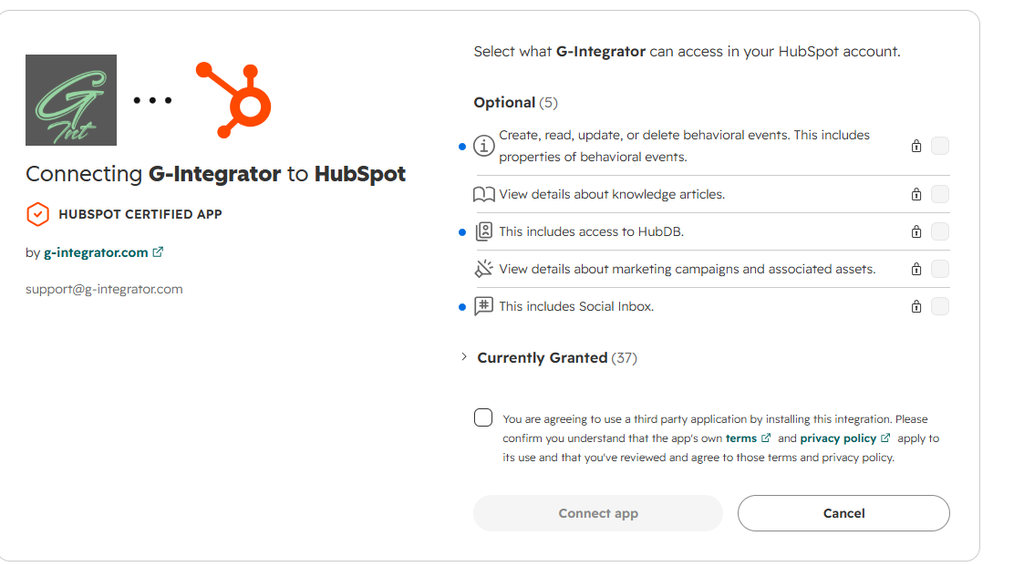
If you manage more than one portal, pick the one you need. You can switch later.
Step 2: Pull contacts, companies, and deals
Next, open Get Data from HubSpot in the add-on menu. In the dialog:
- Pick an object — Contacts, Companies, Deals, or Tickets.
- Select the properties you want as columns.
- Add filters so you only pull the rows you need — for example, deals created this quarter.
- Run the pull.
Your records land in the sheet in seconds, one row per record. Moreover, the add-on saves your choices as a template. As a result, every later pull — manual or scheduled — uses the same object, properties, and filters.
Step 3: Run ready-made HubSpot reports in Google Sheets
This is where the add-on goes far past a plain export. Open:
Get HubSpot Analytics… → Get Custom Reports
Here you will find 35+ built-in reports that HubSpot itself does not offer as flat tables. For example:
- Sales reports — Sales by Customer, Sales by Product, and Sales Detail, built from your invoices and line items.
- Aging and balances — Aged Receivables Detail and Summary, with overdue buckets (Current / 1–30 / 31–60 / 61–90 / 91+), plus Customer Balance reports.
- Transaction lists — invoices, quotes, orders, and deals merged into one clean, date-ordered list.
- CRM activity — contacts, companies, deals, and tickets created over time.
- Marketing breakdowns — sessions, contacts, and customers by traffic source, campaign, form, landing page, or blog post.
Pick a report, choose a date range, and run it. The result lands in your sheet as a tidy table, ready for pivot tables and charts.
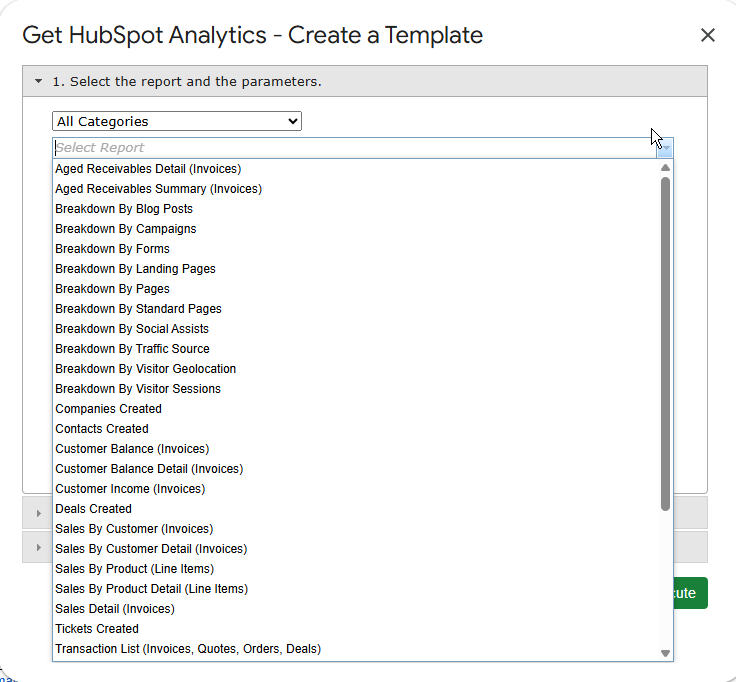
Additionally, you can set a dynamic date range such as “last 30 days.” The report then moves its window forward on every refresh. For the full list, see the report catalog.
Step 4: Schedule automatic refreshes
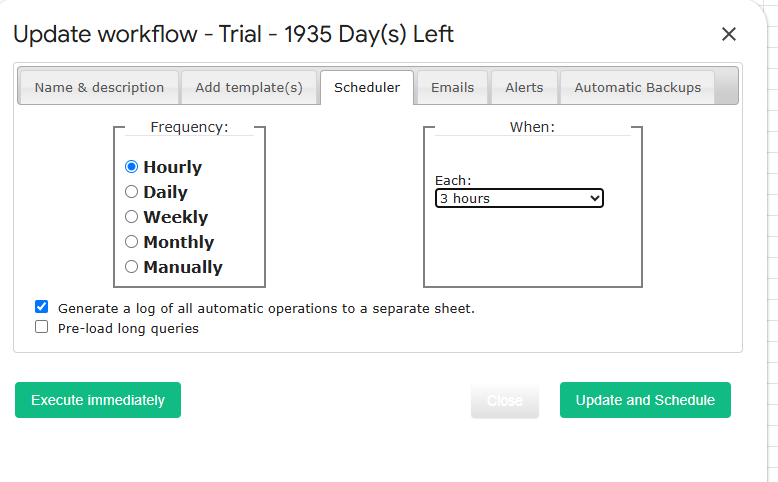
Finally, stop refreshing by hand. Open Workflows in the add-on menu and create a workflow that re-runs your pulls and reports on a schedule — hourly, daily, or weekly.
From then on, your sheet updates itself. Consequently, every chart, pivot table, and dashboard built on top of it stays current too. You can also add email alerts, so your team gets a message when fresh numbers arrive.
Bonus: push updates back to HubSpot
Although this guide focuses on reports, the add-on also works in the other direction. With Upload Data to HubSpot, you can insert, update, or upsert records straight from your sheet, with column-to-property mapping. In other words, you get the two-way part of Operations Hub for the objects that matter, without the price tag. See the upload guide for details.
What does it cost?
G-Integrator for HubSpot comes with a free two-week trial, so you can test every feature — pulls, reports, workflows, and uploads — before you pay. After the trial, Premium plans bill monthly or yearly, and they cost far less than an Operations Hub seat. Check the pricing page for current plans.
Frequently asked questions
Do I need Operations Hub or a paid HubSpot tier for this?
No. The add-on works with every HubSpot tier, including the free CRM. It reads your data through the official HubSpot API.
Can I refresh HubSpot reports in Google Sheets automatically?
Yes. Workflows re-run your pulls and reports on an hourly, daily, or weekly schedule. Dynamic date ranges move forward on their own.
Which HubSpot objects can I pull into a sheet?
Contacts, companies, deals, and tickets, plus invoices, quotes, orders, line items, custom objects, and HubDB tables. The 35+ built-in reports cover sales, aging, balances, CRM activity, and marketing analytics.
Is my HubSpot data safe?
Yes. You sign in through HubSpot’s own consent screen, and the add-on never sees your password. Furthermore, you can revoke access from your HubSpot settings at any time.
Can I write data back to HubSpot from Google Sheets?
Yes. The upload feature inserts, updates, or upserts records from your sheet with column mapping, so you can fix data in bulk without Operations Hub.
Wrap-up
Operations Hub earns its keep when you sync many apps in both directions. For reporting, though, it is too much tool at too high a price. Instead, install G-Integrator for HubSpot, connect your portal, and pull your first report in the next five minutes — the two-week trial gives you full access to see it work with your own data.