
Your HubSpot portal holds years of contact history, deal records, and company data. Yet most teams have no copy of it anywhere else. If someone deletes a list by mistake, or a bad import overwrites a thousand records, that data is simply gone. Fortunately, there is an easy fix: an automatic HubSpot backup to Google Sheets.
In this guide, you will set up a scheduled backup that runs on its own — hourly, daily, weekly, or monthly. Moreover, it keeps working even when the spreadsheet is closed. The whole setup takes about ten minutes, and you never write a single line of code.
Why back up HubSpot data at all?
HubSpot is reliable, but reliability is not the same as protection. Consider these common cases:
- Human error. A teammate merges the wrong contacts or deletes a property. Afterwards, the old values are hard or impossible to restore.
- Bad imports. One faulty CSV import can overwrite thousands of records in seconds.
- Offboarding. When an employee leaves, you may want a snapshot of their pipeline before access changes.
- Audits and reporting. Sometimes you need to prove what a deal looked like last quarter, not what it looks like today.
HubSpot’s own recycle bin helps with some deletions. However, it does not protect you from overwrites, and it does not give you point-in-time history. A scheduled export to Google Sheets does both — and it costs far less than enterprise backup tools.
What you need
- A HubSpot account (any tier works, including the free CRM)
- A Google account with Google Sheets
- The G-Integrator for HubSpot add-on from the Google Workspace Marketplace
The add-on comes with a free two-week trial, so you can test the full backup workflow before you pay anything.
Step 1: Connect HubSpot to Google Sheets
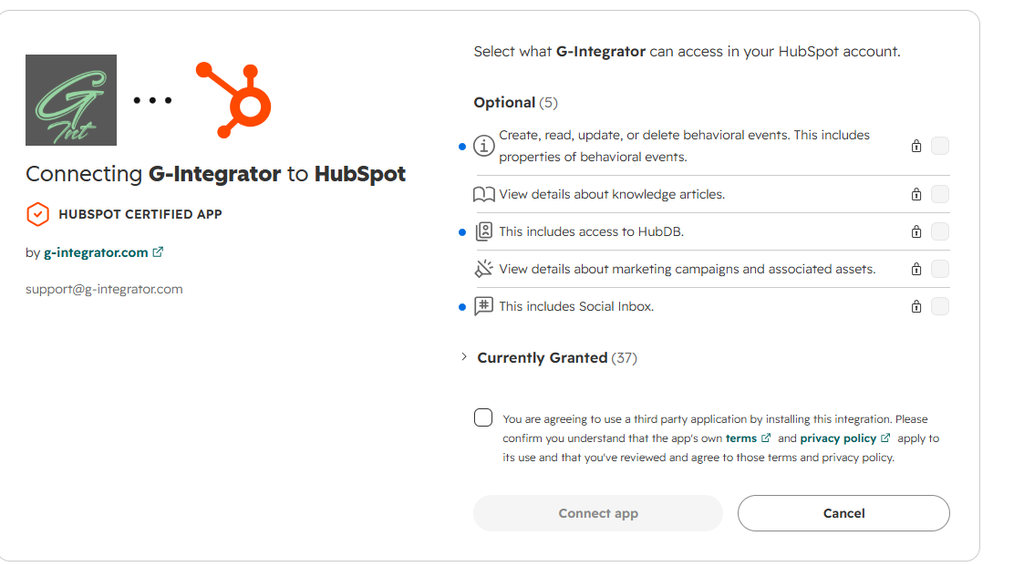
First, install the add-on from the Google Workspace Marketplace. Then open a new spreadsheet and go to Extensions → G-Integrator for HubSpot → Connect. Sign in to HubSpot and approve access. That’s it — the connection is now stored securely, so you only do this once.
Step 2: Build the templates you want to back up
Next, decide which data matters most. For most teams, that means contacts, deals, and companies. For each one:
- Open Get HubSpot Data from the add-on menu.
- Select the object (for example, Contacts) and pick the properties you want to keep.
- Run it once to pull the data into a sheet.
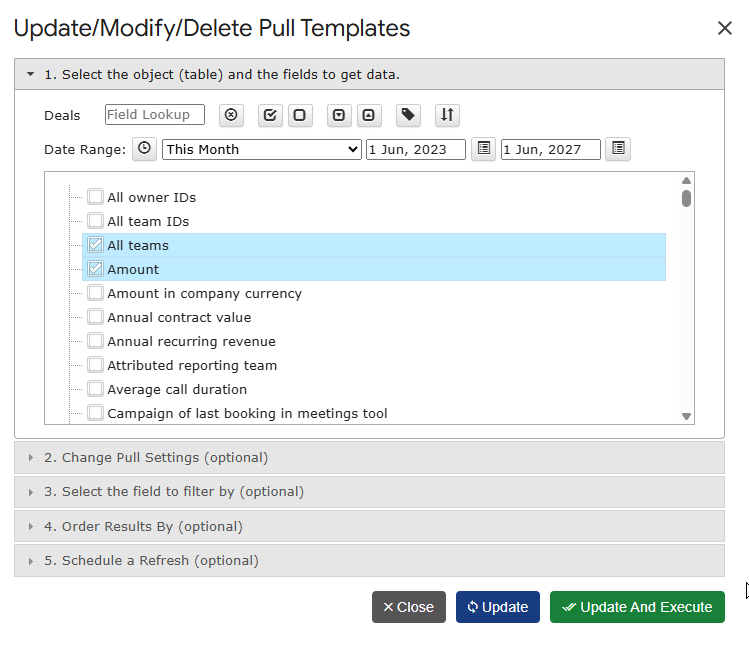
Each pull is saved as a reusable template. As a result, you can rerun any of them with one click via Refresh HubSpot Data — and, more importantly, a schedule can rerun them for you.
Tip: Put each object on its own sheet tab. In other words, one tab for contacts, one for deals, one for companies. This keeps every backup clean and easy to search later.
Step 3: Schedule the automatic backup
Now for the part that makes this a true backup instead of a manual chore. Open Automation… → Create Workflow in the add-on menu. Then:
- Add the templates you built in Step 2 to the workflow.
- Pick a frequency — anywhere from hourly to monthly.
- Set the execution time that suits your team.
- Optionally, turn on email notifications so you know each run has finished.
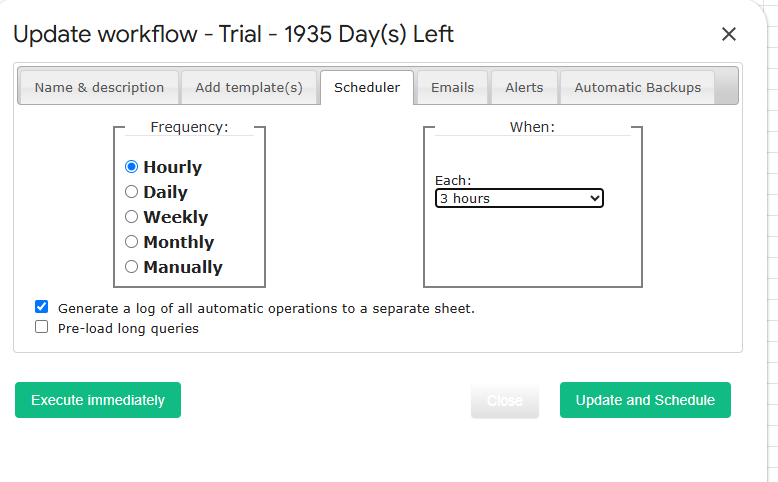
From this point on, the add-on refreshes your data on schedule. Crucially, the refresh runs even when the spreadsheet is closed. You do not need to keep a browser tab open or remember to click anything.
Step 4: Turn on timestamped snapshot copies
A refresh alone overwrites the sheet with current data. That is useful, but a real backup also needs history. Therefore, enable automatic backups in the same Automation… menu: the add-on can create a timestamped copy of the spreadsheet on every refresh.
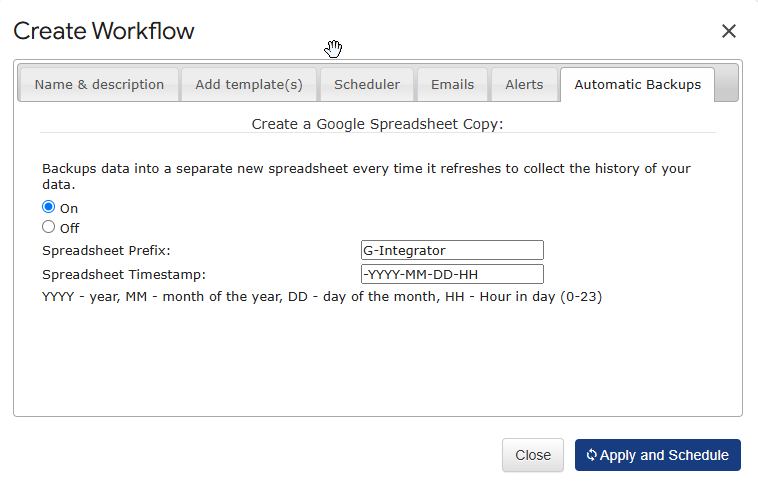
With this option on, you get a growing archive of dated snapshots in Google Drive. Consequently, you can answer questions like “what did this deal look like on March 1st?” just by opening the right copy.
Step 5: Verify and maintain the workflow
Finally, a quick health check keeps everything running smoothly:
- Review your schedules. The Automation… menu lists every spreadsheet with active workflows, so you always know what runs where.
- Repair if needed. If a workflow ever stops (for instance, after a password change), the repair option under Automation… reinitializes the trigger in one click.
- Watch the notifications. If you enabled email alerts, a missing email is your early warning sign.
How often should you back up?
It depends on how fast your data changes. As a rule of thumb:
| Team size / activity | Suggested frequency |
|---|---|
| Small team, slow pipeline | Weekly |
| Active sales team | Daily |
| High-volume portal, frequent imports | Hourly |
Remember that timestamped copies take Drive storage. Because of that, hourly snapshots of a huge portal can add up — daily is the sweet spot for most teams.
Bonus: get alerted when data changes unexpectedly
Backups protect you after something goes wrong. Alerts warn you while it happens. Under the same Automation… menu, you can set cell-value alerts that email you when a number crosses a threshold — for example, when your total contact count suddenly drops. Combined with scheduled backups, this gives you both a warning system and a recovery path.
Frequently asked questions
Does the backup run when my spreadsheet is closed?
Yes. Scheduled workflows run in the background on Google’s servers. You can close the tab, shut your laptop, and the refresh still happens on time.
Can I back up custom properties and custom objects?
Yes. The template builder lets you pick any properties available in your portal, including custom ones. Build a template per object and add them all to one workflow.
Does this work on the free HubSpot plan?
Yes. The add-on works with any HubSpot tier, including the free CRM. No Operations Hub or paid HubSpot add-ons are required.
How much does it cost?
G-Integrator for HubSpot offers a free two-week trial with full functionality. After the trial, you pick a Premium plan — see the pricing page for current rates.
Can I restore data back into HubSpot from a backup?
Yes. The add-on includes Upload Data to HubSpot, so you can push corrected values from a snapshot sheet back into your portal.
Wrap-up
Losing CRM data hurts, and it usually happens without warning. However, a ten-minute setup removes that risk: connect the add-on, build templates for contacts, deals, and companies, schedule a workflow, and switch on timestamped copies. After that, your HubSpot backup to Google Sheets runs itself.
Ready to protect your portal? Install G-Integrator for HubSpot and start your free two-week trial today. For details on schedules, alerts, and repair options, see the Automation & workflows guide in our Help Center.