
Editing records one by one in Zoho CRM is slow. Meanwhile, mass changes come up all the time: reassigning lead owners, fixing phone formats, updating deal stages after a pipeline change, or cleaning imported junk. The good news? You can bulk update Zoho CRM records straight from Google Sheets, where bulk editing is what spreadsheets do best.
In this guide, you will pull records into a sheet, edit them with familiar spreadsheet tools, and then push the changes back to Zoho CRM. No CSV exports, no import wizard, and no code.
Why edit Zoho CRM data in a spreadsheet?
Zoho CRM has a mass update tool, but it changes one field to one value at a time. In contrast, a spreadsheet gives you much more power:
- Formulas. Fix phone formats, split names, or build values from other columns.
- Find and replace. Correct a misspelled company name across 500 records at once.
- Filters and sorting. Isolate exactly the rows that need a change before you touch anything.
- A visible audit trail. You see every value before and after, side by side.
Moreover, the whole edit happens outside the CRM. As a result, nothing changes in Zoho until you explicitly push the rows back.
What you need
- A Zoho CRM account (any edition)
- Google Sheets
- The G-Integrator for Zoho CRM add-on from the Google Workspace Marketplace
The add-on includes a free two-week trial, so you can run a full update cycle before paying anything.
Step 1: Pull the records you want to change
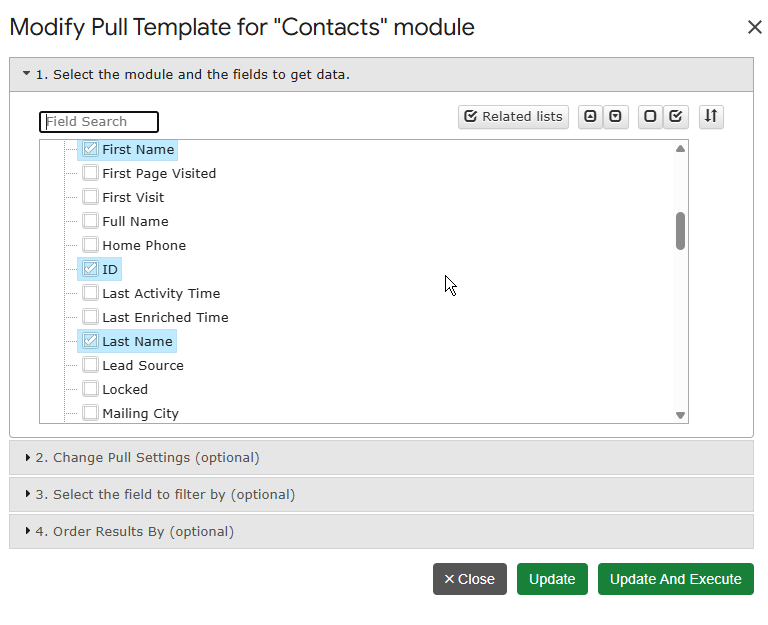
First, open your spreadsheet and connect the add-on to your Zoho account. Then click Get Module Records, pick the module (Contacts, Leads, Accounts, Deals, Tasks, or any custom module), and select the fields you plan to edit in the field tree. Finally, choose a start cell and click Execute.
Two tips make the next steps easier:
- Always include the ID field. The record ID tells Zoho exactly which record to update, so matching is precise.
- Pull only the columns you need. A narrow sheet is faster to edit and faster to upload.
The pull is auto-saved as a refreshable template. Therefore, you can rerun the same selection next week with one click.
Advanced: if you need a precise subset — for example, only leads created last quarter with no owner — use Get Data using COQL instead and write a query with a WHERE clause.
Step 2: Edit the data in bulk
Now the fun part. Because the data sits in Google Sheets, every spreadsheet trick applies:
- Use find and replace to fix a recurring typo.
- Add a helper column with a formula, then paste the results as values into the real column.
- Sort by owner, filter by stage, and change hundreds of cells with one drag-fill.
However, keep two rules in mind. First, never edit the ID column — it is the key that links each row to its Zoho record. Second, keep picklist values exact: Zoho rejects values that do not match the field’s allowed options.
Step 3: Push the changes back to Zoho CRM
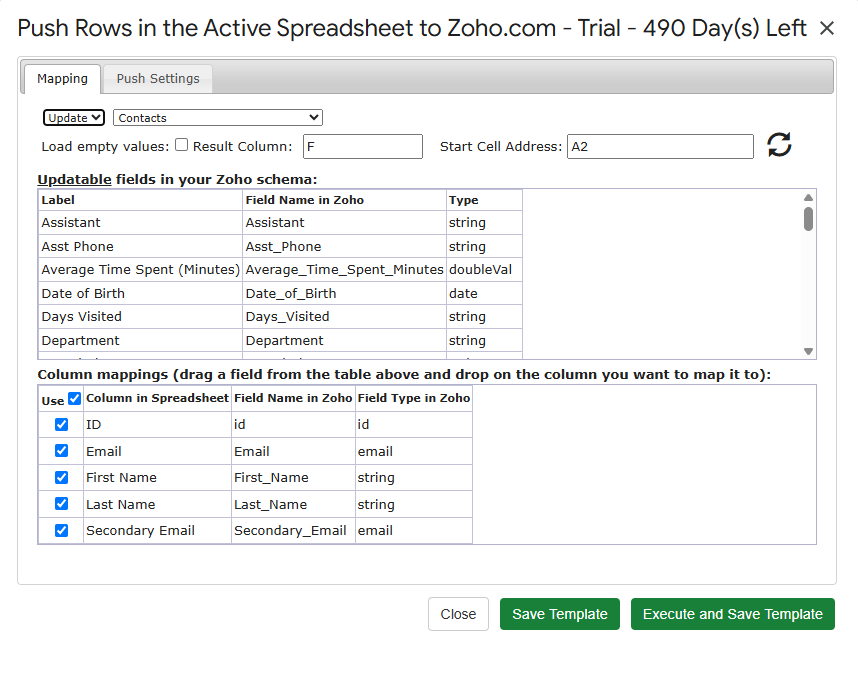
Once the rows look right, select them and click Update / Insert / Upsert Selected Row(s) in the add-on menu. A mapping dialog opens. There, you:
- Map each spreadsheet column to its Zoho field.
- Choose a result column, where the add-on writes a status for every row.
- Click Execute and Save Template.
The mapping is saved as a reusable template. Consequently, the next bulk update takes seconds: pull, edit, select, execute.
Update, insert, or upsert — which one?
- Update changes existing records. Rows must carry a record ID.
- Insert creates new records from the selected rows.
- Upsert does both: it updates a row when a match exists and inserts it otherwise. This is ideal for mixed lists.
Step 4: Check the results
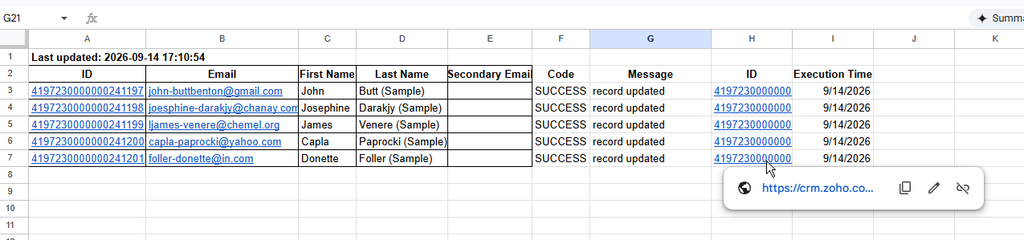
After the push, look at the result column. Each row shows its own status, so a partial failure never hides. If a few rows fail — usually due to a picklist mismatch or a required field — fix just those cells and push only the failed rows again. In other words, you never redo the whole batch.
Common bulk update scenarios
| Scenario | How to do it |
|---|---|
| Reassign lead owner | Pull leads with Owner + ID, replace owner values, update |
| Fix phone formats | Add a formula column, paste as values, update |
| Change deal stages in bulk | Filter deals by stage, edit the Stage column, update |
| Merge cleanup after import | Fix values in Sheets, upsert the corrected list |
| Add new contacts + update old ones | One sheet, one upsert run |
Frequently asked questions
Can I update custom modules and custom fields?
Yes. Get Module Records lists custom modules alongside standard ones, and the mapping dialog shows every field your Zoho edition exposes, including custom fields.
How many records can I update at once?
The add-on processes the rows you select and paginates the work automatically. Large batches simply take a little longer — you do not need to split them by hand.
Will this overwrite fields I did not map?
No. Only mapped columns change. Unmapped Zoho fields keep their current values.
Does this work on the free Zoho CRM edition?
Yes. The add-on works with any Zoho CRM edition. On the G-Integrator side, you get a free two-week trial; after that, pick a plan on the pricing page.
Can I undo a bulk update?
There is no automatic undo. However, an easy safeguard exists: before you push, duplicate the sheet tab. That copy holds the original values, so you can push them back if needed.
Wrap-up
Bulk edits do not have to mean CSV exports and import wizards. Instead, pull records with Get Module Records, clean them with spreadsheet tools, and push them back with Update / Insert / Upsert Selected Row(s). With saved templates on both sides, the second run takes under a minute.
Ready to try it on your own data? Install G-Integrator for Zoho CRM and start your free two-week trial. For the full mapping reference, see the Upload data to Zoho CRM guide in our Help Center.