You probably are aware of the excellent product named Zoho Analytics. In my experience, it’s the best way to get your Zoho CRM reports. And we, in the G-Integrator for CRM, have some limited support of it.
But we understand that not everybody has this product, so we’ve decided to create a more restricted, but still useful service we’ve called “Custom reports”.
Currently, there are only four reports:
Existing vs New Customers Sales Monthly
Existing vs New Customers Sales Yearly
Monthly Sales Report
Closed Revenue Report
Please see the short video how to use them:
We are working on adding more custom reports in the coming weeks. If you want to have some particular report in our custom reports list, please contact us and we will consider it.
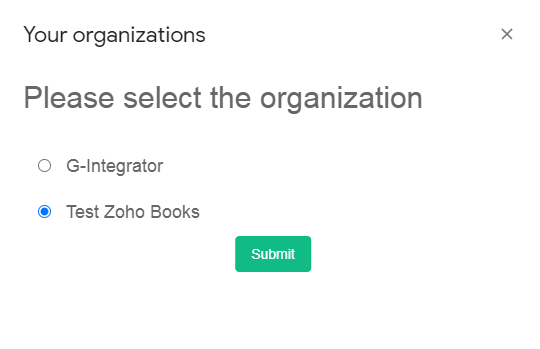
Today we have improved our Zoho Books add-on. Now, if you account have multiple organizations, you will be able to choose which one to use. The previous behavior was to automatically select the default one.
You will be offered the option to choose right after the login to your Zoho Books account. If you already logged in and want to change your organization, you will have to log out / log in (for the first time only).
If you want to switch, click the “Switch Organization” menu option any time.
Dear friends! We are very proud to start our blog with a fascinating and useful feature.
In this post, I will demonstrate how you can integrate your Zoho CRM with another system, using our G-Integrator for Zoho CRM. In this example, I will integrate it with Zoho Books, because we have our G-Integrator for Zoho Books add-on, but it can be anything as long you can write data into the Google Spreadsheet – there are many add-ons on Google marketplace for different systems.
The scenario
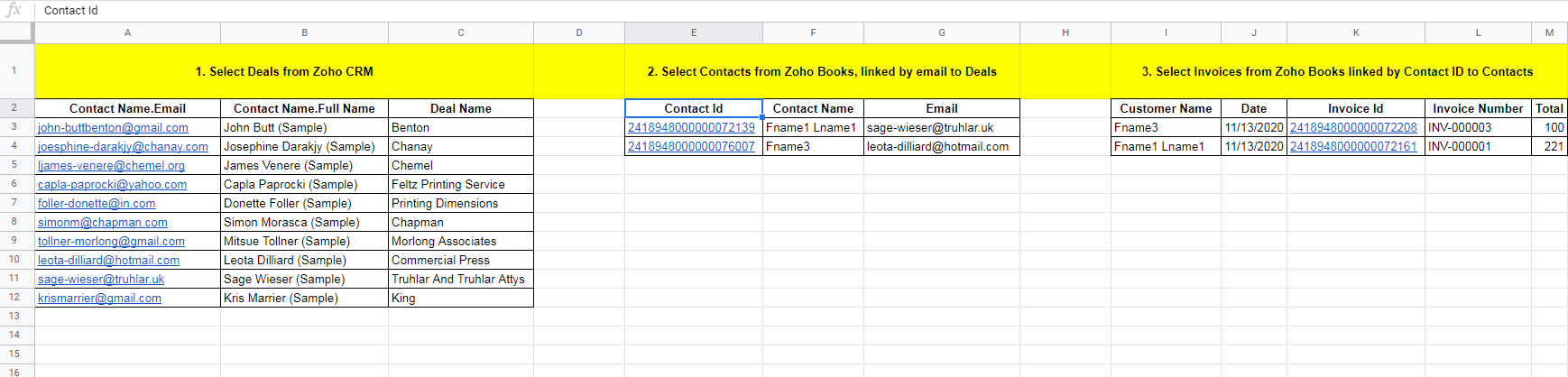
We want to show Zoho Books Invoices for all the contacts from the Zoho CRM Deals.
How to synchronize.
First, we will link contacts from Zoho CRM and Zoho Books by the “Email” field.
Then, we will link Zoho Books Invoices and Zoho Books Contacts by the “Customer ID” field.
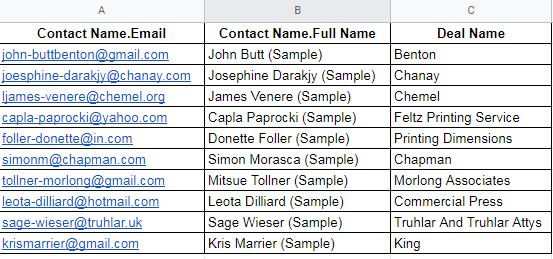
Using the “Zoho CRM” add-on, download the “Deals” module, selecting the following fields:
“Contact Name.Email”
“Contact Name.Full Name”
Deal Name
For the synchronization, we will need only “Contact Name.Email”, other fields are just for convenience.
2. Using the “Zoho Books” add-on, select the “Contacts” module, selecting the following fields (again, we really need only “Contact Id”):
Contact Id
Contact Name
Email
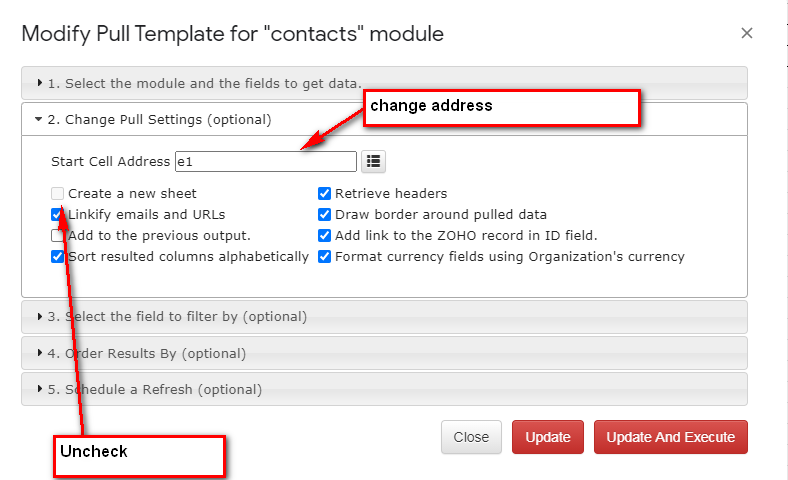
For the convenience, we will update Pull settings to keep it on the same tab
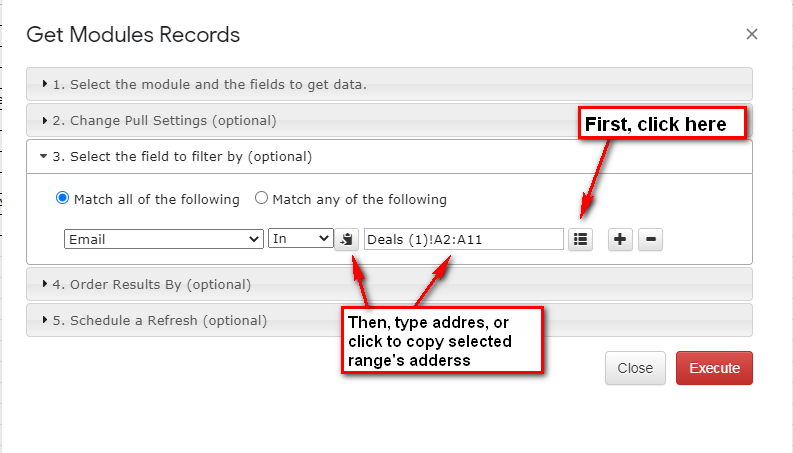
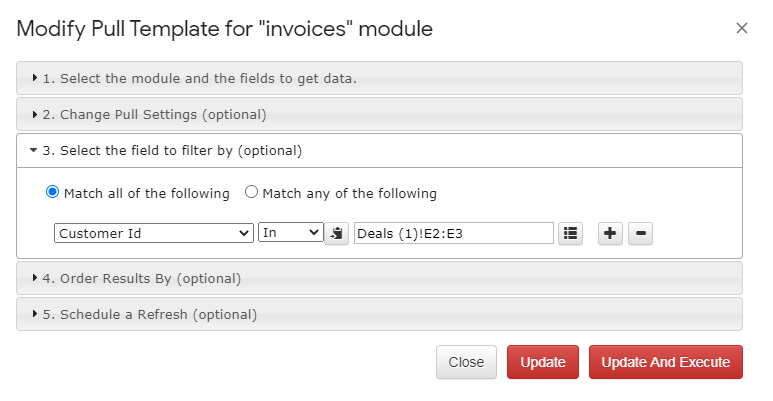
And we will use “Dynamic filters” to select only the records where email is in our Deals emails:
2. Using the “Zoho Books” add-on, select the “Invoices” module, selecting the following fields:
Customer Name
Date
Invoice Id
Invoice Number
Total
And again, we will use dynamic filter to link the “Customer ID (which we do not show) with the “Contact ID” from Contacts
And this is all! Click on the image below to see it full size.
And, if the records from “Deals” will be updated, we just need to refresh Zoho Books queries to update Invoices. Enjoy!
Conclusions
Of course, there are many other ways to use the dynamic filter – you can integrate Zoho CRM not only to Zoho Books but to any other accounting system, like Xero or QBO, using any of the available in the Google Marketplace add-ons. Or you can add data for the integration manually, by copy/paste.
Also, you can integrate modules inside Zoho CRM or Zoho Books – please see the short demo video of the linking Contacts module to the Deals module by Contact.ID in G-Integrator for Zoho CRM:
This is our new functionality and there is a lot to improve. Please help us by sending your requests and bug reports – you will be heard!
You can download G-Integrator for KML Android app from Google Play Store.
The idea to create this application came to me, while I stood near the Tokyo Skytree Station, looking for the location of my Airbnb rental.
We just arrived to the Japan. Behind our backs was 15 hours flight, then waiting in line to pick up our pre-ordered railway passes, and almost 2-hours trip (with 2 connections) from the airport.
And now there was a final segment: 10 min. walk to the rented apartment. And I’ve already spent 30 min., trying to figure out how to get there.
I was well-prepared to navigate in Tokyo: I had Google Map, and, in case I will not be able to connect to the network, I had offline map. Two of them actually.
The problem was, that I had saved location of the apartment in the Google map, and, by some reason, my US phone was not able to pickup the cellular network in Tokyo (later I’ve figured it out). And Google map did not allow to pre-load data for offline use in Tokyo, so, currently, it was useless.
I also had location saved to one of my two offline apps, but this particular app has been recently updated and there was a bug, so I was not able to start it up.
I also had the address of the apartment, printed on paper in plain Japanese. And, of course, I was not able to use it to navigate – I know a few dozen of Japanese words, but cannot type it.
So, finally, I’ve given up and rented a cab, and in a few minutes we were at the apartment.
The Tokyo SkyTree Tower, as we have seen it for the first time.
Two weeks in Japan were fantastic, and, after returning home, I’ve started work on my first Android app (but not my first app at all – of course: I have 25+ years experience of the software development).
The idea is very simple:
You save all your waypoints in the KML or KMZ file. These are formats for Google Earth and Google Maps.
You copy this file to the phone and load it into G-Integrator.
You can see loaded waypoints on the map on your device (and, if you are offline, you can use the cached map, so you still will be able to see it).
You can click on the waypoint, see its description and picture (if available), and send the location if this waypoint to any map/navigation application installed on your device, online or offline – Google Maps, Waze, Sygic, etc.
Today, in August 2017, after about 1 year of development, 68 releases and almost 2500 installations by the customers from over the world (I love you, guys – you make me feeling connected), it can much more – see help page for details. I use this app in all my trips, and after each trip I add some improvement. So stay tuned – it will be fun!