
When we introduced MCP Integrator, we promised more of your stack would be covered. Today the accounting side gets its first expansion: Xero joins the family.
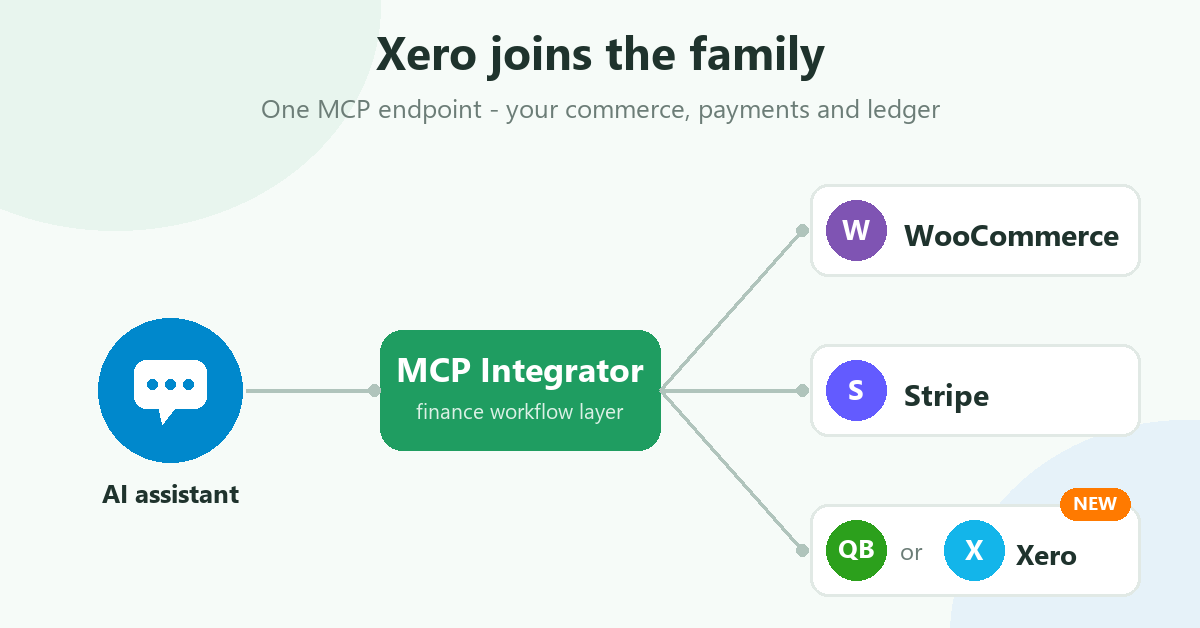
MCP Integrator now connects your AI assistant to WooCommerce, Stripe and your choice of ledger — QuickBooks Online or Xero. One hosted MCP endpoint, the same purpose-built finance tools, and no change to how you work: you ask the question in plain language; the server coordinates the vendor lookups and returns structured evidence the AI can explain.
Your ledger, your choice
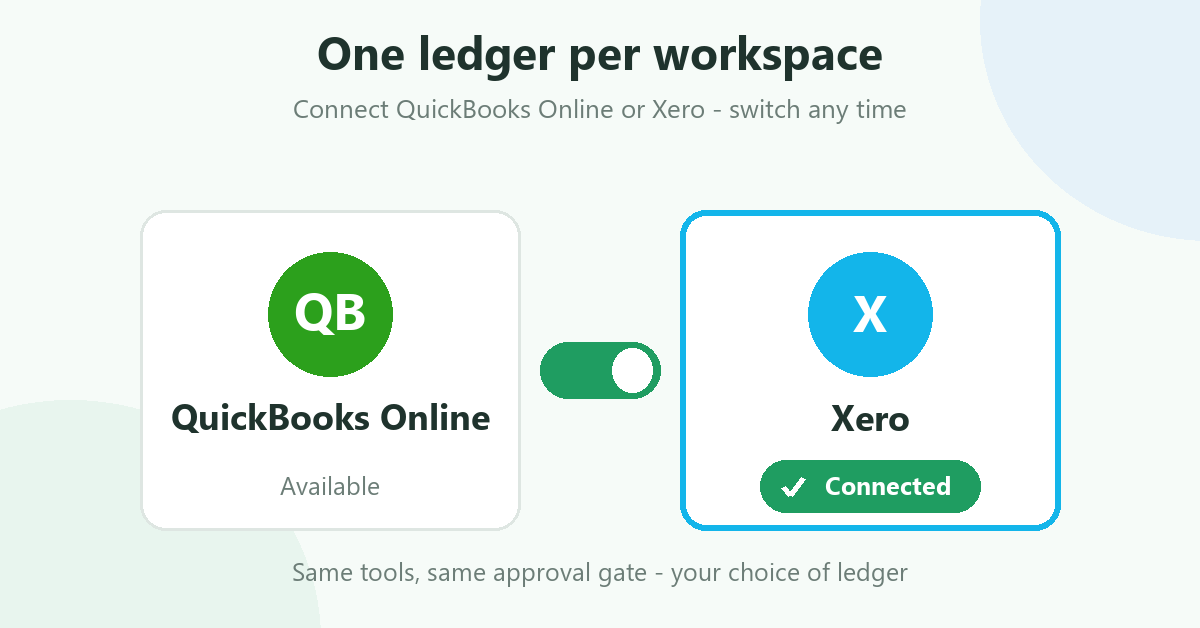
Every workspace connects one ledger — QuickBooks Online or Xero. If your business runs on Xero, you no longer need to adapt: connect it from the workspace connect page and every tool works against it. Want to switch later? Disconnect the current ledger and link the other; the rest of your setup stays in place.
Everything you already know works with Xero
The finance workflow layer is ledger-agnostic, so the whole toolset carries over unchanged:
- Customer 360 — look up a customer by email and bring together commerce activity and invoice standing, now sourced from Xero invoices and payments.
- Order financials — follow the money for a WooCommerce order across payments, refunds and gateway references.
- Payout reconciliation — compare Stripe payouts against transaction evidence, with fees, refunds, matches and variances explained, and a proposed balanced journal entry. Still propose-only by default.
- Run history & unresolved variances — pick up prior investigations instead of starting from scratch.
Approval-gated posting — now to Xero manual journals
Once a payout is reconciled, your assistant can request that it be posted to Xero as a manual journal — but, exactly as with QuickBooks, nothing is ever written to your ledger without an explicit human approval. The post_journal tool opens the request; a person approves it via a one-time email link or the approve tool. Approvals are snapshot-exact and guarded against double-posting: retries, concurrent approvals and repeated clicks all resolve to a single ledger entry.
Before the first posting, bind the four abstract journal roles to real accounts from your Xero chart of accounts on the account-mapping page — a one-time, two-minute step. See the approval-gate guide for the full flow.
Connecting Xero takes a minute
- Open the workspace connect page and click Connect Xero.
- Sign in on Xero’s page, pick the organisation, and approve access. The server requests invoices, payments, contacts and settings (read) plus manual journals and offline access for approval-gated posting.
- You’re redirected back with “Connected Xero” — then ask your assistant to run
connections_statusand confirm every vendor reportsCONNECTED.
The step-by-step instructions live in the Connect your vendors guide.
Security, unchanged
- OAuth 2.1 for AI-client access — no credentials pasted into a chat.
- AES-256 encryption at rest for vendor tokens, HTTPS in transit.
- Workspace isolation keeps your vendor connections and finance data tenant-scoped.
Get started
Premium is available with monthly or annual billing and a 2-week free trial.
👉 Explore the product on the MCP Integrator page, follow the setup guide, or review pricing.
Same questions, same evidence, same human approval gate — now on the ledger your business already runs on.