
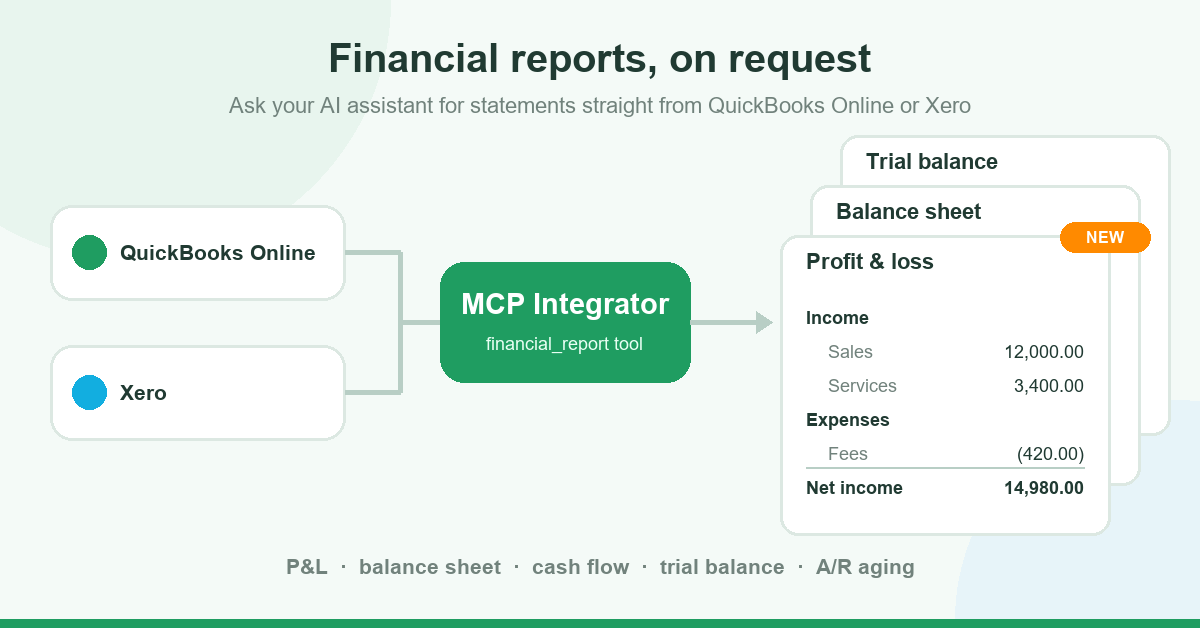
MCP Integrator can now pull financial reports directly from QuickBooks Online and Xero. Ask your AI assistant for a profit and loss statement, a balance sheet, or a customer’s receivables aging, and it gets the report from your connected ledger—no exports, no spreadsheets, and no switching between dashboards.
Until now, MCP Integrator focused on individual records: an order’s money trail, a customer’s standing, or a payout reconciliation. The new financial_report tool adds the big picture, so your assistant can move from “what happened to this order?” to “how did we do last month?” in the same conversation.
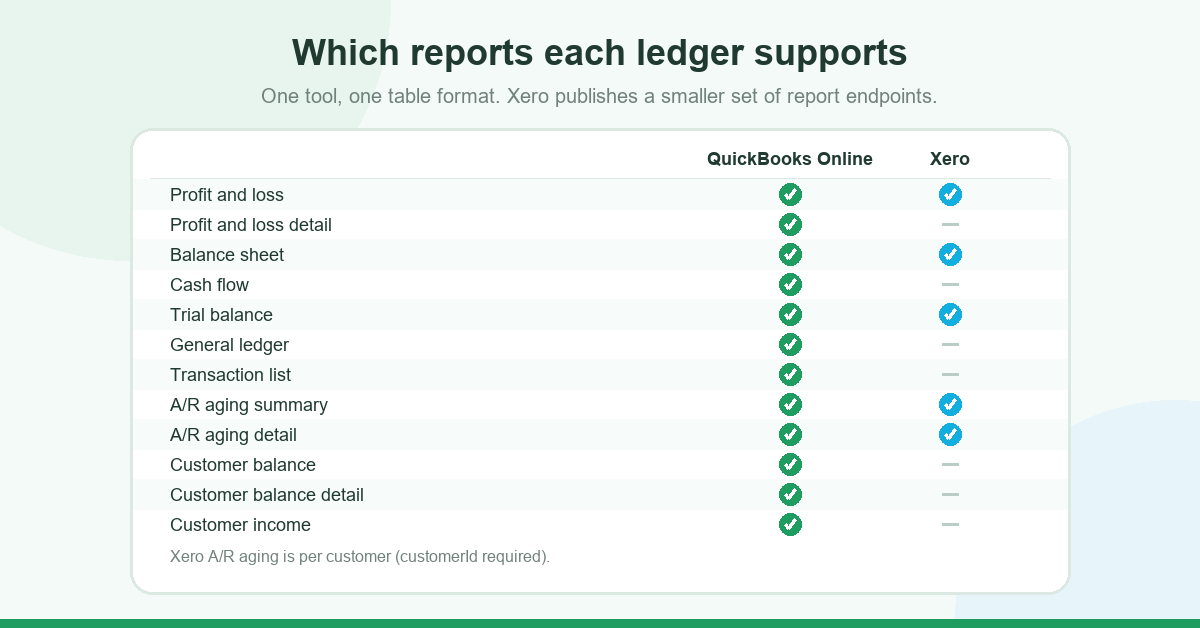
Twelve QuickBooks Online reports, four from Xero
One tool covers statements, ledger detail, and receivables:
- Financial statements: profit and loss (summary and detail), balance sheet, and cash flow.
- Ledger detail: trial balance, general ledger, and transaction list.
- Receivables: A/R aging (summary and detail), customer balance (summary and detail), and customer income.
QuickBooks Online supports all twelve. Xero publishes a smaller set of report endpoints, so with Xero connected you can run the profit and loss, balance sheet, trial balance, and per-customer A/R aging reports.
Your ledger’s numbers, in a format your assistant can read
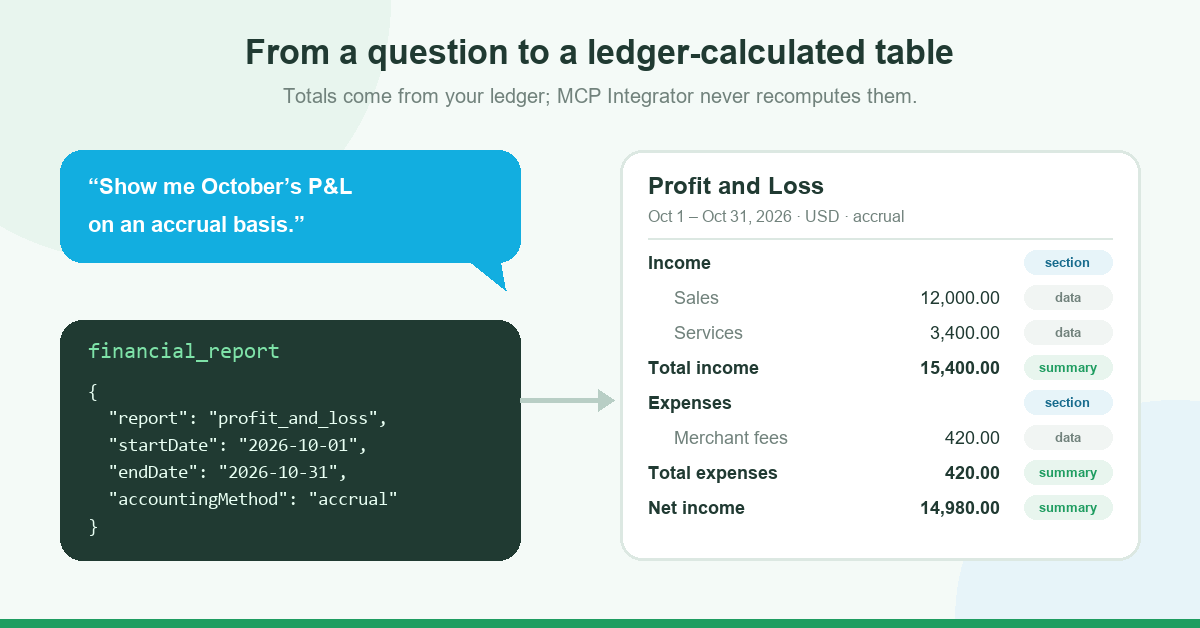
Whichever ledger you use, reports come back in the same structure: column titles plus rows labelled as sections, data lines, or summary totals, with indentation preserved. Your assistant can read the report’s hierarchy, explain it, and compare periods without parsing vendor-specific formats.
The figures come from your ledger. MCP Integrator does not recalculate totals, so the numbers your assistant reports match what you would see in QuickBooks Online or Xero. You can set the period, choose a cash or accrual basis, and narrow customer reports to a single customer. Very large detail reports are capped at 500 rows and clearly flagged as truncated; the ledger’s summary totals remain correct.
Try asking your assistant
- “Show me October’s profit and loss on an accrual basis.”
- “What does the balance sheet look like as of the end of last quarter?”
- “Run a trial balance for this year and point out any accounts that changed sharply.”
- “How overdue is this customer, and which invoices are behind it?”
Combine reports with the existing tools: ask for the month’s P&L, then drill into a specific order with order_financials or a customer’s documents with customer_360.
Read-only by design
Running a report never changes your books. The financial_report tool only reads from your connected ledger, and posting a journal still requires an explicit human approval through the approval gate.
Get started
If QuickBooks Online or Xero is already connected, there is nothing to set up—just ask. Otherwise, add the MCP Integrator server to your AI client and connect your ledger on the vendor connections page. The full list of report types and example responses is in the financial report reference. Explore MCP Integrator or review the available plans.